> ## Documentation Index
> Fetch the complete documentation index at: https://omni.fireflo.au/llms.txt
> Use this file to discover all available pages before exploring further.
# Catalogue
> How to keep your products, prices, stock and pictures in OMNI, sync them to your WhatsApp catalogue, send them in messages and handle orders.
The **Catalogue** battery holds the products you sell: prices, stock, pictures and sets.
You edit them in one place, and OMNI keeps your WhatsApp catalogue, your public catalogue
page and your AI agents in step. Orders from a WhatsApp cart land here as orders.
Your plan must include **Catalogue**.
Open **Catalogue** from the menu. It has five tabs: **Products**, **Sets**, **Orders**,
**In conversations** and **Settings**.
## Products
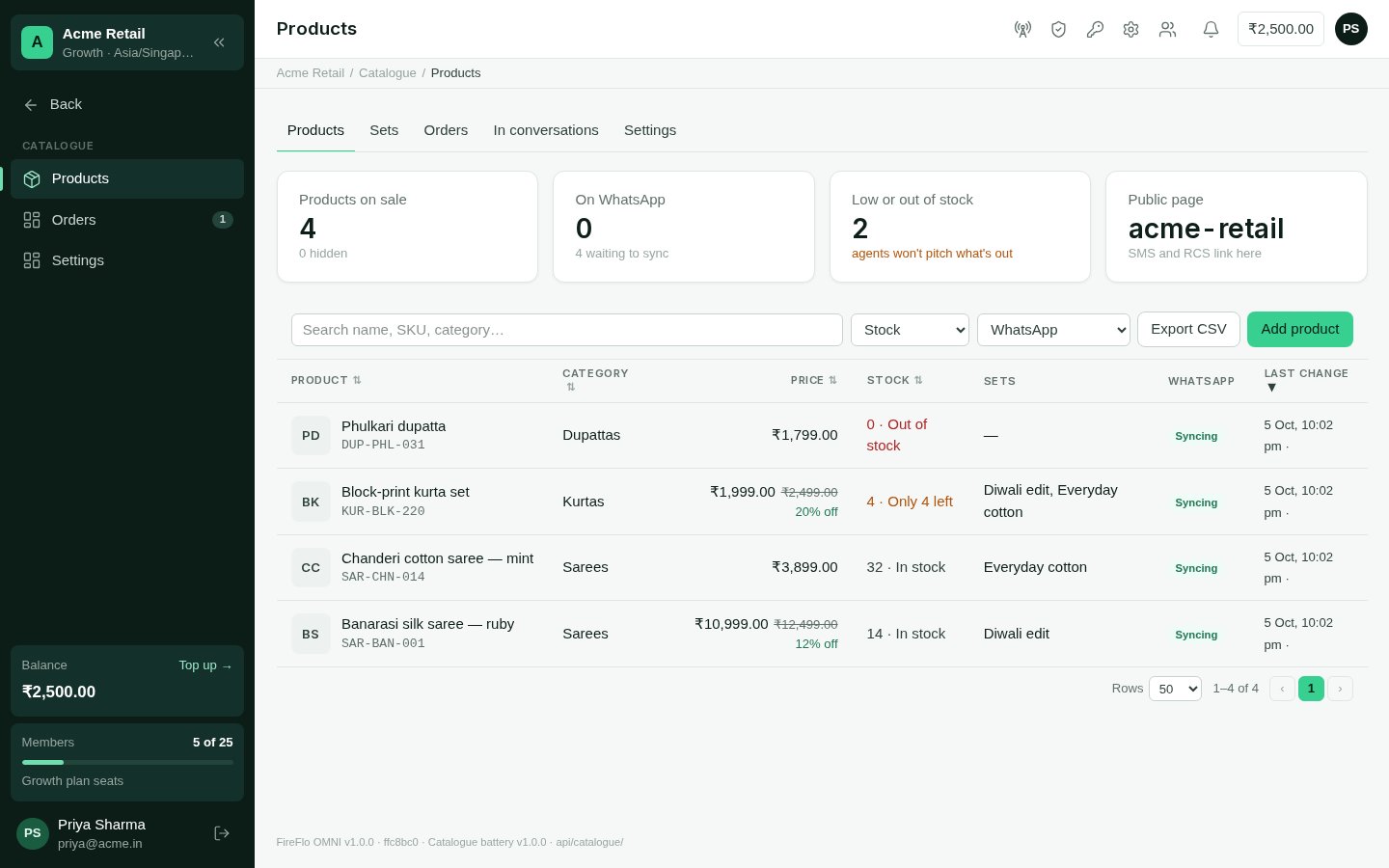
The **Products** tab lists every product with its price, stock and whether it is on
WhatsApp. Search by name, SKU or category, and filter by stock (**Running low**, **Out of
stock**) or by WhatsApp sync (**On WhatsApp**, **Waiting to sync**, **Sync failed**, **Not
on WhatsApp**). **Export CSV** downloads every product.
 ### Add or change a product
Choose **Add product**, or open a product to change it. Save with **Save and sync**.
| Field | What it does |
| - | - |
| **Name** | What customers see. |
| **SKU** | Your product code. WhatsApp calls it the retailer ID; it can't change once the product is on WhatsApp. |
| **Category** | For finding and grouping products. |
| **Description** | Agents quote this. Say what a customer would ask: material, size, care. |
| **Price** / **Sale price** | Leave the sale price empty when it isn't on sale. |
| **Stock** | A number, or empty to not count it — then just **In stock** or out of stock. |
| **On sale** | Off takes the product off sale. |
| **Link on your website** | Optional. Without one, customers get the product's own page on your public catalogue. |
| **Picture** | Square, at least 500 × 500 px; JPG, PNG or WebP, up to 8 MB. WhatsApp shows it in product cards. Save the product first, then add a picture. |
| **Sets** | The sets the product belongs to. |
Beside the form you see the product as a WhatsApp card and its public page link, and
**Changes** — every edit, by people and agents. A change an agent made carries an
**Undo**.
**Take off sale** hides a product from customers and agents. It is kept for orders that
already include it.
## Sets
A **set** is a collection of products an agent or a broadcast can send together — "Diwali
edit", say. A set goes out as one WhatsApp product list, or as one link on SMS and RCS.
## Product messages on each channel
How a product reaches a customer depends on what their channel can do:
| Channel | What the customer gets |
| - | - |
| **WhatsApp on your own number**, with your WhatsApp catalogue connected | Real product cards and product lists they can tap and order from. |
| **WhatsApp on a shared number** | The picture, the price and a link. |
| **SMS** and **RCS** | The names and prices, with a link to your public catalogue page. |
Every product message goes out like any other message on that channel, so consent and
WhatsApp's 24-hour window apply. In a broadcast, `{{catalogue_link}}` leads to your public
catalogue page.
When a customer writes to you from a product card on WhatsApp, the Inbox shows **Asked
about** with the product beside their message.
The **In conversations** tab shows how your own products look to a customer — on
WhatsApp, and on SMS and RCS. Nothing on that tab is sent.
## Orders
**Orders** lists every order, newest first. An order comes from:
* **WhatsApp cart** — a customer orders from your product cards;
* **AI agent** — an agent drafts an order from what the customer asked for, and a person
approves it;
* **By hand**.
Each order keeps its own copy of every line, so a later price change never rewrites what
someone ordered.
### Add or change a product
Choose **Add product**, or open a product to change it. Save with **Save and sync**.
| Field | What it does |
| - | - |
| **Name** | What customers see. |
| **SKU** | Your product code. WhatsApp calls it the retailer ID; it can't change once the product is on WhatsApp. |
| **Category** | For finding and grouping products. |
| **Description** | Agents quote this. Say what a customer would ask: material, size, care. |
| **Price** / **Sale price** | Leave the sale price empty when it isn't on sale. |
| **Stock** | A number, or empty to not count it — then just **In stock** or out of stock. |
| **On sale** | Off takes the product off sale. |
| **Link on your website** | Optional. Without one, customers get the product's own page on your public catalogue. |
| **Picture** | Square, at least 500 × 500 px; JPG, PNG or WebP, up to 8 MB. WhatsApp shows it in product cards. Save the product first, then add a picture. |
| **Sets** | The sets the product belongs to. |
Beside the form you see the product as a WhatsApp card and its public page link, and
**Changes** — every edit, by people and agents. A change an agent made carries an
**Undo**.
**Take off sale** hides a product from customers and agents. It is kept for orders that
already include it.
## Sets
A **set** is a collection of products an agent or a broadcast can send together — "Diwali
edit", say. A set goes out as one WhatsApp product list, or as one link on SMS and RCS.
## Product messages on each channel
How a product reaches a customer depends on what their channel can do:
| Channel | What the customer gets |
| - | - |
| **WhatsApp on your own number**, with your WhatsApp catalogue connected | Real product cards and product lists they can tap and order from. |
| **WhatsApp on a shared number** | The picture, the price and a link. |
| **SMS** and **RCS** | The names and prices, with a link to your public catalogue page. |
Every product message goes out like any other message on that channel, so consent and
WhatsApp's 24-hour window apply. In a broadcast, `{{catalogue_link}}` leads to your public
catalogue page.
When a customer writes to you from a product card on WhatsApp, the Inbox shows **Asked
about** with the product beside their message.
The **In conversations** tab shows how your own products look to a customer — on
WhatsApp, and on SMS and RCS. Nothing on that tab is sent.
## Orders
**Orders** lists every order, newest first. An order comes from:
* **WhatsApp cart** — a customer orders from your product cards;
* **AI agent** — an agent drafts an order from what the customer asked for, and a person
approves it;
* **By hand**.
Each order keeps its own copy of every line, so a later price change never rewrites what
someone ordered.
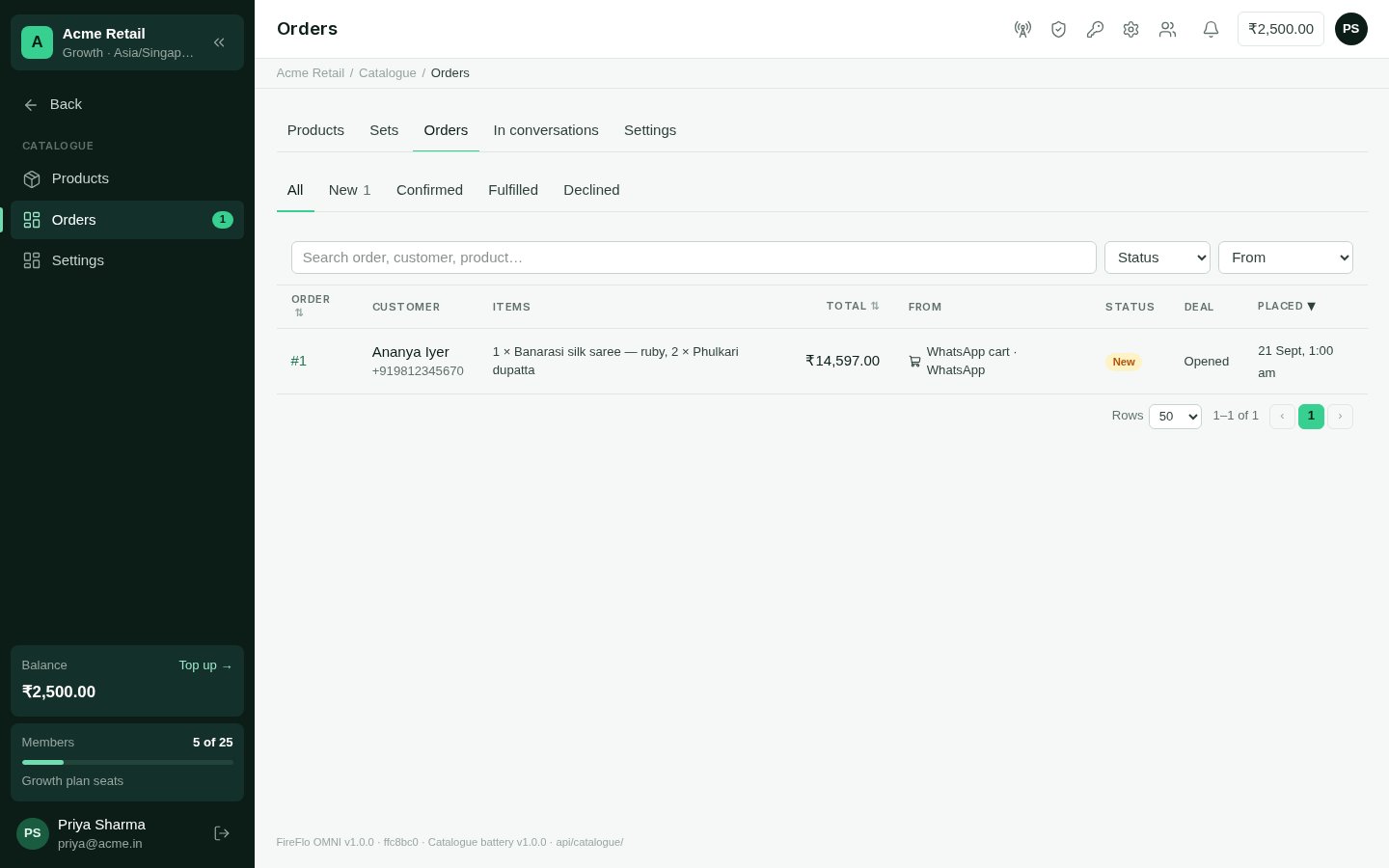 Open an order to see its items, the customer's note, what happened, the customer and —
with [Pipelines](/batteries/pipelines) — its deal. An order is **New**, **Confirmed**,
**Declined**, **Fulfilled** or **Cancelled**.
**Confirm and reply** sends your confirmation message on the channel the order came in
on. **Decline…** lets you write why — "Sorry — that weave is sold out." — and sends it.
When it has gone out, choose **Mark fulfilled**.
## Settings
### WhatsApp catalogue
Products are edited in OMNI and pushed to the Meta catalogue connected to your own
WhatsApp Business Account. Changes made by people or agents reach WhatsApp within a few
minutes.
Create one in Meta Commerce Manager for your WhatsApp Business Account, if you don't
have one.
In **Catalogue → Settings → WhatsApp catalogue**, choose the catalogue and **Connect and
send products**.
**Import from Commerce Manager** pulls the products you already have on WhatsApp.
**Disconnect** stops the sync. Your products stay in OMNI, and nothing on Meta is deleted.
### Public catalogue
The page SMS and RCS messages link to. It shows only products on sale, with no stock
counts. Set its **page name** and copy the **catalogue link**. You can also choose when the
page says "only N left".
### Orders
* **Open a deal for each order** — with Pipelines, each order also opens a deal, so it
moves through a board like other business.
* **Reply when an order is confirmed** — your message, with `{name}`, `{order}` and
`{total}` filled in.
### What agents may do
With [AI Agents](/batteries/ai-agents), this is the default for new agents; each agent's
page can change its own.
| Action | Default |
| - | - |
| Find products — search the catalogue to answer a question | Automatic |
| Send products — a product card, a list, or a link on SMS and RCS | Automatic |
| Add a product — from a message or a photo someone sends | Needs approval |
| Change a product — name, description, price, sale price, stock | Needs approval |
| Take a product off sale | Needs approval |
| Draft an order — from what a customer asked for in the chat | Needs approval |
| Confirm or decline an order | Needs approval |
Agents quote prices and stock exactly as your catalogue gives them, and never pitch a
product that isn't listed. Workflows gain a **Send products** block.
## Who may use Catalogue
| Permission | Lets someone | Roles that have it by default |
| - | - | - |
| See products and orders | Open products, sets, orders and In conversations | Owner, Admin, Support, Viewer |
| Add and change products, sets and settings | Edit products and sets, and change catalogue settings | Owner, Admin |
| Confirm, decline and fulfil orders | Act on orders | Owner, Admin, Support |
An Owner or Admin can change these on the **Roles** screen. See
[Team and roles](/using/team-and-roles).
This documentation is built and hosted on [Mintlify](https://mintlify.com), a developer documentation platform.
Open an order to see its items, the customer's note, what happened, the customer and —
with [Pipelines](/batteries/pipelines) — its deal. An order is **New**, **Confirmed**,
**Declined**, **Fulfilled** or **Cancelled**.
**Confirm and reply** sends your confirmation message on the channel the order came in
on. **Decline…** lets you write why — "Sorry — that weave is sold out." — and sends it.
When it has gone out, choose **Mark fulfilled**.
## Settings
### WhatsApp catalogue
Products are edited in OMNI and pushed to the Meta catalogue connected to your own
WhatsApp Business Account. Changes made by people or agents reach WhatsApp within a few
minutes.
Create one in Meta Commerce Manager for your WhatsApp Business Account, if you don't
have one.
In **Catalogue → Settings → WhatsApp catalogue**, choose the catalogue and **Connect and
send products**.
**Import from Commerce Manager** pulls the products you already have on WhatsApp.
**Disconnect** stops the sync. Your products stay in OMNI, and nothing on Meta is deleted.
### Public catalogue
The page SMS and RCS messages link to. It shows only products on sale, with no stock
counts. Set its **page name** and copy the **catalogue link**. You can also choose when the
page says "only N left".
### Orders
* **Open a deal for each order** — with Pipelines, each order also opens a deal, so it
moves through a board like other business.
* **Reply when an order is confirmed** — your message, with `{name}`, `{order}` and
`{total}` filled in.
### What agents may do
With [AI Agents](/batteries/ai-agents), this is the default for new agents; each agent's
page can change its own.
| Action | Default |
| - | - |
| Find products — search the catalogue to answer a question | Automatic |
| Send products — a product card, a list, or a link on SMS and RCS | Automatic |
| Add a product — from a message or a photo someone sends | Needs approval |
| Change a product — name, description, price, sale price, stock | Needs approval |
| Take a product off sale | Needs approval |
| Draft an order — from what a customer asked for in the chat | Needs approval |
| Confirm or decline an order | Needs approval |
Agents quote prices and stock exactly as your catalogue gives them, and never pitch a
product that isn't listed. Workflows gain a **Send products** block.
## Who may use Catalogue
| Permission | Lets someone | Roles that have it by default |
| - | - | - |
| See products and orders | Open products, sets, orders and In conversations | Owner, Admin, Support, Viewer |
| Add and change products, sets and settings | Edit products and sets, and change catalogue settings | Owner, Admin |
| Confirm, decline and fulfil orders | Act on orders | Owner, Admin, Support |
An Owner or Admin can change these on the **Roles** screen. See
[Team and roles](/using/team-and-roles).
This documentation is built and hosted on [Mintlify](https://mintlify.com), a developer documentation platform.