> ## Documentation Index
> Fetch the complete documentation index at: https://omni.fireflo.au/llms.txt
> Use this file to discover all available pages before exploring further.
# Customer data
> How OMNI's Customer data battery builds audiences and traits, finds and merges duplicate contacts, keeps consent per channel, and takes in events from your website and server.
The **Customer data** battery helps you know who your contacts are and what they want to
hear. It adds audiences that keep themselves up to date, traits worked out from what
people do, duplicate finding and merging, consent per channel with a preference page,
and events from your own website and systems.
Your plan must include **Customer data**. Without it, every contact still keeps its
messages and activity, and a STOP reply still stops messages — on every channel at once.
## Audiences
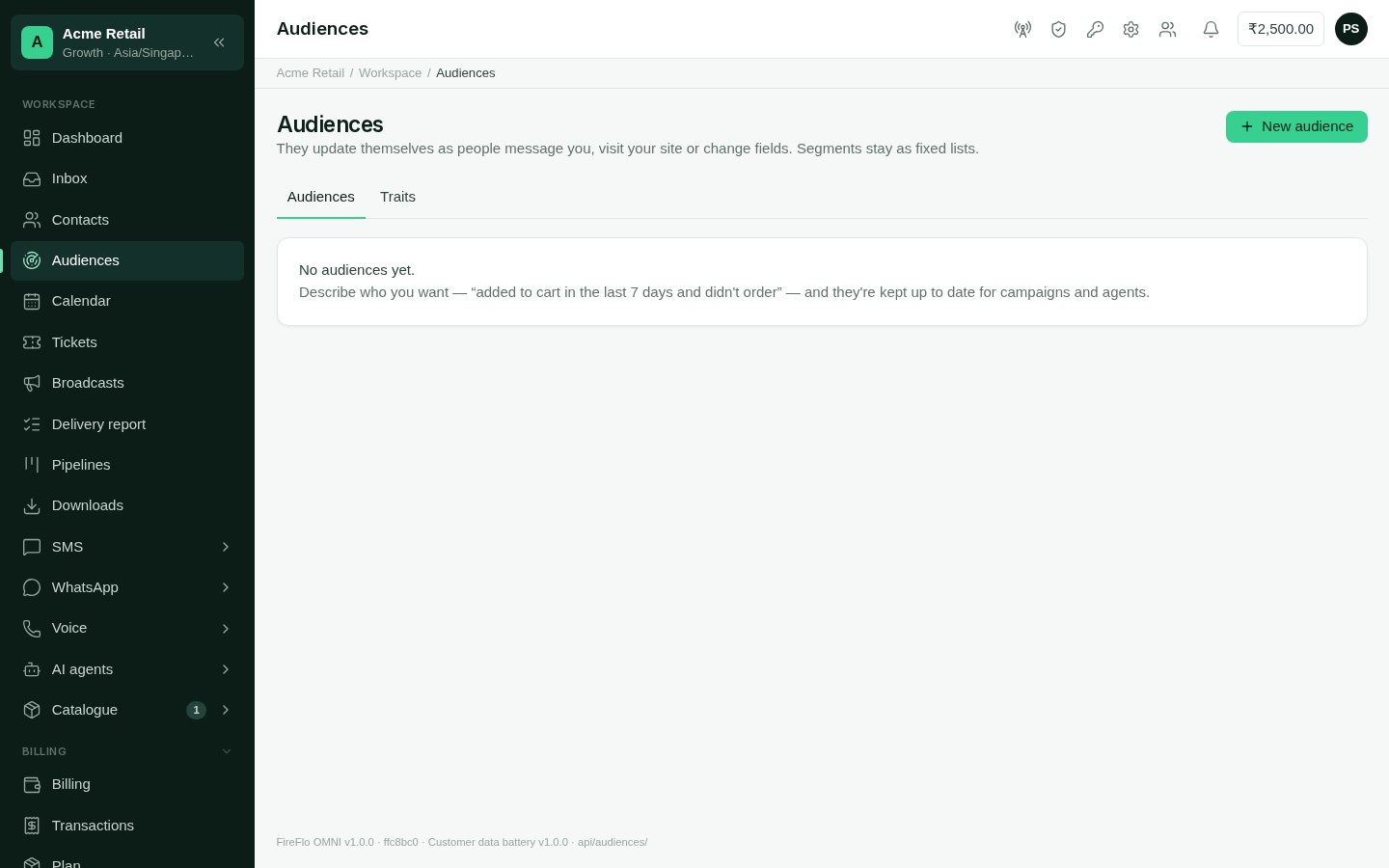
An **audience** is a group of people described by rules — "added to cart in the last 7
days and didn't order". People join and leave as they match, within a few minutes of what
they do. Open **Audiences** from the menu.
 ### Build an audience
Choose **New audience**, and give it a name and, if you like, a description.
Choose whether people must match **all** or **any** of the conditions. You can add up
to 20 conditions in up to 5 groups.
**Matching right now** counts as you edit, and **Sample** shows some of the people.
Choose **Save audience**. OMNI works out who's in, and keeps it current from then on.
| Condition | Matches people who… |
| - | - |
| **Did something** | did, or didn't do, an event — optionally with a property, such as a SKU |
| **Field** | have a contact field with a given value |
| **Tag** | have, or don't have, a tag |
| **Segment** | are, or aren't, in a segment |
| **Trait** | have a trait above, below or equal to a value — see [Traits](#traits) |
| **Consent** | can get marketing, or updates, on a channel |
| **Has email / customer id** | have, or have no, email or customer id |
| **New contact** | became a contact in the last so many days |
| **In another audience** | are, or aren't, in another audience |
**Used in** shows where an audience is used. An audience can be:
* the recipients of a broadcast on SMS, WhatsApp or RCS — see [Broadcasts](/using/broadcasts);
* what starts an AI agent's workflow, when someone joins or leaves it — with
[AI Agents](/batteries/ai-agents);
* a condition in another audience.
## Traits
**Traits** are facts worked out for every contact from their messages, visits and deals.
See them under **Audiences → Traits**, and on each contact's page.
Built-in traits include **Last engaged**, **Last message from them**, **Last message to
them**, messages each way over 90 days, **Reply rate · 90 days**, **Delivered rate · 90
days**, **Preferred channel**, **Lifetime value** and **Open deals** (from
[Pipelines](/batteries/pipelines)), **Activity · 30 days** and **First seen**. Messages on
SMS, WhatsApp and RCS all feed them.
You can add a **custom trait** worked out from an event your website or server sends:
**how many times** it happened, **when it last happened**, or the **total of a number** in
it, over the last so many days — "Cart adds · 30 days", for example.
## Duplicates and merging
OMNI looks for contacts that may be the same person every night: **Same email**, **Same
customer id**, **Same number**, or **Same name and email domain**. When it finds some,
**Possible duplicates** appears on the Contacts screen with a count.
### Build an audience
Choose **New audience**, and give it a name and, if you like, a description.
Choose whether people must match **all** or **any** of the conditions. You can add up
to 20 conditions in up to 5 groups.
**Matching right now** counts as you edit, and **Sample** shows some of the people.
Choose **Save audience**. OMNI works out who's in, and keeps it current from then on.
| Condition | Matches people who… |
| - | - |
| **Did something** | did, or didn't do, an event — optionally with a property, such as a SKU |
| **Field** | have a contact field with a given value |
| **Tag** | have, or don't have, a tag |
| **Segment** | are, or aren't, in a segment |
| **Trait** | have a trait above, below or equal to a value — see [Traits](#traits) |
| **Consent** | can get marketing, or updates, on a channel |
| **Has email / customer id** | have, or have no, email or customer id |
| **New contact** | became a contact in the last so many days |
| **In another audience** | are, or aren't, in another audience |
**Used in** shows where an audience is used. An audience can be:
* the recipients of a broadcast on SMS, WhatsApp or RCS — see [Broadcasts](/using/broadcasts);
* what starts an AI agent's workflow, when someone joins or leaves it — with
[AI Agents](/batteries/ai-agents);
* a condition in another audience.
## Traits
**Traits** are facts worked out for every contact from their messages, visits and deals.
See them under **Audiences → Traits**, and on each contact's page.
Built-in traits include **Last engaged**, **Last message from them**, **Last message to
them**, messages each way over 90 days, **Reply rate · 90 days**, **Delivered rate · 90
days**, **Preferred channel**, **Lifetime value** and **Open deals** (from
[Pipelines](/batteries/pipelines)), **Activity · 30 days** and **First seen**. Messages on
SMS, WhatsApp and RCS all feed them.
You can add a **custom trait** worked out from an event your website or server sends:
**how many times** it happened, **when it last happened**, or the **total of a number** in
it, over the last so many days — "Cart adds · 30 days", for example.
## Duplicates and merging
OMNI looks for contacts that may be the same person every night: **Same email**, **Same
customer id**, **Same number**, or **Same name and email domain**. When it finds some,
**Possible duplicates** appears on the Contacts screen with a count.
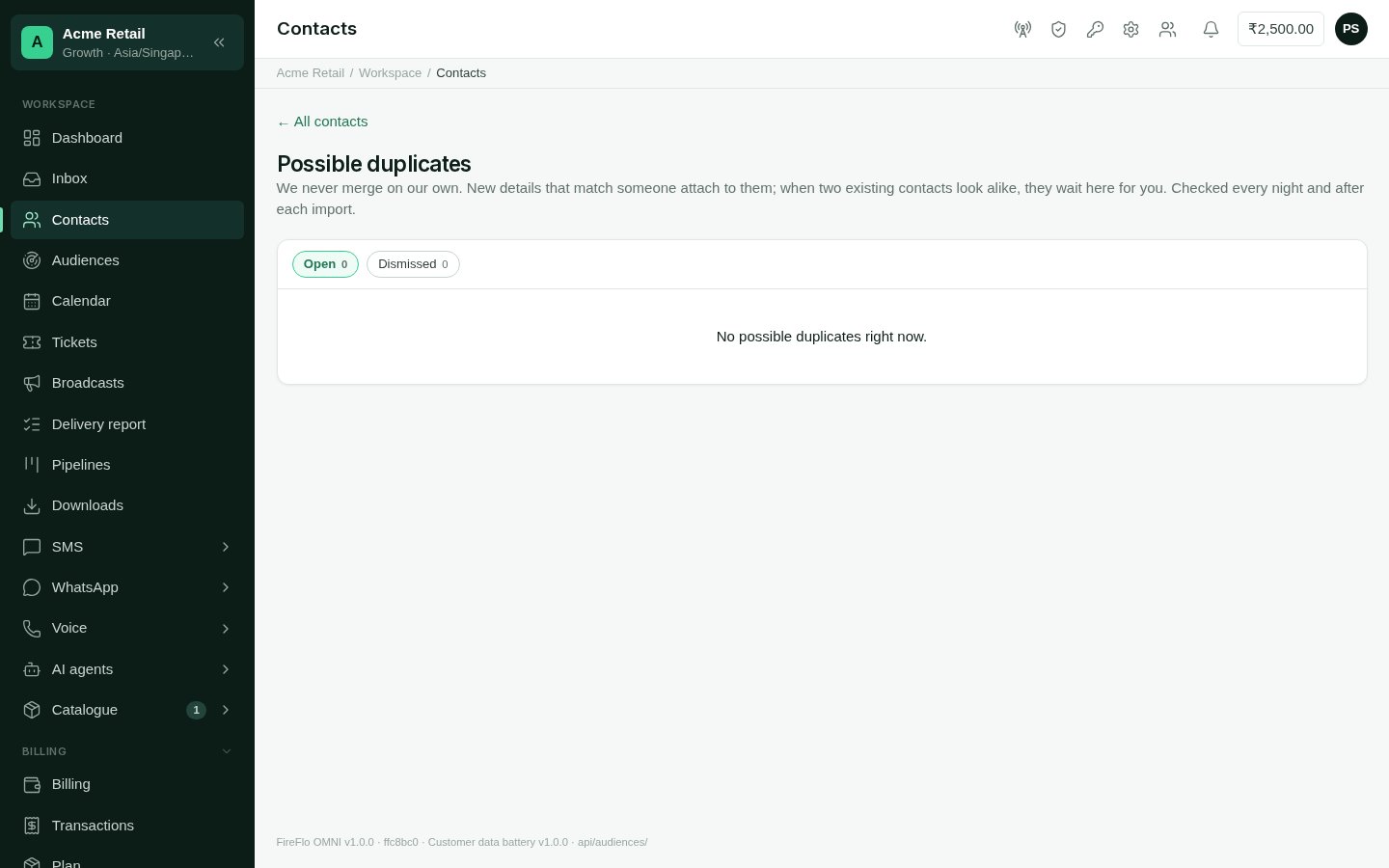 Each pair shows both contacts, why they look alike and how many messages each has. The
one with more history is offered as the one to keep.
Choose **Merge** on the pair.
Where the two differ, pick which value to keep. Everything else from both is kept.
The other contact's history moves to the one you keep. If both have an open ticket,
the older one is solved as merged.
**Not the same** dismisses a pair; you can still see dismissed pairs.
On a contact's page, **Identity** lists every way OMNI recognises them — extra phone
numbers, email, customer id — and lets you add another.
## Consent per channel
With Customer data, consent is kept per channel and per kind of message:
* **Marketing** — campaigns, promotional templates, offers;
* **Updates** — replies, order and appointment updates.
Someone can stop marketing on WhatsApp and keep getting it on SMS, or stop SMS updates
without stopping everything. Without the battery, STOP stops every channel. Voice is a
channel people can stop too, so someone can stop calls without stopping messages.
Every change is recorded with where it came from — a keyword reply, the preference page,
an import, your server, your team or a merge — and is never edited. On a contact's page,
the **Consent** card shows where they stand on each channel, and **Change consent** lets
your team record a change. A reason is required, and kept as proof.
Each pair shows both contacts, why they look alike and how many messages each has. The
one with more history is offered as the one to keep.
Choose **Merge** on the pair.
Where the two differ, pick which value to keep. Everything else from both is kept.
The other contact's history moves to the one you keep. If both have an open ticket,
the older one is solved as merged.
**Not the same** dismisses a pair; you can still see dismissed pairs.
On a contact's page, **Identity** lists every way OMNI recognises them — extra phone
numbers, email, customer id — and lets you add another.
## Consent per channel
With Customer data, consent is kept per channel and per kind of message:
* **Marketing** — campaigns, promotional templates, offers;
* **Updates** — replies, order and appointment updates.
Someone can stop marketing on WhatsApp and keep getting it on SMS, or stop SMS updates
without stopping everything. Without the battery, STOP stops every channel. Voice is a
channel people can stop too, so someone can stop calls without stopping messages.
Every change is recorded with where it came from — a keyword reply, the preference page,
an import, your server, your team or a merge — and is never edited. On a contact's page,
the **Consent** card shows where they stand on each channel, and **Change consent** lets
your team record a change. A reason is required, and kept as proof.
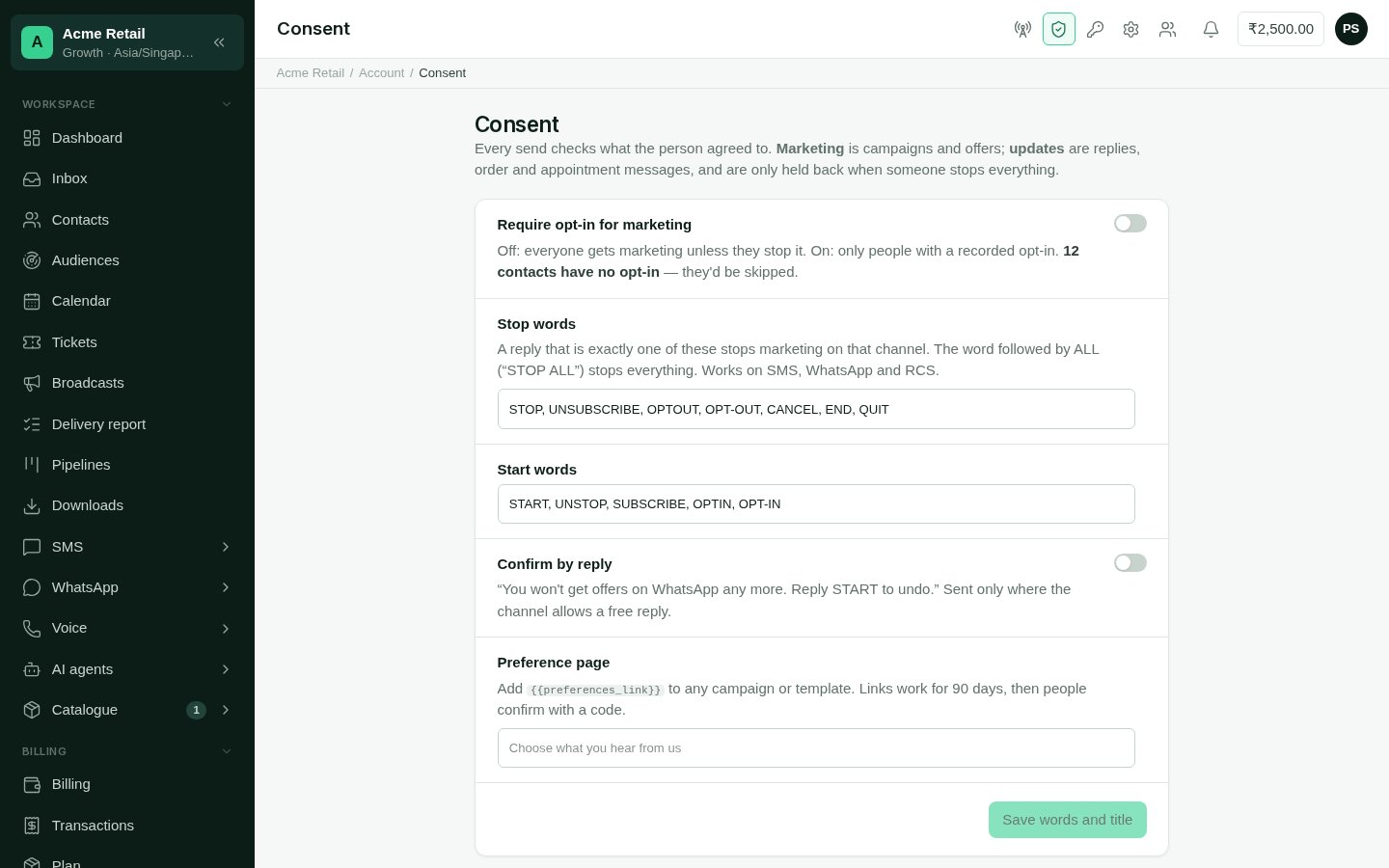 Open **Settings → Consent** to set how it works for your account:
| Setting | What it does |
| - | - |
| **Require opt-in for marketing** | Off: everyone gets marketing unless they stop it. On: only people with a recorded opt-in for that channel get marketing. The screen shows how many contacts have no opt-in and would be skipped. |
| **Stop words** | A reply that is exactly one of these stops marketing on that channel. The word followed by ALL ("STOP ALL") stops everything. Works on SMS, WhatsApp and RCS, beside the usual STOP. |
| **Start words** | Replies that start messages again, beside the usual START. |
| **Confirm by reply** | Sends a confirmation — "You won't get offers on WhatsApp any more. Reply START to undo." — where the channel allows a free reply. |
| **Preference page** | The page title people see. |
**Held back · 7 days** lists campaigns that skipped people who stopped or didn't opt in.
### The preference page
Add `{{preferences_link}}` to any broadcast or template. It opens a page where the person
chooses what they hear from you:
* **Offers** on each channel your account has, one switch each;
* **Order and appointment updates**, which are always on;
* **Stop all messages**.
Links work for 90 days. After that, the person confirms their mobile number with a code.
A contact's own link is also on their **Consent** card.
## Data sources
**Settings → Data sources** takes in what customers do on your website and in your own
systems. Events join the contact they belong to and show on their timeline; they can feed
audiences and custom traits.
Open **Settings → Consent** to set how it works for your account:
| Setting | What it does |
| - | - |
| **Require opt-in for marketing** | Off: everyone gets marketing unless they stop it. On: only people with a recorded opt-in for that channel get marketing. The screen shows how many contacts have no opt-in and would be skipped. |
| **Stop words** | A reply that is exactly one of these stops marketing on that channel. The word followed by ALL ("STOP ALL") stops everything. Works on SMS, WhatsApp and RCS, beside the usual STOP. |
| **Start words** | Replies that start messages again, beside the usual START. |
| **Confirm by reply** | Sends a confirmation — "You won't get offers on WhatsApp any more. Reply START to undo." — where the channel allows a free reply. |
| **Preference page** | The page title people see. |
**Held back · 7 days** lists campaigns that skipped people who stopped or didn't opt in.
### The preference page
Add `{{preferences_link}}` to any broadcast or template. It opens a page where the person
chooses what they hear from you:
* **Offers** on each channel your account has, one switch each;
* **Order and appointment updates**, which are always on;
* **Stop all messages**.
Links work for 90 days. After that, the person confirms their mobile number with a code.
A contact's own link is also on their **Consent** card.
## Data sources
**Settings → Data sources** takes in what customers do on your website and in your own
systems. Events join the contact they belong to and show on their timeline; they can feed
audiences and custom traits.
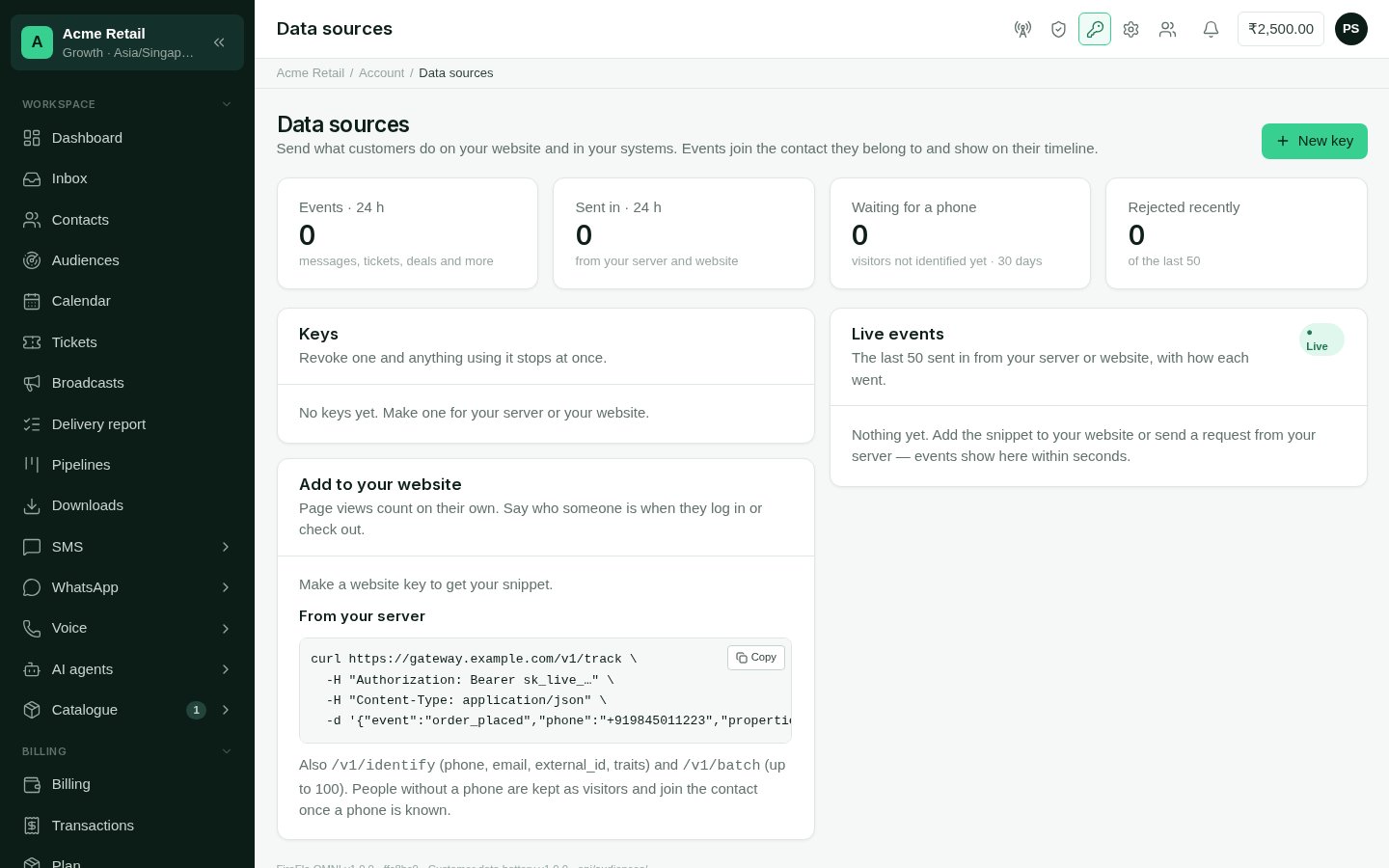 The screen shows events in the last 24 hours, how many were sent in from your server and
website, visitors waiting for a phone number, and recent rejections. **Live events** lists
the last 50 sent in, with how each went.
### Keys
Choose **New key** and say where it is used:
| Key | Where it goes | What it can do |
| - | - | - |
| **Your server** | Your own backend | Send any event. It is secret and shown once — keep it on your server. |
| **A website** | Your website's HTML | It is public, and works only from the websites you list. Listing a domain also covers its subdomains. |
Revoke a key and anything using it stops at once.
### Sending events
* **From your website**: make a website key to get your snippet, and add it to your pages.
Page views count on their own. Say who someone is when they log in or check out.
* **From your server**: the screen shows a ready example with your key. You can identify
people (by phone, email or customer id, with traits), send single events, or send up to
100 at a time.
People without a phone number are kept as visitors, and join the contact once a phone is
known.
## Who may use Customer data
| What | Who, by default |
| - | - |
| See audiences, traits, duplicates and consent | Anyone who can see contacts |
| Create, change and delete audiences | Owner, Admin |
| Merge contacts, record consent, add custom traits | Anyone who can change contacts |
| Change consent settings | Anyone who can change the account's settings — Owner and Admin |
| Manage data source keys | Owner, Admin |
An Owner or Admin can change these on the **Roles** screen. See
[Team and roles](/using/team-and-roles).
This documentation is built and hosted on [Mintlify](https://mintlify.com), a developer documentation platform.
The screen shows events in the last 24 hours, how many were sent in from your server and
website, visitors waiting for a phone number, and recent rejections. **Live events** lists
the last 50 sent in, with how each went.
### Keys
Choose **New key** and say where it is used:
| Key | Where it goes | What it can do |
| - | - | - |
| **Your server** | Your own backend | Send any event. It is secret and shown once — keep it on your server. |
| **A website** | Your website's HTML | It is public, and works only from the websites you list. Listing a domain also covers its subdomains. |
Revoke a key and anything using it stops at once.
### Sending events
* **From your website**: make a website key to get your snippet, and add it to your pages.
Page views count on their own. Say who someone is when they log in or check out.
* **From your server**: the screen shows a ready example with your key. You can identify
people (by phone, email or customer id, with traits), send single events, or send up to
100 at a time.
People without a phone number are kept as visitors, and join the contact once a phone is
known.
## Who may use Customer data
| What | Who, by default |
| - | - |
| See audiences, traits, duplicates and consent | Anyone who can see contacts |
| Create, change and delete audiences | Owner, Admin |
| Merge contacts, record consent, add custom traits | Anyone who can change contacts |
| Change consent settings | Anyone who can change the account's settings — Owner and Admin |
| Manage data source keys | Owner, Admin |
An Owner or Admin can change these on the **Roles** screen. See
[Team and roles](/using/team-and-roles).
This documentation is built and hosted on [Mintlify](https://mintlify.com), a developer documentation platform.