> ## Documentation Index
> Fetch the complete documentation index at: https://omni.fireflo.au/llms.txt
> Use this file to discover all available pages before exploring further.
# Pipelines
> How to track deals in OMNI with pipelines: the board and list, a deal's page, stages, and the record of every change.
The **Pipelines** battery adds pipelines and deals. A **pipeline** is a series of stages a
piece of business moves through — New, Contacted, Proposal, Won. A **deal** is one piece
of business with one contact, sitting in one stage. Messages with the contact, on any
channel, show on the deal.
Your plan must include **CRM** (the plan's name for Pipelines).
## The board and the list
Open **Pipelines** from the menu. Each pipeline is a tab. **+ Pipeline** creates a new one,
which starts with the stages New, Contacted, Proposal and Won.
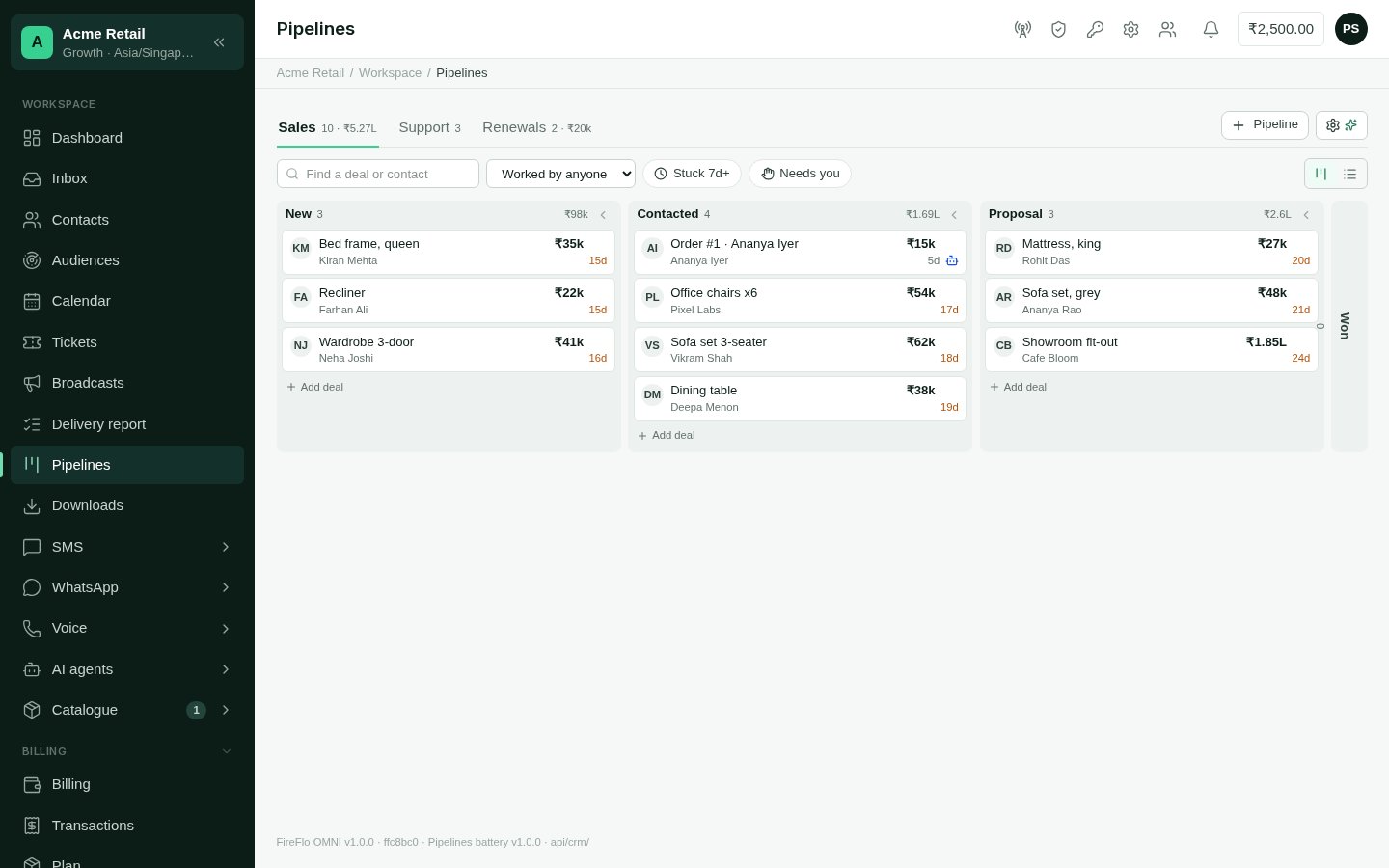 Switch between two views:
* **Board** — a column for each stage. Drag a deal to another column to move it. Each card
shows the deal, its value, its contact's channel and how long it has sat in the stage.
* **List** — every deal in rows.
**Find a deal or contact** searches the pipeline. With [AI Agents](/batteries/ai-agents),
**Worked by** shows the deals one agent works, or those with **No agent**, and a card shows
when its deal needs a person, waits for approval or has a paused agent.
Closed deals stay in their closing stage; you can show those closed in other stages too.
### Add a deal
Choose **Add deal** at the foot of a stage column.
Give it a title — "Sofa set, grey" — and, if you know it, a value.
On the deal's page, choose **Link a contact** and find them by name or number.
## A deal's page
Open a deal to see everything about it.
* **The top** — the deal's title, status (**Open**, **Won** or **Lost**), value and stage.
Mark it **Won** or **Lost**, or **Reopen** a closed deal. **Delete deal** removes it with
its notes.
* **Timeline** — notes, messages, campaigns and changes, newest first. Show **All**, or only
**Changes**, **Messages**, **Campaigns** or **Notes**. Add a note about the deal here.
Messages are named by the channel they came on.
* **Contact** — who the deal is with, and whether they have opted out. **Change** links
someone else.
* **Campaigns** — the broadcasts linked to the deal. OMNI links the last campaign that
reached the contact in the week before the deal opened; you can link another.
* **Other deals** — the contact's other deals.
With AI Agents, the deal's page also shows what its agent will do next, with a way to
approve its plan when one is waiting.
A contact's deals also appear on their contact page, and beside their thread in the Inbox
on SMS, WhatsApp and RCS alike. The dashboard shows pipeline figures.
## Stages
Open a pipeline's settings from the cog beside its tab. **Stages** lets you add, rename,
reorder and delete stages.
A stage can be a **closing stage**: **Closes as won** or **Closes as lost**. A deal moved
there is won or lost, and a deal marked won or lost moves there. A pipeline has at most one
of each. Every other stage is an **Open stage**.
**General** holds the pipeline's name, its place among the tabs, and **Delete this
pipeline**.
## Activity
**Activity**, in a pipeline's settings, lists what changed in the pipeline — deals created,
moved, won, lost or reopened, values and titles changed, contacts changed, deals deleted,
and stages added, renamed, reordered or deleted — by people and by AI agents. Show **All**,
only **AI agents**, or only **People**.
A change an AI agent made carries **Revert**, with a one-line confirmation. When it can't
be reverted, a lock says why. After a revert, the agent plans the deal again.
## With AI agents
When your plan also includes [AI Agents](/batteries/ai-agents), a pipeline's settings gain:
* **Agents and strategy** — how agents work deals in this pipeline: its goal, a playbook
for each stage, approval rules and a token budget. These override each agent's own
settings.
* **Build with AI** — describe how the pipeline works and AI suggests its stages and a
strategy. Nothing changes until you apply.
## Who may use Pipelines
| Permission | Lets someone | Roles that have it by default |
| - | - | - |
| See pipelines and deals | Open pipelines, deals and their activity | Owner, Admin, Support, Viewer |
| Create and move deals and manage pipelines | Add, move, change and delete deals; create and change pipelines and stages | Owner, Admin, Support |
An Owner or Admin can change these on the **Roles** screen. See
[Team and roles](/using/team-and-roles).
This documentation is built and hosted on [Mintlify](https://mintlify.com), a developer documentation platform.
Switch between two views:
* **Board** — a column for each stage. Drag a deal to another column to move it. Each card
shows the deal, its value, its contact's channel and how long it has sat in the stage.
* **List** — every deal in rows.
**Find a deal or contact** searches the pipeline. With [AI Agents](/batteries/ai-agents),
**Worked by** shows the deals one agent works, or those with **No agent**, and a card shows
when its deal needs a person, waits for approval or has a paused agent.
Closed deals stay in their closing stage; you can show those closed in other stages too.
### Add a deal
Choose **Add deal** at the foot of a stage column.
Give it a title — "Sofa set, grey" — and, if you know it, a value.
On the deal's page, choose **Link a contact** and find them by name or number.
## A deal's page
Open a deal to see everything about it.
* **The top** — the deal's title, status (**Open**, **Won** or **Lost**), value and stage.
Mark it **Won** or **Lost**, or **Reopen** a closed deal. **Delete deal** removes it with
its notes.
* **Timeline** — notes, messages, campaigns and changes, newest first. Show **All**, or only
**Changes**, **Messages**, **Campaigns** or **Notes**. Add a note about the deal here.
Messages are named by the channel they came on.
* **Contact** — who the deal is with, and whether they have opted out. **Change** links
someone else.
* **Campaigns** — the broadcasts linked to the deal. OMNI links the last campaign that
reached the contact in the week before the deal opened; you can link another.
* **Other deals** — the contact's other deals.
With AI Agents, the deal's page also shows what its agent will do next, with a way to
approve its plan when one is waiting.
A contact's deals also appear on their contact page, and beside their thread in the Inbox
on SMS, WhatsApp and RCS alike. The dashboard shows pipeline figures.
## Stages
Open a pipeline's settings from the cog beside its tab. **Stages** lets you add, rename,
reorder and delete stages.
A stage can be a **closing stage**: **Closes as won** or **Closes as lost**. A deal moved
there is won or lost, and a deal marked won or lost moves there. A pipeline has at most one
of each. Every other stage is an **Open stage**.
**General** holds the pipeline's name, its place among the tabs, and **Delete this
pipeline**.
## Activity
**Activity**, in a pipeline's settings, lists what changed in the pipeline — deals created,
moved, won, lost or reopened, values and titles changed, contacts changed, deals deleted,
and stages added, renamed, reordered or deleted — by people and by AI agents. Show **All**,
only **AI agents**, or only **People**.
A change an AI agent made carries **Revert**, with a one-line confirmation. When it can't
be reverted, a lock says why. After a revert, the agent plans the deal again.
## With AI agents
When your plan also includes [AI Agents](/batteries/ai-agents), a pipeline's settings gain:
* **Agents and strategy** — how agents work deals in this pipeline: its goal, a playbook
for each stage, approval rules and a token budget. These override each agent's own
settings.
* **Build with AI** — describe how the pipeline works and AI suggests its stages and a
strategy. Nothing changes until you apply.
## Who may use Pipelines
| Permission | Lets someone | Roles that have it by default |
| - | - | - |
| See pipelines and deals | Open pipelines, deals and their activity | Owner, Admin, Support, Viewer |
| Create and move deals and manage pipelines | Add, move, change and delete deals; create and change pipelines and stages | Owner, Admin, Support |
An Owner or Admin can change these on the **Roles** screen. See
[Team and roles](/using/team-and-roles).
This documentation is built and hosted on [Mintlify](https://mintlify.com), a developer documentation platform.