> ## Documentation Index
> Fetch the complete documentation index at: https://omni.fireflo.au/llms.txt
> Use this file to discover all available pages before exploring further.
# Sender IDs and DLT
> How to request SMS sender IDs and templates, how a message is matched against a template, and how India's DLT identifiers are added.
Before an SMS goes out, your provider may check two things: that it comes from an
**approved sender ID**, and that its wording matches an **approved template**. You
request both in OMNI; your provider reviews them.
Both screens say at the top how strictly your account is checked:
| What the screen says | What it means |
| :- | :- |
| Only approved sender IDs can send on your account. / Messages must match an approved template on your account. | Anything unapproved is refused. |
| Your provider is noting messages without approved sender IDs (or templates), but not refusing them yet. | Unapproved messages go out, and are noted. |
| Any sender ID is accepted on your account — approval is optional. / Any wording is accepted on your account — templates are optional. | Nothing is checked. |
## Sender IDs
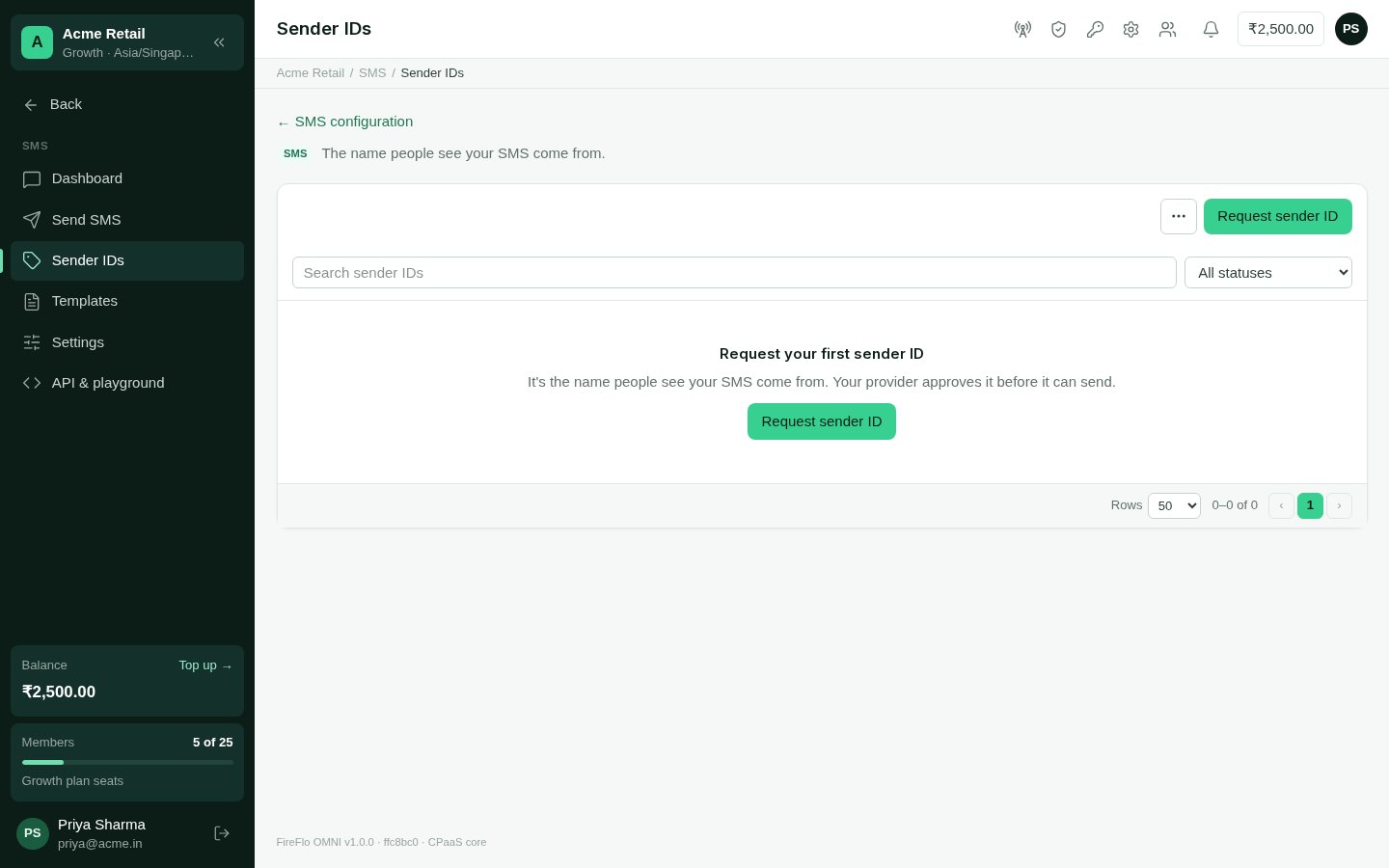
A **sender ID** is the name people see your SMS come from.
Open **SMS → Sender IDs** and choose **Request sender ID**.
Exactly as recipients will see it — casing counts. Use up to 11 letters or digits,
or a phone number.
The **label** is for you and is never matched against anything. **Why you need it**
is read by whoever reviews it; a good reason is answered faster.
It shows as **Waiting for approval** and can send once it is approved.
 ### What a sender ID can be
* Letters, digits and ordinary punctuation, with no spaces at the start or end — it is
matched exactly.
* At most 64 characters. Longer than 21 won't reach most carriers, and names longer than
11 characters are cut or refused by some carriers. The form warns you as you type.
### Its status
| Status | Meaning |
| :- | :- |
| **In use** | Approved. It can send. |
| **Waiting for approval** | With your provider. You can **Withdraw** the request. |
| **Not approved** | Turned down, with the reason underneath. |
| **Withdrawn** | You withdrew the request. You can request it again later. |
Changing an **In use** sender ID, or its reason, sends it back for approval — and
messages from it are refused until your provider approves it again. OMNI asks you to
confirm first.
## Templates
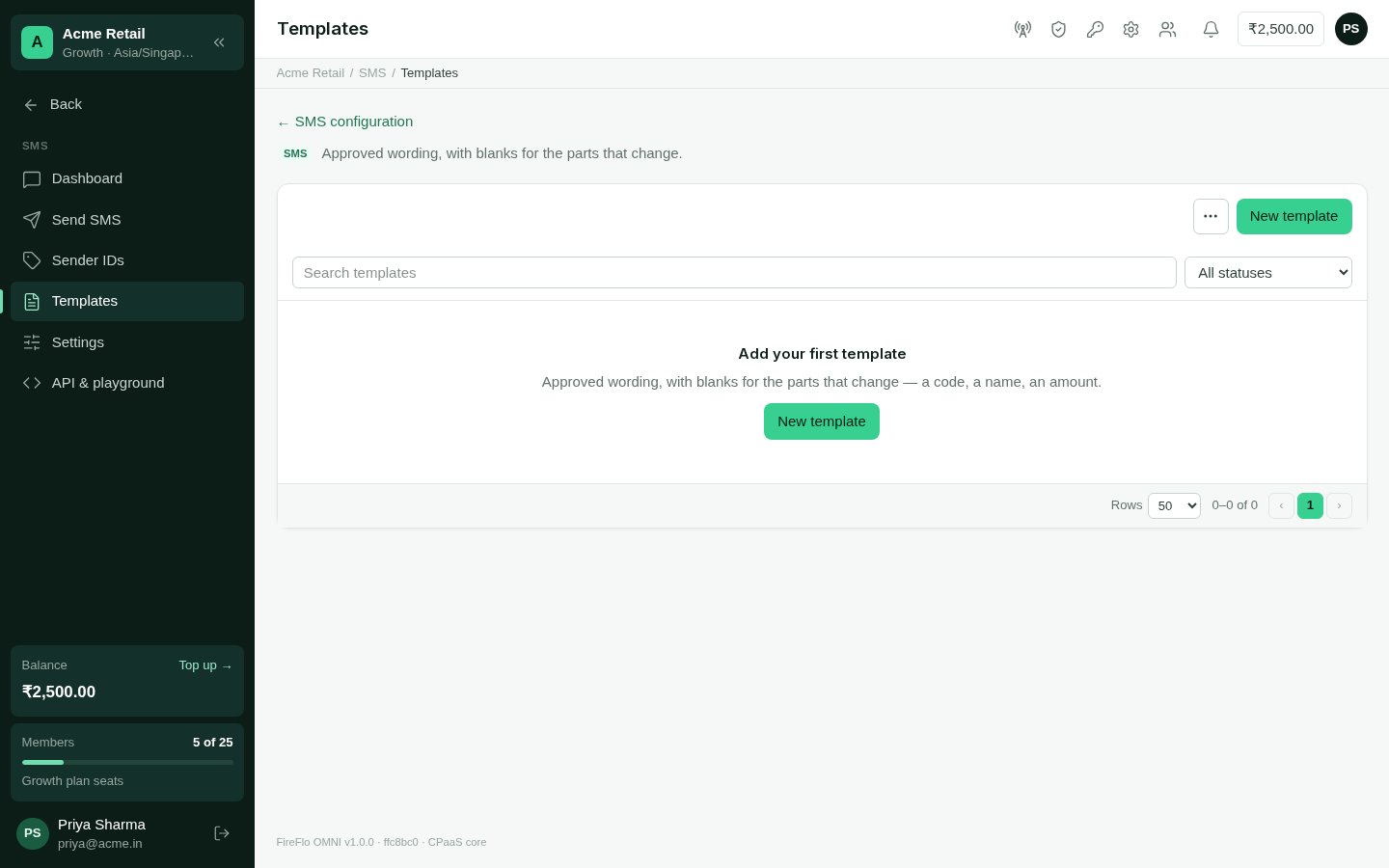
A **template** is approved wording with **blanks** for the parts that change: a code, a
name, an amount.
Open **SMS → Templates** and choose **New template**.
What you and your provider call it.
Use **Insert a blank** to add the parts that change. Under the box, OMNI shows an
example message the template would accept, with its number of segments.
Add a **note for the reviewer** if it helps — a registration reference, for example.
### What a sender ID can be
* Letters, digits and ordinary punctuation, with no spaces at the start or end — it is
matched exactly.
* At most 64 characters. Longer than 21 won't reach most carriers, and names longer than
11 characters are cut or refused by some carriers. The form warns you as you type.
### Its status
| Status | Meaning |
| :- | :- |
| **In use** | Approved. It can send. |
| **Waiting for approval** | With your provider. You can **Withdraw** the request. |
| **Not approved** | Turned down, with the reason underneath. |
| **Withdrawn** | You withdrew the request. You can request it again later. |
Changing an **In use** sender ID, or its reason, sends it back for approval — and
messages from it are refused until your provider approves it again. OMNI asks you to
confirm first.
## Templates
A **template** is approved wording with **blanks** for the parts that change: a code, a
name, an amount.
Open **SMS → Templates** and choose **New template**.
What you and your provider call it.
Use **Insert a blank** to add the parts that change. Under the box, OMNI shows an
example message the template would accept, with its number of segments.
Add a **note for the reviewer** if it helps — a registration reference, for example.
 ### Blanks
| Blank | Accepts |
| :- | :- |
| `{#var#}` | anything |
| `{#num#}` | digits only |
| `{#alp#}` | letters, spaces, apostrophes and hyphens |
```text theme={null}
Hi {#alp#}, order {#var#} is out for delivery.
```
### How a message is matched
**Everything around a blank is matched exactly** — every word, space and punctuation
mark. Only the blanks change. Wording with no blank approves exactly one message.
When you send with **Use a template**, OMNI shows a box for each blank and won't send
until every blank holds something its kind accepts.
OMNI refuses wording that could never match safely:
* more than 2,000 characters;
* a blank in the wrong case or spelling, such as `{#VAR#}` or `{#code#}`;
* `{{1}}` — that is WhatsApp's blank, not SMS's;
* a template that is nothing but a blank, which would accept every message;
* two blanks with nothing between them, which can't be told apart.
Changing the name or wording of an **In use** template sends it back for approval, and
messages using it are refused until it is approved again. To keep sending meanwhile,
submit the new wording as a separate template.
## Many at once
The **⋯** menu on both screens imports and exports the list as a CSV or Excel file. An
export has exactly the columns an import reads, so a downloaded list is a working file.
After an import, OMNI says how many rows were submitted and how many refused, and lets
you download the refused rows with their reasons.
## DLT (India)
India's DLT registry gives every business an **entity ID**, and every registered
template a **template ID**. Messages to India carry them.
In **SMS → Settings → DLT (India)**, turn on **We send to India under DLT**.
Issued once per business by the DLT registry. It goes with every send.
The template and sender ID forms now have an **Advanced · DLT (India)** section. Enter
the **DLT template ID** from your DLT portal — it is numeric. A sender ID or template
can carry its own entity ID; it defaults to the one in SMS settings.
With DLT off, none of these fields appear anywhere.
**Tags and a default stamp (advanced).** The identifiers travel as tagged values,
**0x1400** for the entity ID and **0x1402** for the template ID unless your provider uses
others. You can change the tags, and add one more stamp to every send. On a sender ID you
can propose extra stamps; your provider decides what is attached. When you send, OMNI
lists the stamps the message will carry and where each came from — your account, the
sender ID, or the template.
Write tags as hex, like `0x1401`. A bare number is read as decimal, and the carrier
would quietly ignore it — the form refuses it.
## From your own software
The OMNI API lists, requests and withdraws [sender IDs](/api-reference/sms/list-senders)
and [templates](/api-reference/sms/list-templates), with the same rules.
## Who may
Requesting, editing and withdrawing sender IDs and templates needs the permission to
**manage sender IDs and template registrations** — the **Owner** and **Admin** roles by
default. Switching DLT on and setting the entity ID is in SMS settings, which needs the
permission to **configure channel modules** (Owner and Admin by default).
This documentation is built and hosted on [Mintlify](https://mintlify.com), a developer documentation platform.
### Blanks
| Blank | Accepts |
| :- | :- |
| `{#var#}` | anything |
| `{#num#}` | digits only |
| `{#alp#}` | letters, spaces, apostrophes and hyphens |
```text theme={null}
Hi {#alp#}, order {#var#} is out for delivery.
```
### How a message is matched
**Everything around a blank is matched exactly** — every word, space and punctuation
mark. Only the blanks change. Wording with no blank approves exactly one message.
When you send with **Use a template**, OMNI shows a box for each blank and won't send
until every blank holds something its kind accepts.
OMNI refuses wording that could never match safely:
* more than 2,000 characters;
* a blank in the wrong case or spelling, such as `{#VAR#}` or `{#code#}`;
* `{{1}}` — that is WhatsApp's blank, not SMS's;
* a template that is nothing but a blank, which would accept every message;
* two blanks with nothing between them, which can't be told apart.
Changing the name or wording of an **In use** template sends it back for approval, and
messages using it are refused until it is approved again. To keep sending meanwhile,
submit the new wording as a separate template.
## Many at once
The **⋯** menu on both screens imports and exports the list as a CSV or Excel file. An
export has exactly the columns an import reads, so a downloaded list is a working file.
After an import, OMNI says how many rows were submitted and how many refused, and lets
you download the refused rows with their reasons.
## DLT (India)
India's DLT registry gives every business an **entity ID**, and every registered
template a **template ID**. Messages to India carry them.
In **SMS → Settings → DLT (India)**, turn on **We send to India under DLT**.
Issued once per business by the DLT registry. It goes with every send.
The template and sender ID forms now have an **Advanced · DLT (India)** section. Enter
the **DLT template ID** from your DLT portal — it is numeric. A sender ID or template
can carry its own entity ID; it defaults to the one in SMS settings.
With DLT off, none of these fields appear anywhere.
**Tags and a default stamp (advanced).** The identifiers travel as tagged values,
**0x1400** for the entity ID and **0x1402** for the template ID unless your provider uses
others. You can change the tags, and add one more stamp to every send. On a sender ID you
can propose extra stamps; your provider decides what is attached. When you send, OMNI
lists the stamps the message will carry and where each came from — your account, the
sender ID, or the template.
Write tags as hex, like `0x1401`. A bare number is read as decimal, and the carrier
would quietly ignore it — the form refuses it.
## From your own software
The OMNI API lists, requests and withdraws [sender IDs](/api-reference/sms/list-senders)
and [templates](/api-reference/sms/list-templates), with the same rules.
## Who may
Requesting, editing and withdrawing sender IDs and templates needs the permission to
**manage sender IDs and template registrations** — the **Owner** and **Admin** roles by
default. Switching DLT on and setting the entity ID is in SMS settings, which needs the
permission to **configure channel modules** (Owner and Admin by default).
This documentation is built and hosted on [Mintlify](https://mintlify.com), a developer documentation platform.