> ## Documentation Index
> Fetch the complete documentation index at: https://omni.fireflo.au/llms.txt
> Use this file to discover all available pages before exploring further.
# SMS
> How to connect SMS, send to numbers, contacts and segments, read the SMS dashboard, and what SMS does with and without batteries.
SMS sends text messages from your **sender IDs**, using your approved **templates**
where your provider requires them. Replies land in the [Inbox](/using/inbox), every
message is on the contact's timeline, and delivery reports come back on their own.
**The plan must include SMS.** The menu then shows an **SMS** section with Dashboard,
Send SMS, Sender IDs, Templates and Settings.
## Set up SMS
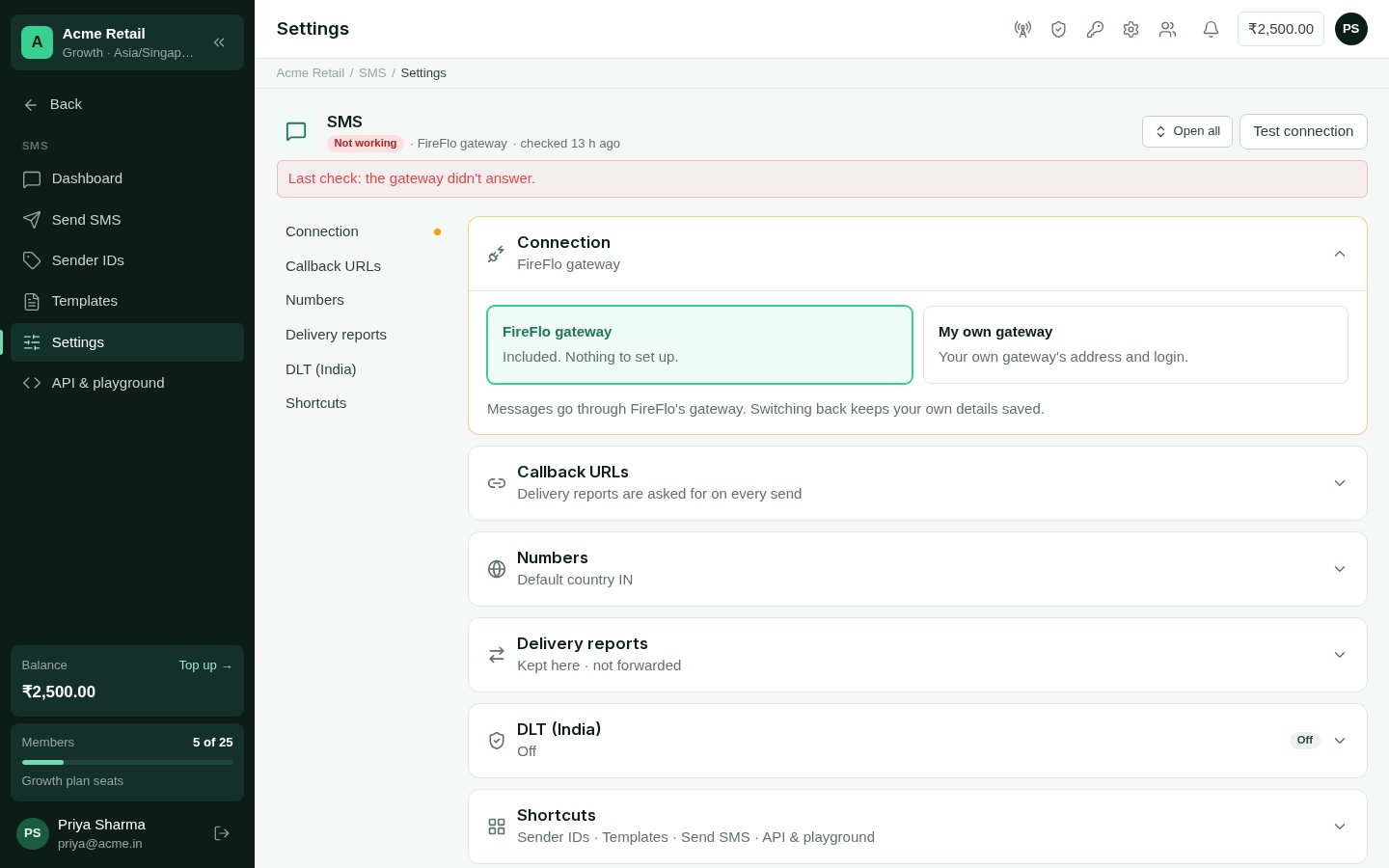
Open **SMS → Settings**. Under **Connection**, choose **FireFlo gateway** (included,
nothing to set up) or **My own gateway**, and for your own enter its address, login
and password. **Save and test** checks the login straight away.
Under **Numbers**, the **Default country** is used for numbers typed without a
country code — `IN` for India.
Under **DLT (India)**, switch on **We send to India under DLT** and enter your **DLT
entity ID**. See [Sender IDs and DLT](/channels/sms-sender-ids-and-dlt).
Under **Sender IDs** and **Templates**, request the names and wording you will send.
Your provider approves each one.
 ### On your own gateway
Settings shows two **Callback URLs**:
* **Delivery reports** — sent with every message automatically. Nothing to set up.
* **Replies (inbound SMS)** — give this to your gateway provider so replies reach your
Inbox.
Under **Delivery reports** you can also **forward delivery reports to your own
endpoint**: reports are always kept in OMNI, and a copy is posted to your https address
as each one arrives.
## Send SMS
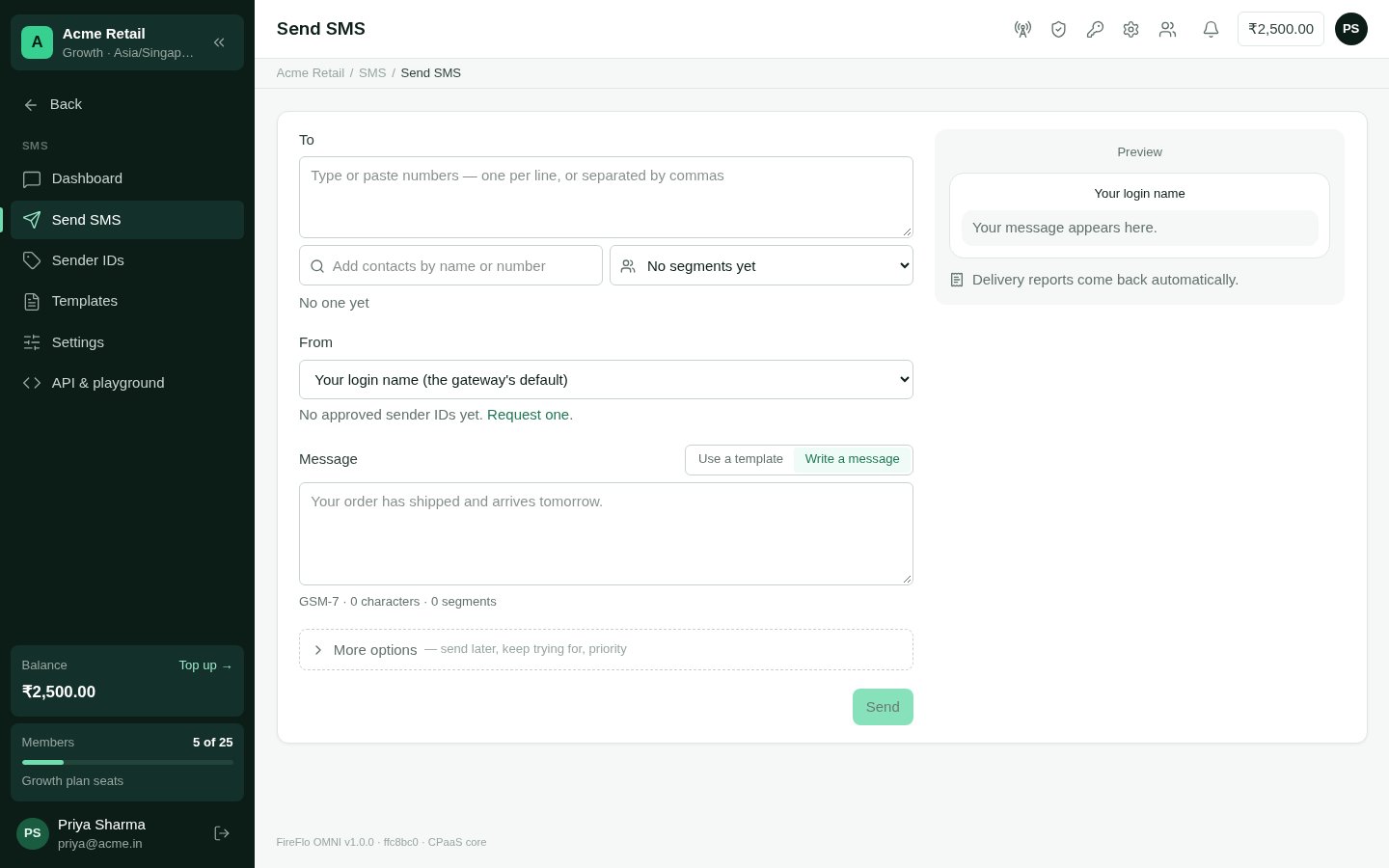
**SMS → Send SMS** sends straight from the channel.
Type numbers, pick contacts, or pick segments. Up to 500 numbers and contacts at a
time; for more, upload a file in a [broadcast](/using/broadcasts). Picking a segment
makes the send a broadcast, sent in the background.
Pick one of your approved sender IDs. Where your provider doesn't require approved
sender IDs, you can also leave it on your gateway login's default.
**Use a template** and fill in its blanks, or **Write a message**. When your account
sends approved templates only, the page says so and offers templates alone.
Under the message, OMNI shows the encoding (GSM-7 or Unicode), the length, the number
of segments, and how many messages that makes for everyone you picked. A preview
shows the message as it will arrive. Confirm to send.
**More options** holds three more choices:
* **Send later** — a date and time. Until then you can cancel it or send it early.
* **Keep trying for** — how long the carrier retries a phone that's off: the carrier's
default, 1 hour, 6 hours, 1 day or 2 days.
* **High priority** — for codes and alerts that can't wait.
Once sent, OMNI opens the send's page under **Broadcasts**, where you can follow it.
### On your own gateway
Settings shows two **Callback URLs**:
* **Delivery reports** — sent with every message automatically. Nothing to set up.
* **Replies (inbound SMS)** — give this to your gateway provider so replies reach your
Inbox.
Under **Delivery reports** you can also **forward delivery reports to your own
endpoint**: reports are always kept in OMNI, and a copy is posted to your https address
as each one arrives.
## Send SMS
**SMS → Send SMS** sends straight from the channel.
Type numbers, pick contacts, or pick segments. Up to 500 numbers and contacts at a
time; for more, upload a file in a [broadcast](/using/broadcasts). Picking a segment
makes the send a broadcast, sent in the background.
Pick one of your approved sender IDs. Where your provider doesn't require approved
sender IDs, you can also leave it on your gateway login's default.
**Use a template** and fill in its blanks, or **Write a message**. When your account
sends approved templates only, the page says so and offers templates alone.
Under the message, OMNI shows the encoding (GSM-7 or Unicode), the length, the number
of segments, and how many messages that makes for everyone you picked. A preview
shows the message as it will arrive. Confirm to send.
**More options** holds three more choices:
* **Send later** — a date and time. Until then you can cancel it or send it early.
* **Keep trying for** — how long the carrier retries a phone that's off: the carrier's
default, 1 hour, 6 hours, 1 day or 2 days.
* **High priority** — for codes and alerts that can't wait.
Once sent, OMNI opens the send's page under **Broadcasts**, where you can follow it.
 You can also start an SMS from a contact's page with **Send SMS**.
A message longer than one segment is sent as several and charged per segment. Unicode
characters — many non-Latin scripts and emoji — make segments shorter.
## The SMS dashboard
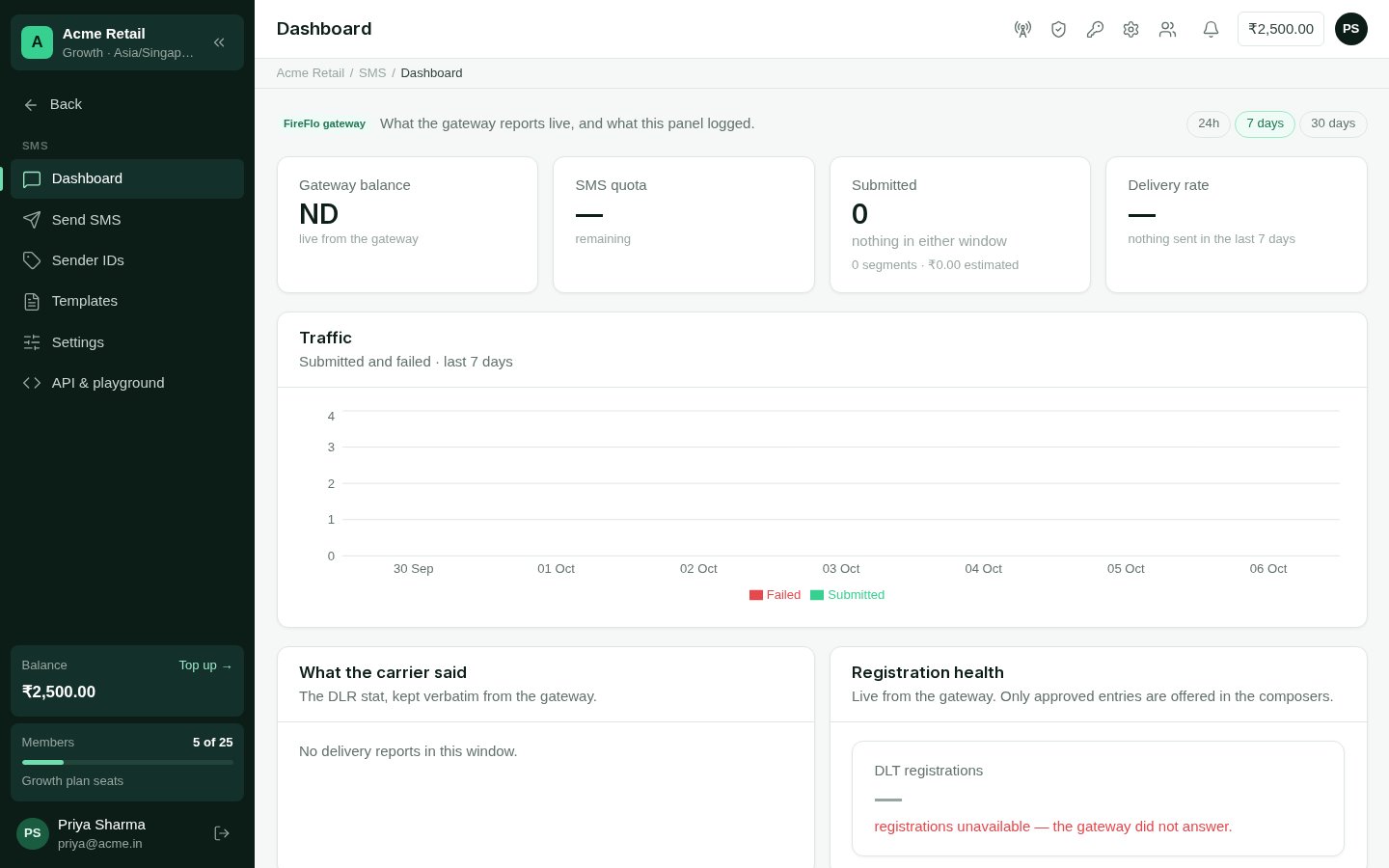
**SMS → Dashboard** shows what the gateway reports live and what OMNI logged, over the
period you pick:
* your **gateway balance**, live;
* **Submitted** — messages and segments, with an estimated spend;
* **Delivery rate**, and how many failed;
* **Traffic** — submitted and failed over time;
* **What the carrier said** — the delivery report status, kept exactly as the gateway
gave it;
* **Top failure reasons** and **Recent campaigns**;
* **Registration health** — your sender IDs and templates by status. Only approved ones
are offered when you send.
You can also start an SMS from a contact's page with **Send SMS**.
A message longer than one segment is sent as several and charged per segment. Unicode
characters — many non-Latin scripts and emoji — make segments shorter.
## The SMS dashboard
**SMS → Dashboard** shows what the gateway reports live and what OMNI logged, over the
period you pick:
* your **gateway balance**, live;
* **Submitted** — messages and segments, with an estimated spend;
* **Delivery rate**, and how many failed;
* **Traffic** — submitted and failed over time;
* **What the carrier said** — the delivery report status, kept exactly as the gateway
gave it;
* **Top failure reasons** and **Recent campaigns**;
* **Registration health** — your sender IDs and templates by status. Only approved ones
are offered when you send.
 ## API & playground
People who can configure channels also see **API & playground**, when the plan includes
API access: the SMS gateway's own API with its documentation, a live runner and code
samples. For sending from your own software, most integrations use the
[OMNI API](/developers/overview) instead, which also manages
[sender IDs](/api-reference/sms/list-senders) and
[templates](/api-reference/sms/list-templates).
## Replies, opt-outs and limits
* Replies arrive in the [Inbox](/using/inbox) in the person's SMS thread.
* **STOP** stops a person on every channel; do-not-contact and quiet hours are always
honoured. With the [Customer data](/batteries/customer-data) battery, people can stop
SMS alone, or SMS marketing alone.
* When your provider enforces approval, a message from an unapproved sender ID, or one
that matches no approved template, is refused. See
[Sender IDs and DLT](/channels/sms-sender-ids-and-dlt).
## What batteries add on SMS
SMS works with no battery at all. Each one below adds to it when it is in your plan.
| Battery | What it adds on SMS |
| :- | :- |
| [AI Agents](/batteries/ai-agents) | An agent answers on SMS by filling in one of your approved templates word for word — only the blanks change. When no template fits, it drafts one and asks for it to be registered (after approval, if your policy says so). An inbound SMS can start or continue a workflow; questions go as "Reply 1 or 2". Reminder stories go by SMS when WhatsApp isn't available. You can ask about an SMS broadcast's results in plain words. |
| [Calendar](/batteries/calendar) | Appointment reminders and confirmations go by SMS when the person has no open WhatsApp route and the text matches a template. The one-time code for booking online can be sent by SMS. |
| [Catalogue](/batteries/catalogue) | Products are sent as names and prices with a link to your public catalogue page; `{{catalogue_link}}` in a broadcast leads to the same page. |
| [Customer data](/batteries/customer-data) | Someone can stop SMS marketing or SMS updates without stopping everything. You can require a recorded opt-in before SMS marketing, add your own stop and start words with an optional confirmation reply, show SMS on the preference page, use an audience as an SMS broadcast's recipients, and build audience rules on SMS consent. SMS messages feed last engaged, reply rate and preferred channel. |
| [Pipelines](/batteries/pipelines) | SMS messages show on a deal's timeline; a contact's deals show beside their SMS thread. |
| [Tickets](/batteries/tickets) | An SMS conversation can be raised as a ticket, and closing or assigning it keeps the ticket in step. |
## Who may
| To | Permission | Roles by default |
| :- | :- | :- |
| Connect SMS and change its settings; use API & playground | Configure channel modules | Owner, Admin |
| Request sender IDs and templates | Manage sender IDs and template registrations | Owner, Admin |
| Send SMS | Send messages | Owner, Admin, Support |
| See the SMS dashboard | View the message log and delivery reports | Owner, Admin, Support, Viewer |
This documentation is built and hosted on [Mintlify](https://mintlify.com), a developer documentation platform.
## API & playground
People who can configure channels also see **API & playground**, when the plan includes
API access: the SMS gateway's own API with its documentation, a live runner and code
samples. For sending from your own software, most integrations use the
[OMNI API](/developers/overview) instead, which also manages
[sender IDs](/api-reference/sms/list-senders) and
[templates](/api-reference/sms/list-templates).
## Replies, opt-outs and limits
* Replies arrive in the [Inbox](/using/inbox) in the person's SMS thread.
* **STOP** stops a person on every channel; do-not-contact and quiet hours are always
honoured. With the [Customer data](/batteries/customer-data) battery, people can stop
SMS alone, or SMS marketing alone.
* When your provider enforces approval, a message from an unapproved sender ID, or one
that matches no approved template, is refused. See
[Sender IDs and DLT](/channels/sms-sender-ids-and-dlt).
## What batteries add on SMS
SMS works with no battery at all. Each one below adds to it when it is in your plan.
| Battery | What it adds on SMS |
| :- | :- |
| [AI Agents](/batteries/ai-agents) | An agent answers on SMS by filling in one of your approved templates word for word — only the blanks change. When no template fits, it drafts one and asks for it to be registered (after approval, if your policy says so). An inbound SMS can start or continue a workflow; questions go as "Reply 1 or 2". Reminder stories go by SMS when WhatsApp isn't available. You can ask about an SMS broadcast's results in plain words. |
| [Calendar](/batteries/calendar) | Appointment reminders and confirmations go by SMS when the person has no open WhatsApp route and the text matches a template. The one-time code for booking online can be sent by SMS. |
| [Catalogue](/batteries/catalogue) | Products are sent as names and prices with a link to your public catalogue page; `{{catalogue_link}}` in a broadcast leads to the same page. |
| [Customer data](/batteries/customer-data) | Someone can stop SMS marketing or SMS updates without stopping everything. You can require a recorded opt-in before SMS marketing, add your own stop and start words with an optional confirmation reply, show SMS on the preference page, use an audience as an SMS broadcast's recipients, and build audience rules on SMS consent. SMS messages feed last engaged, reply rate and preferred channel. |
| [Pipelines](/batteries/pipelines) | SMS messages show on a deal's timeline; a contact's deals show beside their SMS thread. |
| [Tickets](/batteries/tickets) | An SMS conversation can be raised as a ticket, and closing or assigning it keeps the ticket in step. |
## Who may
| To | Permission | Roles by default |
| :- | :- | :- |
| Connect SMS and change its settings; use API & playground | Configure channel modules | Owner, Admin |
| Request sender IDs and templates | Manage sender IDs and template registrations | Owner, Admin |
| Send SMS | Send messages | Owner, Admin, Support |
| See the SMS dashboard | View the message log and delivery reports | Owner, Admin, Support, Viewer |
This documentation is built and hosted on [Mintlify](https://mintlify.com), a developer documentation platform.