> ## Documentation Index
> Fetch the complete documentation index at: https://omni.fireflo.au/llms.txt
> Use this file to discover all available pages before exploring further.
# Calls
> How to read the call log, listen to recordings and see what was said, call people from your phone, run voice broadcasts and have a voice agent call a contact.
Every call Voice hears of is kept in one **call log**, with its recording and what was
said when there is one, and filed against the contact. From OMNI you can also place
calls four ways: **click-to-call** from your own phone, **ringing someone into an IVR**,
a **voice broadcast**, and a **voice agent**.
## The call log
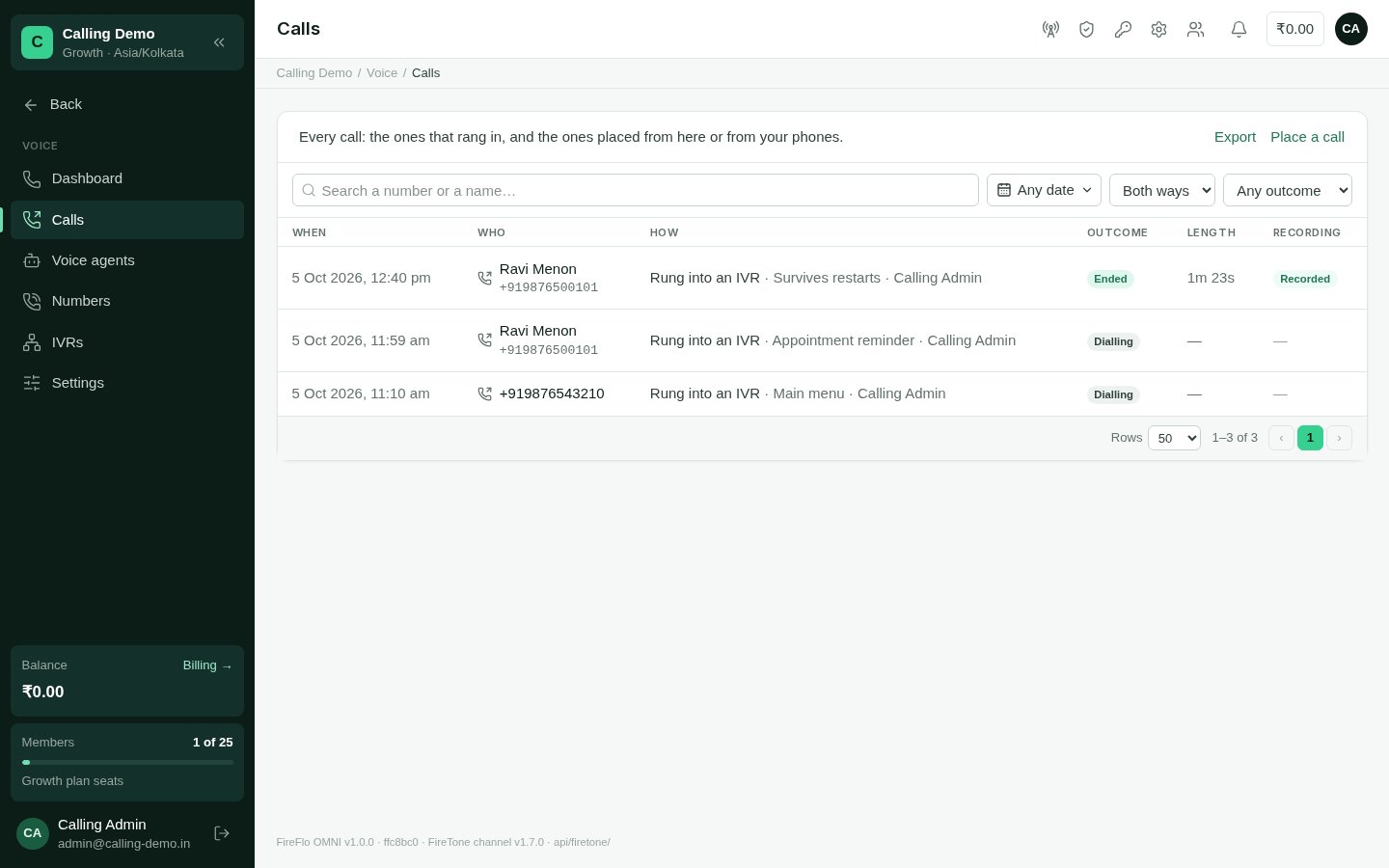
**Voice → Calls** lists every call: the ones that rang in, and the ones placed from OMNI
or from your phones. Each row shows when, who (the contact, or the number), how it was
made, the outcome, the length, and whether it was **Recorded**.
 **How** a call was made:
| Kind | Meaning |
| :- | :- |
| **Incoming** | It rang in on one of your numbers. |
| **From a phone** | Made from one of your organisation's phones. |
| **Click-to-call** | Placed from OMNI: your phone rang first, then theirs. |
| **Rung into an IVR** | OMNI rang them into an IVR. |
| **Broadcast** | Part of a voice broadcast. |
| **Voice agent** | A voice agent made it. |
Search by number or name, and filter by dates, direction (**Incoming** or **Outgoing**)
and outcome. A **missed** call is one that rang in and nobody took.
**Export** keeps the calls, as filtered, as a spreadsheet under
[Downloads](/using/downloads). On FireFlo's FireTone, the export has no prices.
### Connect the full call log
Calls placed from OMNI are always logged. To also log calls that ring in and calls made
from your phones, the full call log must be connected — the Calls page asks for it until
it is:
* on **your own FireTone**, someone who can configure channels connects it from
**Voice → Calls**. FireTone then reports calls as they happen, and OMNI also reads the
call log every 10 minutes for anything missed;
* on **FireFlo's FireTone**, FireFlo connects it — ask [support@fireflo.au](mailto:support@fireflo.au). You then see
the calls on the numbers FireFlo gave your account.
### A call's page
Open a call to see its recording and its facts: the direction, your number it rang on,
the number it showed as, who took it or placed it, its length, why it ended and — on your
own FireTone — what it was charged.
* **Recordings** play in OMNI, and you can skip through them.
* **What was said** shows the conversation's summary, its flags and each turn, when
FireTone has them.
### On the contact
Each contact's timeline shows their calls, with a **Calls** filter and **Listen** to play
a recording in place. The contact page counts their calls and missed calls. A caller who
isn't a contact yet is kept under their number and joined to the contact once there is
one.
## Click-to-call: your phone
**Call** on a contact's page, or **Place a call** on Voice → Calls, rings **your phone**
first; when you pick up, FireTone dials the person.
Under **Your phone**, pick the extension that rings for you and choose **Use this
phone**. On FireFlo's FireTone, FireFlo sets your extension — ask [support@fireflo.au](mailto:support@fireflo.au).
Choose **Call** (or enter a **Number** on Place a call). Your phone rings; pick up and
FireTone dials them. **Follow the call** opens its page.
If it can't ring, OMNI says why — for example, your phone isn't online, or FireTone is
busy. The call goes into the call log and the contact's timeline with who placed it.
You can call anyone except a contact who asked never to be contacted. A STOP to messages
doesn't stop you calling them.
## Ring into an IVR
**Ring into IVR** on a contact's page calls them and plays them one of your published
IVRs. See [Ring someone into an IVR](/channels/voice-numbers-and-ivrs#ring-someone-into-an-ivr).
## Voice broadcasts
Voice broadcasts need **your own FireTone organisation**, which is billed for the calls.
A voice broadcast rings everyone in a [broadcast](/using/broadcasts)'s audience into one
of your IVRs.
In [Voice → IVRs](/channels/voice-numbers-and-ivrs#make-and-publish-an-ivr), make one
with **Runs on calls you place**, design it and publish it.
Choose the IVR. For each `{{tag}}` it says, give a column of your list or your own
text — **What the IVR says for each person**.
**Calls show** one of your numbers, or your caller ID. **Calling hours** and the
**days** calls may be made default to Monday to Saturday, 09:00 to 20:00, in the
account's time zone.
People who opted out or are marked do-not-contact are left out. FireTone rings the
rest within the calling hours.
While it runs, **Pause**, **Resume** and **Cancel** reach FireTone straight away — even
after everyone has been handed over and FireTone is still ringing. The broadcast's
**Calls** card shows how many were **Answered**, the **Answer rate** and how many are
**Still to ring**; its header reads **Reached** and **Still to ring**.
| Outcome | Shows as |
| :- | :- |
| Reached | Delivered |
| Not reached, bad number, do-not-call or failed | Failed, with the reason |
| Never rung by the time it ends | Failed, "not called" |
Each person's broadcast call is on their timeline.
## Voice agents
Voice agents need **your own FireTone organisation**, which is billed for their calls,
and FireTone's AI module. If the module is off, OMNI says so plainly.
Voice agents are made in FireTone (**Virtual agents**). **Voice → Voice agents** lists
them — "No agent uses it yet" marks one that isn't ready — and the latest calls they made
for your account, each with its summary.
### Call a contact with a voice agent
On their page, choose **Call with a voice agent**.
OMNI shows the line it opens with.
Under **What the agent knows**, `{{name}}` is the contact's name. Add anything else
its script uses, as a name and a value — `appointment` → `Tuesday at 3pm`.
The agent rings them. **Follow the call** opens its page, where **What was said**
shows the summary, the flags and each turn as FireTone reports them.
Calls with a voice agent are screened for opt-outs, do-not-contact and quiet hours.
## From your own software
The OMNI API lists calls and [places them](/developers/calls) — ringing someone into an
IVR or having a voice agent call them — with the same screening.
## Who may
| To | Permission | Roles by default |
| :- | :- | :- |
| See calls, listen to recordings, see voice agents, export | See calls and listen to recordings | Owner, Admin, Support, Viewer |
| Click-to-call, ring into an IVR, call with a voice agent | Place calls | Owner, Admin, Support |
| Connect the full call log on your own FireTone | Configure channel modules | Owner, Admin |
| Send a voice broadcast | Send messages | Owner, Admin, Support |
**The plan must include Voice.**
This documentation is built and hosted on [Mintlify](https://mintlify.com), a developer documentation platform.
**How** a call was made:
| Kind | Meaning |
| :- | :- |
| **Incoming** | It rang in on one of your numbers. |
| **From a phone** | Made from one of your organisation's phones. |
| **Click-to-call** | Placed from OMNI: your phone rang first, then theirs. |
| **Rung into an IVR** | OMNI rang them into an IVR. |
| **Broadcast** | Part of a voice broadcast. |
| **Voice agent** | A voice agent made it. |
Search by number or name, and filter by dates, direction (**Incoming** or **Outgoing**)
and outcome. A **missed** call is one that rang in and nobody took.
**Export** keeps the calls, as filtered, as a spreadsheet under
[Downloads](/using/downloads). On FireFlo's FireTone, the export has no prices.
### Connect the full call log
Calls placed from OMNI are always logged. To also log calls that ring in and calls made
from your phones, the full call log must be connected — the Calls page asks for it until
it is:
* on **your own FireTone**, someone who can configure channels connects it from
**Voice → Calls**. FireTone then reports calls as they happen, and OMNI also reads the
call log every 10 minutes for anything missed;
* on **FireFlo's FireTone**, FireFlo connects it — ask [support@fireflo.au](mailto:support@fireflo.au). You then see
the calls on the numbers FireFlo gave your account.
### A call's page
Open a call to see its recording and its facts: the direction, your number it rang on,
the number it showed as, who took it or placed it, its length, why it ended and — on your
own FireTone — what it was charged.
* **Recordings** play in OMNI, and you can skip through them.
* **What was said** shows the conversation's summary, its flags and each turn, when
FireTone has them.
### On the contact
Each contact's timeline shows their calls, with a **Calls** filter and **Listen** to play
a recording in place. The contact page counts their calls and missed calls. A caller who
isn't a contact yet is kept under their number and joined to the contact once there is
one.
## Click-to-call: your phone
**Call** on a contact's page, or **Place a call** on Voice → Calls, rings **your phone**
first; when you pick up, FireTone dials the person.
Under **Your phone**, pick the extension that rings for you and choose **Use this
phone**. On FireFlo's FireTone, FireFlo sets your extension — ask [support@fireflo.au](mailto:support@fireflo.au).
Choose **Call** (or enter a **Number** on Place a call). Your phone rings; pick up and
FireTone dials them. **Follow the call** opens its page.
If it can't ring, OMNI says why — for example, your phone isn't online, or FireTone is
busy. The call goes into the call log and the contact's timeline with who placed it.
You can call anyone except a contact who asked never to be contacted. A STOP to messages
doesn't stop you calling them.
## Ring into an IVR
**Ring into IVR** on a contact's page calls them and plays them one of your published
IVRs. See [Ring someone into an IVR](/channels/voice-numbers-and-ivrs#ring-someone-into-an-ivr).
## Voice broadcasts
Voice broadcasts need **your own FireTone organisation**, which is billed for the calls.
A voice broadcast rings everyone in a [broadcast](/using/broadcasts)'s audience into one
of your IVRs.
In [Voice → IVRs](/channels/voice-numbers-and-ivrs#make-and-publish-an-ivr), make one
with **Runs on calls you place**, design it and publish it.
Choose the IVR. For each `{{tag}}` it says, give a column of your list or your own
text — **What the IVR says for each person**.
**Calls show** one of your numbers, or your caller ID. **Calling hours** and the
**days** calls may be made default to Monday to Saturday, 09:00 to 20:00, in the
account's time zone.
People who opted out or are marked do-not-contact are left out. FireTone rings the
rest within the calling hours.
While it runs, **Pause**, **Resume** and **Cancel** reach FireTone straight away — even
after everyone has been handed over and FireTone is still ringing. The broadcast's
**Calls** card shows how many were **Answered**, the **Answer rate** and how many are
**Still to ring**; its header reads **Reached** and **Still to ring**.
| Outcome | Shows as |
| :- | :- |
| Reached | Delivered |
| Not reached, bad number, do-not-call or failed | Failed, with the reason |
| Never rung by the time it ends | Failed, "not called" |
Each person's broadcast call is on their timeline.
## Voice agents
Voice agents need **your own FireTone organisation**, which is billed for their calls,
and FireTone's AI module. If the module is off, OMNI says so plainly.
Voice agents are made in FireTone (**Virtual agents**). **Voice → Voice agents** lists
them — "No agent uses it yet" marks one that isn't ready — and the latest calls they made
for your account, each with its summary.
### Call a contact with a voice agent
On their page, choose **Call with a voice agent**.
OMNI shows the line it opens with.
Under **What the agent knows**, `{{name}}` is the contact's name. Add anything else
its script uses, as a name and a value — `appointment` → `Tuesday at 3pm`.
The agent rings them. **Follow the call** opens its page, where **What was said**
shows the summary, the flags and each turn as FireTone reports them.
Calls with a voice agent are screened for opt-outs, do-not-contact and quiet hours.
## From your own software
The OMNI API lists calls and [places them](/developers/calls) — ringing someone into an
IVR or having a voice agent call them — with the same screening.
## Who may
| To | Permission | Roles by default |
| :- | :- | :- |
| See calls, listen to recordings, see voice agents, export | See calls and listen to recordings | Owner, Admin, Support, Viewer |
| Click-to-call, ring into an IVR, call with a voice agent | Place calls | Owner, Admin, Support |
| Connect the full call log on your own FireTone | Configure channel modules | Owner, Admin |
| Send a voice broadcast | Send messages | Owner, Admin, Support |
**The plan must include Voice.**
This documentation is built and hosted on [Mintlify](https://mintlify.com), a developer documentation platform.