> ## Documentation Index
> Fetch the complete documentation index at: https://omni.fireflo.au/llms.txt
> Use this file to discover all available pages before exploring further.
# Numbers and IVRs
> How to see your voice numbers, send each one's calls to an IVR, an extension or another number, design and publish IVRs, and ring someone into one.
Your **numbers** are the phone numbers (DIDs) people call, and that your calls can show.
An **IVR** is what a caller hears and presses: greetings, menus, opening hours, and
where they end up. Voice → Numbers decides where each number's calls go; Voice → IVRs is
where the IVRs are made.
## Numbers
**Voice → Numbers** lists your numbers:
* on **your own FireTone**, every number in your organisation, with its monthly rental;
* on **FireFlo's FireTone**, the numbers FireFlo has given your account. To get one,
ask [support@fireflo.au](mailto:support@fireflo.au).
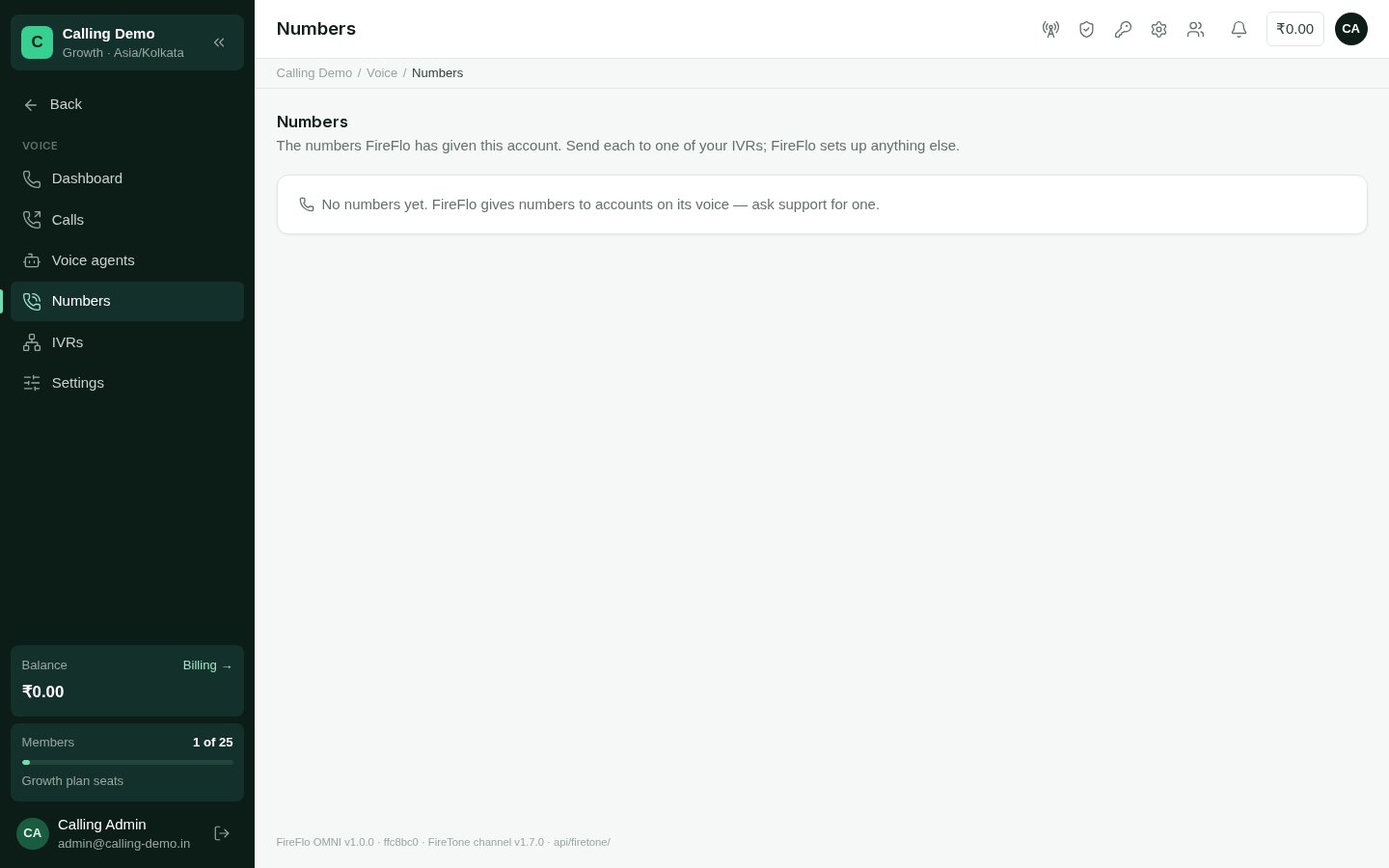 For each number:
| Column | What you can do |
| :- | :- |
| **Calls go to** | Send its calls to **an IVR**, **an extension** or **another number**. Only published IVRs that answer a number are offered. Queues and other destinations set in FireTone are shown as they are. On FireFlo's FireTone, you choose among your own IVRs; anything else is set by FireFlo. |
| **In service** | Switch it off and the number refuses calls; switch it on and it takes them again. |
| **Caller ID** | The number your outgoing calls show reads **Calls show this**. Choose another to have calls show it instead. On FireFlo's FireTone, FireFlo's own caller ID is never used for your calls. |
On your own FireTone, numbers are added in FireTone itself. If you have no IVR yet, the
page points you to make one first.
When FireFlo takes back a number it gave your account, the number also goes out of
service.
## IVRs
**Voice → IVRs** lists your IVRs with their **standing**:
| Standing | Meaning |
| :- | :- |
| **Draft — not answering calls** | Never published. |
| **Live (v3)** | Published; version 3 is answering. |
| **Live (v3) · unpublished changes** | Version 3 is answering, and newer changes wait to be published. |
For each number:
| Column | What you can do |
| :- | :- |
| **Calls go to** | Send its calls to **an IVR**, **an extension** or **another number**. Only published IVRs that answer a number are offered. Queues and other destinations set in FireTone are shown as they are. On FireFlo's FireTone, you choose among your own IVRs; anything else is set by FireFlo. |
| **In service** | Switch it off and the number refuses calls; switch it on and it takes them again. |
| **Caller ID** | The number your outgoing calls show reads **Calls show this**. Choose another to have calls show it instead. On FireFlo's FireTone, FireFlo's own caller ID is never used for your calls. |
On your own FireTone, numbers are added in FireTone itself. If you have no IVR yet, the
page points you to make one first.
When FireFlo takes back a number it gave your account, the number also goes out of
service.
## IVRs
**Voice → IVRs** lists your IVRs with their **standing**:
| Standing | Meaning |
| :- | :- |
| **Draft — not answering calls** | Never published. |
| **Live (v3)** | Published; version 3 is answering. |
| **Live (v3) · unpublished changes** | Version 3 is answering, and newer changes wait to be published. |
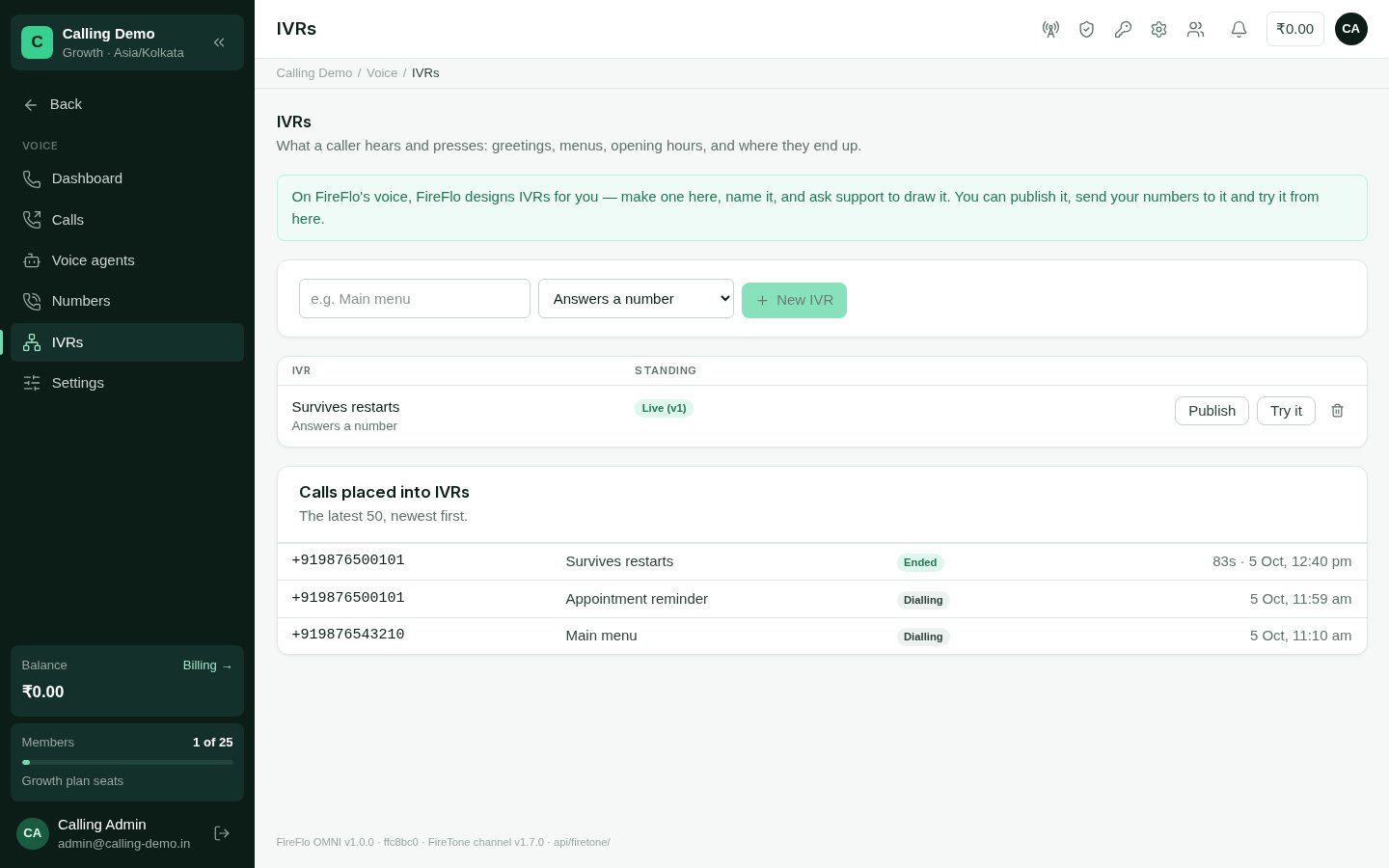 ### Make and publish an IVR
Give the new IVR a name and choose when it runs: **Answers a number** (for calls
that ring in) or **Runs on calls you place** (for ringing people into it, and for
[voice broadcasts](/channels/voice-calls#voice-broadcasts)).
**Design** opens FireTone's IVR designer in a window of its own, through a one-time
link. If nothing opens, allow pop-ups for OMNI and try again. OMNI picks up what you
save there.
**Publish** asks FireTone to check the IVR first. If it finds a problem, the IVR isn't
published and OMNI says which step and why; if it has only a warning, the IVR goes
live and OMNI lists what is worth fixing.
In **Voice → Numbers**, set the number's **Calls go to** to the IVR.
**Delete** removes the IVR in FireTone too.
On **FireFlo's FireTone**, FireFlo designs IVRs for you: make one here, name it, and ask
[support@fireflo.au](mailto:support@fireflo.au) to draw it. You can still publish it, send your numbers to it and try
it from here.
## Ring someone into an IVR
Ringing calls a person and plays them an IVR when they answer — a reminder, a survey, a
menu. Any published IVR can be rung into.
Choose **Ring into IVR**, then the IVR. OMNI shows the number it rings and the number
the call shows as. The IVR can say the contact's name as `{{name}}`. The contact's
calls into IVRs are listed beneath.
If the contact has opted out or is marked do-not-contact, OMNI warns you and the call
is refused.
Type a number beside the IVR and choose **Ring** — the quickest way to try an IVR on
your own phone.
Every call placed this way is screened for opt-outs, do-not-contact and quiet hours,
recorded in the [call log](/channels/voice-calls#the-call-log), and followed as FireTone
reports it. **Calls placed into IVRs** on Voice → IVRs shows the latest 50.
From your own software, the OMNI API [places the same calls](/developers/calls).
## Who may
| To | Permission | Roles by default |
| :- | :- | :- |
| See numbers and IVRs | See calls and listen to recordings | Owner, Admin, Support, Viewer |
| Route numbers, switch them in or out of service, choose the caller ID; make, design, publish and delete IVRs | Route numbers and design IVRs | Owner, Admin |
| Ring someone into an IVR | Place calls | Owner, Admin, Support |
**The plan must include Voice.**
This documentation is built and hosted on [Mintlify](https://mintlify.com), a developer documentation platform.
### Make and publish an IVR
Give the new IVR a name and choose when it runs: **Answers a number** (for calls
that ring in) or **Runs on calls you place** (for ringing people into it, and for
[voice broadcasts](/channels/voice-calls#voice-broadcasts)).
**Design** opens FireTone's IVR designer in a window of its own, through a one-time
link. If nothing opens, allow pop-ups for OMNI and try again. OMNI picks up what you
save there.
**Publish** asks FireTone to check the IVR first. If it finds a problem, the IVR isn't
published and OMNI says which step and why; if it has only a warning, the IVR goes
live and OMNI lists what is worth fixing.
In **Voice → Numbers**, set the number's **Calls go to** to the IVR.
**Delete** removes the IVR in FireTone too.
On **FireFlo's FireTone**, FireFlo designs IVRs for you: make one here, name it, and ask
[support@fireflo.au](mailto:support@fireflo.au) to draw it. You can still publish it, send your numbers to it and try
it from here.
## Ring someone into an IVR
Ringing calls a person and plays them an IVR when they answer — a reminder, a survey, a
menu. Any published IVR can be rung into.
Choose **Ring into IVR**, then the IVR. OMNI shows the number it rings and the number
the call shows as. The IVR can say the contact's name as `{{name}}`. The contact's
calls into IVRs are listed beneath.
If the contact has opted out or is marked do-not-contact, OMNI warns you and the call
is refused.
Type a number beside the IVR and choose **Ring** — the quickest way to try an IVR on
your own phone.
Every call placed this way is screened for opt-outs, do-not-contact and quiet hours,
recorded in the [call log](/channels/voice-calls#the-call-log), and followed as FireTone
reports it. **Calls placed into IVRs** on Voice → IVRs shows the latest 50.
From your own software, the OMNI API [places the same calls](/developers/calls).
## Who may
| To | Permission | Roles by default |
| :- | :- | :- |
| See numbers and IVRs | See calls and listen to recordings | Owner, Admin, Support, Viewer |
| Route numbers, switch them in or out of service, choose the caller ID; make, design, publish and delete IVRs | Route numbers and design IVRs | Owner, Admin |
| Ring someone into an IVR | Place calls | Owner, Admin, Support |
**The plan must include Voice.**
This documentation is built and hosted on [Mintlify](https://mintlify.com), a developer documentation platform.