> ## Documentation Index
> Fetch the complete documentation index at: https://omni.fireflo.au/llms.txt
> Use this file to discover all available pages before exploring further.
# Voice
> What Voice does — numbers, IVRs, click-to-call, voice broadcasts, voice agents and a call log with recordings — how to connect it, and what needs your own voice organisation.
**Voice** is FireFlo's voice service, run on FireTone. It answers your numbers with
IVRs, rings people from OMNI, keeps a log of every call with its recording, and — on
your own organisation — runs voice broadcasts and voice agents. Calls sit on each
contact's timeline beside their messages.
**The plan must include Voice.** The menu then shows a **Voice** section with Dashboard,
Calls, Voice agents, Numbers, IVRs and Settings.
Where each number's calls go, the IVRs that answer them, and ringing someone into an
IVR.
The call log, recordings and what was said, click-to-call, voice broadcasts and
voice agents.
## Shared organisation or your own
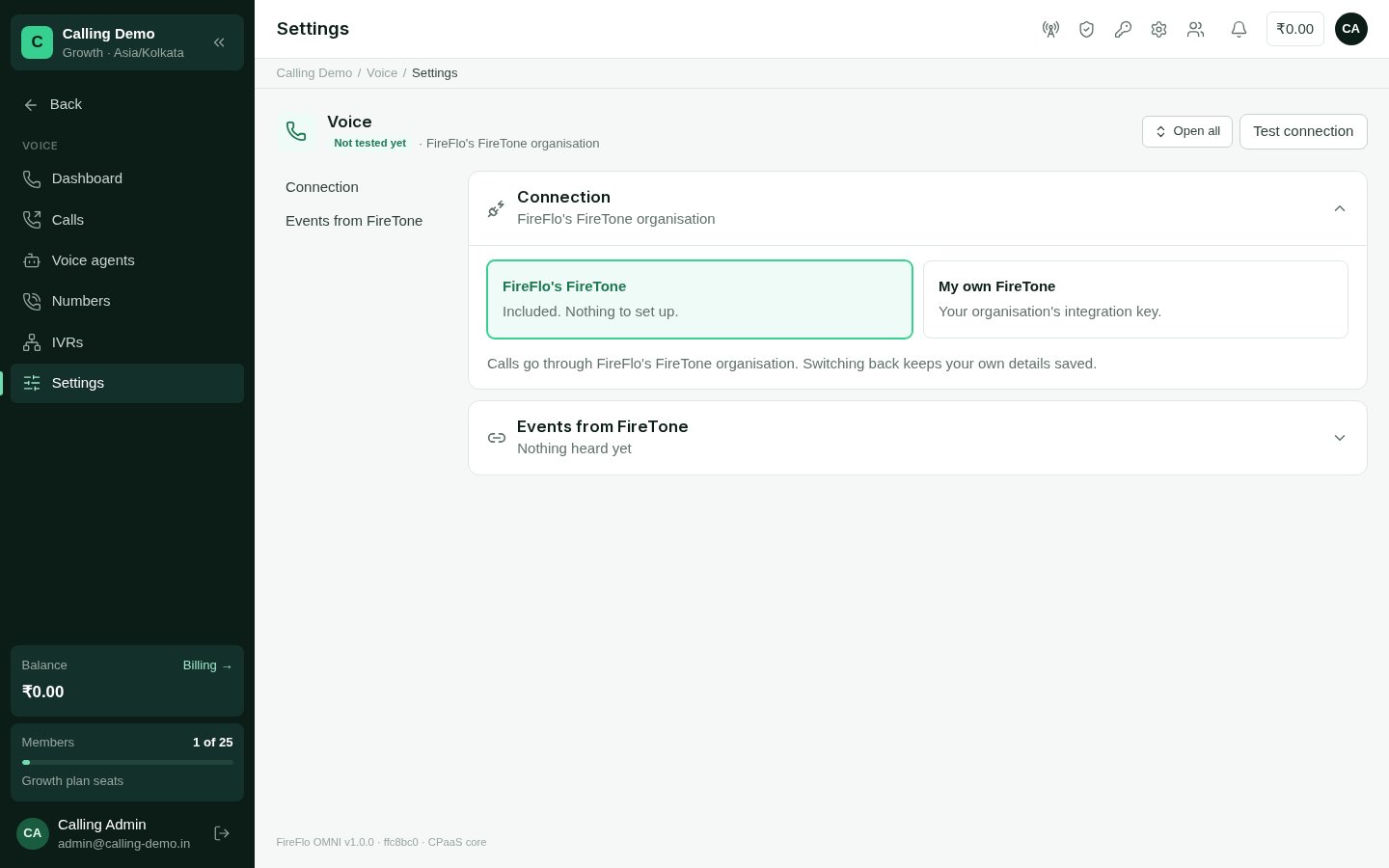
Open **Voice → Settings**. Under **Connection**, choose one of two:
Included; nothing to set up. You call through FireFlo's organisation, on the numbers
FireFlo gives your account. FireFlo also designs your IVRs, sets each person's phone
extension and connects your full call log — ask [support@fireflo.au](mailto:support@fireflo.au).
Your organisation's own numbers, phones, IVRs and voice agents, and its own bill.
Enter, from FireTone:
* the **Integration key** (FireTone → Developer → API keys → New key). It needs the
click-to-call, read calls, campaigns and webhooks permissions, and OMNI's address
among the key's allowed addresses, or FireTone refuses it.
* the **Callback signing secret** (FireTone → Developer → Webhooks & callbacks). It is
shown once, when it is made.
* a **Caller ID** (optional) — one of your FireTone numbers, for calls to show as
coming from.
**Save and test** checks the key straight away.
**Events from FireTone** shows whether FireTone has been heard from — how a call's
answer, end and recording reach OMNI. It is sent with every call automatically; there is
nothing to paste anywhere.
 ## What needs your own voice organisation
Most of Voice works the same on either connection. Two features need **your own
FireTone organisation**, because FireTone bills the organisation that places the calls:
* **Voice broadcasts** — ringing a whole audience into an IVR.
* **Voice agents** — an AI voice that calls a contact for you.
On FireFlo's organisation, Voice in a broadcast reads "Needs your own FireTone
organisation", and **Voice → Voice agents** explains how to connect it.
The rest differs only in who does what:
| | Your own FireTone | FireFlo's FireTone |
| :- | :- | :- |
| **Numbers** | Every number in your organisation, with its monthly rental | The numbers FireFlo gave your account; rental not shown |
| **Where a number's calls go** | One of your IVRs, an extension or another number | One of your IVRs; anything else is set by FireFlo |
| **The IVR designer** | Opened from OMNI | FireFlo designs IVRs for you |
| **Your phone (click-to-call)** | Each person picks their extension | FireFlo sets each person's extension |
| **The full call log** | An admin connects it in Voice → Calls | FireFlo connects it |
| **What calls cost** | Shown on the dashboard and on each call | Not shown |
## The Voice dashboard
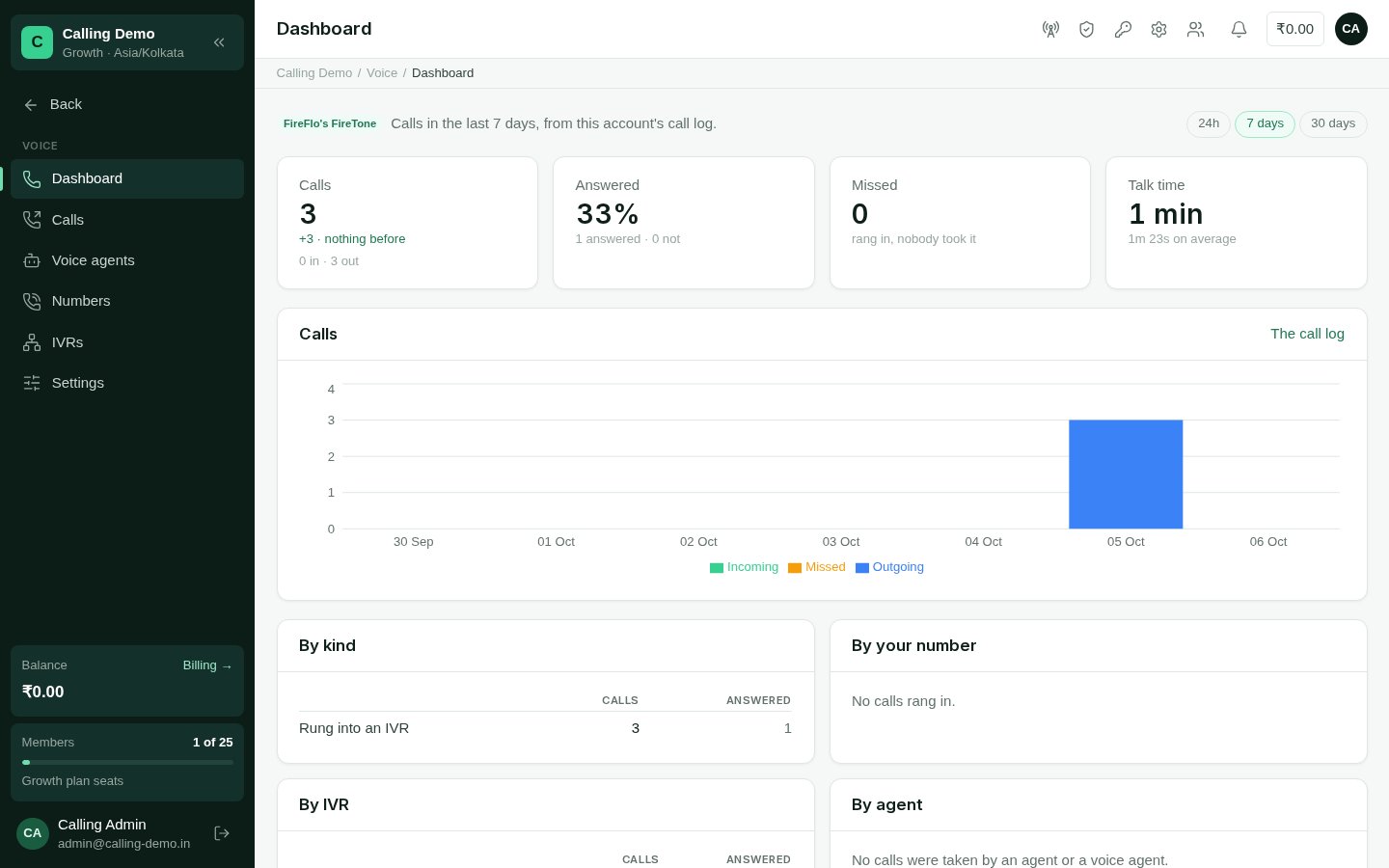
**Voice → Dashboard** reports on the call log over 24 hours, 7 or 30 days: **Calls** (in
and out, with the change on the period before), **Answered** %, **Missed**, and **Talk
time** with the average length. On your own organisation it adds what FireTone charged.
A chart shows incoming, outgoing and missed calls per hour or day, and the breakdowns
show calls and answers **by kind**, **by your number**, **by IVR** and **by agent** (a
person or a voice agent).
## What needs your own voice organisation
Most of Voice works the same on either connection. Two features need **your own
FireTone organisation**, because FireTone bills the organisation that places the calls:
* **Voice broadcasts** — ringing a whole audience into an IVR.
* **Voice agents** — an AI voice that calls a contact for you.
On FireFlo's organisation, Voice in a broadcast reads "Needs your own FireTone
organisation", and **Voice → Voice agents** explains how to connect it.
The rest differs only in who does what:
| | Your own FireTone | FireFlo's FireTone |
| :- | :- | :- |
| **Numbers** | Every number in your organisation, with its monthly rental | The numbers FireFlo gave your account; rental not shown |
| **Where a number's calls go** | One of your IVRs, an extension or another number | One of your IVRs; anything else is set by FireFlo |
| **The IVR designer** | Opened from OMNI | FireFlo designs IVRs for you |
| **Your phone (click-to-call)** | Each person picks their extension | FireFlo sets each person's extension |
| **The full call log** | An admin connects it in Voice → Calls | FireFlo connects it |
| **What calls cost** | Shown on the dashboard and on each call | Not shown |
## The Voice dashboard
**Voice → Dashboard** reports on the call log over 24 hours, 7 or 30 days: **Calls** (in
and out, with the change on the period before), **Answered** %, **Missed**, and **Talk
time** with the average length. On your own organisation it adds what FireTone charged.
A chart shows incoming, outgoing and missed calls per hour or day, and the breakdowns
show calls and answers **by kind**, **by your number**, **by IVR** and **by agent** (a
person or a voice agent).
 ## Who can be called
Voice is a channel people can stop, like any other.
* **Ringing someone into an IVR** and **calling with a voice agent** are screened for
opt-outs, do-not-contact and quiet hours.
* **Voice broadcasts** leave out people who opted out or are marked do-not-contact, and
ring only within the broadcast's calling hours.
* **Click-to-call**, where you talk to the person yourself, reaches anyone except a
contact who asked never to be contacted. A STOP to messages doesn't stop you calling
them.
## What batteries add on Voice
No battery adds features on Voice yet. One thing comes on its own: with the
[Customer data](/batteries/customer-data) battery, Voice appears in consent and on the
preference page, so someone can stop calls without stopping messages.
## Who may
| To | Permission | Roles by default |
| :- | :- | :- |
| Connect Voice and change its settings; connect the call log | Configure channel modules | Owner, Admin |
| Route numbers, take them in or out of service, choose the caller ID; make, design, publish and delete IVRs | Route numbers and design IVRs | Owner, Admin |
| Place calls: click-to-call, ring into an IVR, call with a voice agent | Place calls | Owner, Admin, Support |
| See calls, listen to recordings, see numbers, IVRs, voice agents and the dashboard | See calls and listen to recordings | Owner, Admin, Support, Viewer |
This documentation is built and hosted on [Mintlify](https://mintlify.com), a developer documentation platform.
## Who can be called
Voice is a channel people can stop, like any other.
* **Ringing someone into an IVR** and **calling with a voice agent** are screened for
opt-outs, do-not-contact and quiet hours.
* **Voice broadcasts** leave out people who opted out or are marked do-not-contact, and
ring only within the broadcast's calling hours.
* **Click-to-call**, where you talk to the person yourself, reaches anyone except a
contact who asked never to be contacted. A STOP to messages doesn't stop you calling
them.
## What batteries add on Voice
No battery adds features on Voice yet. One thing comes on its own: with the
[Customer data](/batteries/customer-data) battery, Voice appears in consent and on the
preference page, so someone can stop calls without stopping messages.
## Who may
| To | Permission | Roles by default |
| :- | :- | :- |
| Connect Voice and change its settings; connect the call log | Configure channel modules | Owner, Admin |
| Route numbers, take them in or out of service, choose the caller ID; make, design, publish and delete IVRs | Route numbers and design IVRs | Owner, Admin |
| Place calls: click-to-call, ring into an IVR, call with a voice agent | Place calls | Owner, Admin, Support |
| See calls, listen to recordings, see numbers, IVRs, voice agents and the dashboard | See calls and listen to recordings | Owner, Admin, Support, Viewer |
This documentation is built and hosted on [Mintlify](https://mintlify.com), a developer documentation platform.