> ## Documentation Index
> Fetch the complete documentation index at: https://omni.fireflo.au/llms.txt
> Use this file to discover all available pages before exploring further.
# WhatsApp
> How to connect WhatsApp — on a number FireFlo hosts or your own WhatsApp Business Account — and how conversations, the 24-hour window, media, buttons and reactions work.
WhatsApp is OMNI's two-way channel. People write to you and you answer in the
[Inbox](/using/inbox); you start conversations, and send broadcasts, with templates Meta
has approved. Delivery and read receipts come back on their own.
**The plan must include WhatsApp.** The menu then shows a **WhatsApp** section with
Dashboard, Send WhatsApp, Templates and Settings.
## How you connect
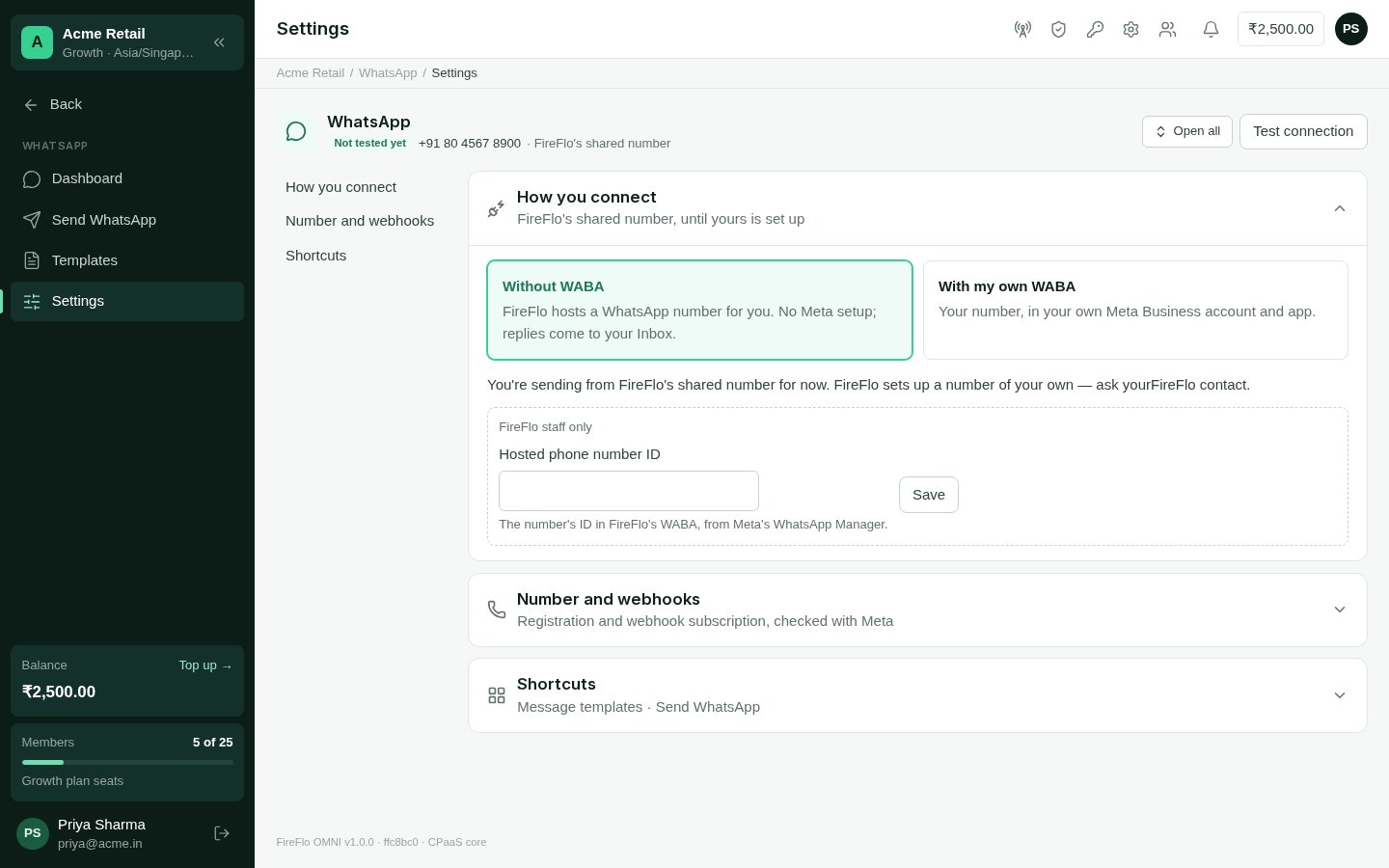
Open **WhatsApp → Settings**. Under **How you connect**, choose one of two:
FireFlo hosts a WhatsApp number for you. There is no Meta setup, and replies come to
your Inbox.
Until your own number is ready, you send from **FireFlo's shared number**. FireFlo
sets up a number of your own — ask [support@fireflo.au](mailto:support@fireflo.au). Once it is ready, Settings
shows your number, **hosted by FireFlo**, with nothing more to set up.
On a hosted number you see and use only the templates your account submitted.
Your number, in your own Meta Business account and app. You need, from Meta:
* the **Phone number ID** (WhatsApp Manager → Phone numbers);
* the **WhatsApp Business Account ID**;
* an **Access token** — a permanent system-user token;
* the **App secret** (App settings → Basic), which proves each call comes from your
app.
**Save and test** checks them with Meta straight away.
 ### Finishing your own WABA
With your own WABA, two more sections appear in Settings.
In Meta for Developers, open your app → WhatsApp → Configuration. Paste the
**Callback URL** and **Verify token** shown in OMNI, then click Verify and save. Under
Webhook fields, subscribe to `messages`. The section turns green as soon as Meta's
first call arrives.
OMNI checks the number with Meta. If the number isn't registered yet, enter its
six-digit **Two-step PIN** (set in Business Manager) to register it. If webhooks
aren't subscribed, choose **Subscribe to webhooks** — inbound messages then reach
OMNI.
If you make a new verify token, paste it into Meta again.
### Voice calls over SIP
On your own WABA, Settings also shows **Voice calls over SIP**: the WhatsApp calling
settings Meta holds for your number, read live. It shows whether calling and SIP are on,
the server Meta calls in to, and the SIP credentials your phone system needs (the
password only when you choose **Show password**; OMNI stores none of it). **Copy guide**
gives the whole setup as text for whoever runs your phone system. You can switch the key
exchange between Meta's default and SDES — SDES is the fix when calls connect with no
audio — or disconnect, so Meta stops sending calls to your SIP server.
This section isn't shown on a hosted or shared number. It is separate from
[Voice](/channels/voice).
## Conversations and the 24-hour window
WhatsApp lets a business write freely to someone only for **24 hours after their last
message**. Inside that window you can send anything from the Inbox. Outside it, you can
only send an **approved template** — which is how a conversation restarts.
The Inbox shows when a thread's window is closed ("window closed · templates only"); the
reply box then points you to **Send WhatsApp** to send a template. See
[WhatsApp templates](/channels/whatsapp-templates).
Inside the window, the Inbox can send:
* **Text**, including saved quick replies.
* **Media** — an image, video, audio file or document, up to 16 MB, with a caption.
* **Reply buttons** — a question with up to three buttons of up to 20 characters each.
The person's tap comes back as their answer.
* **Reactions** to the person's messages.
When you open a thread, the person's messages are marked as read on their phone.
People can send you text, media, button taps and reactions; all of it lands in their
WhatsApp thread.
WhatsApp also supports **list menus** — up to ten rows across up to ten sections — and
**product cards**. OMNI uses them where a battery needs them, such as Calendar's list of
free times and Catalogue's products.
## Send WhatsApp
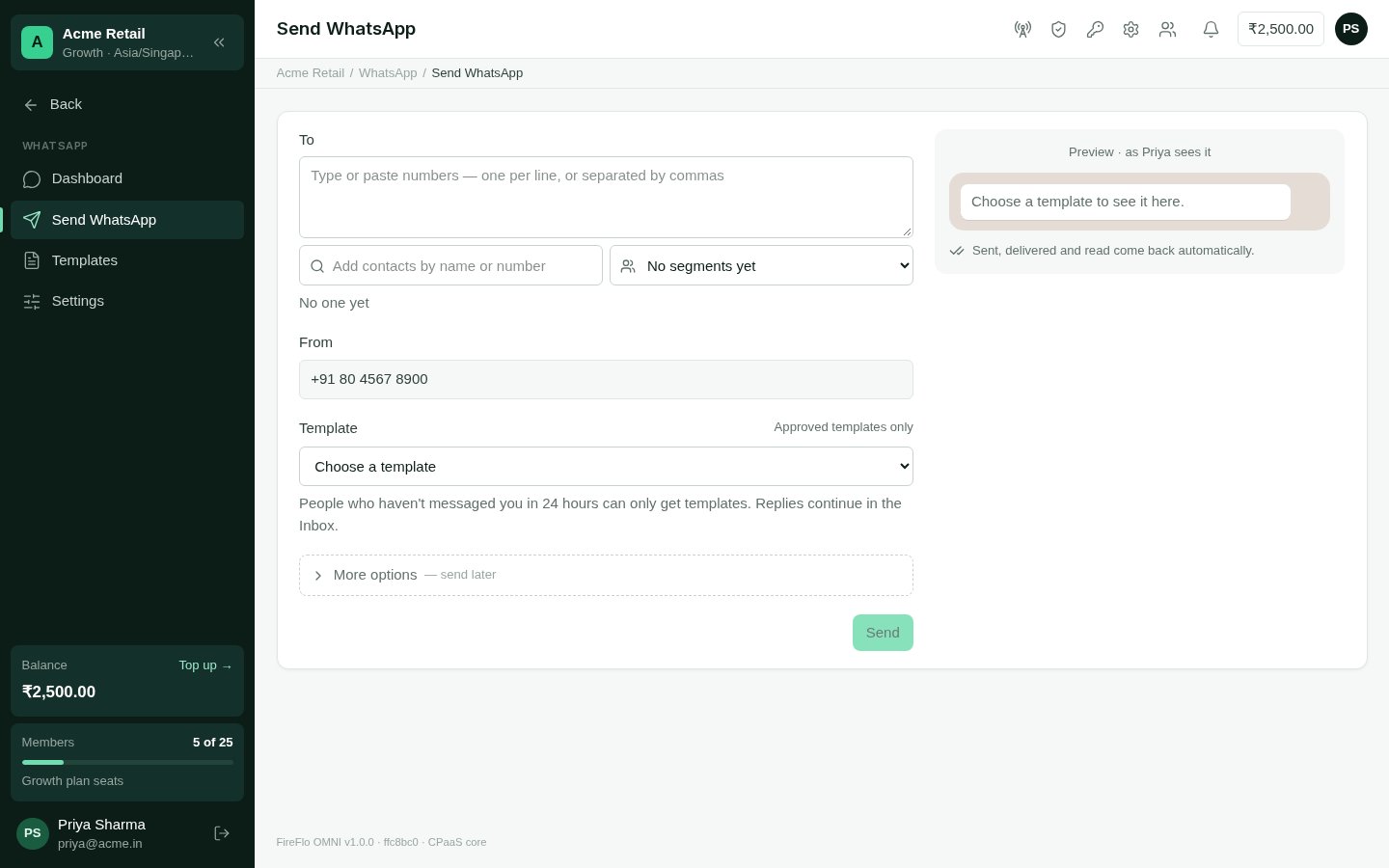
**WhatsApp → Send WhatsApp** starts conversations with an approved template.
Numbers, contacts or segments — up to 500 typed numbers and contacts at a time. For
more, upload a file in a [broadcast](/using/broadcasts).
Choose an approved template and fill in its blanks. The **From** line shows your
WhatsApp Business number.
Under **More options**, **Send later** schedules it; until then you can cancel it or
send it early. People who opted out are left out.
### Finishing your own WABA
With your own WABA, two more sections appear in Settings.
In Meta for Developers, open your app → WhatsApp → Configuration. Paste the
**Callback URL** and **Verify token** shown in OMNI, then click Verify and save. Under
Webhook fields, subscribe to `messages`. The section turns green as soon as Meta's
first call arrives.
OMNI checks the number with Meta. If the number isn't registered yet, enter its
six-digit **Two-step PIN** (set in Business Manager) to register it. If webhooks
aren't subscribed, choose **Subscribe to webhooks** — inbound messages then reach
OMNI.
If you make a new verify token, paste it into Meta again.
### Voice calls over SIP
On your own WABA, Settings also shows **Voice calls over SIP**: the WhatsApp calling
settings Meta holds for your number, read live. It shows whether calling and SIP are on,
the server Meta calls in to, and the SIP credentials your phone system needs (the
password only when you choose **Show password**; OMNI stores none of it). **Copy guide**
gives the whole setup as text for whoever runs your phone system. You can switch the key
exchange between Meta's default and SDES — SDES is the fix when calls connect with no
audio — or disconnect, so Meta stops sending calls to your SIP server.
This section isn't shown on a hosted or shared number. It is separate from
[Voice](/channels/voice).
## Conversations and the 24-hour window
WhatsApp lets a business write freely to someone only for **24 hours after their last
message**. Inside that window you can send anything from the Inbox. Outside it, you can
only send an **approved template** — which is how a conversation restarts.
The Inbox shows when a thread's window is closed ("window closed · templates only"); the
reply box then points you to **Send WhatsApp** to send a template. See
[WhatsApp templates](/channels/whatsapp-templates).
Inside the window, the Inbox can send:
* **Text**, including saved quick replies.
* **Media** — an image, video, audio file or document, up to 16 MB, with a caption.
* **Reply buttons** — a question with up to three buttons of up to 20 characters each.
The person's tap comes back as their answer.
* **Reactions** to the person's messages.
When you open a thread, the person's messages are marked as read on their phone.
People can send you text, media, button taps and reactions; all of it lands in their
WhatsApp thread.
WhatsApp also supports **list menus** — up to ten rows across up to ten sections — and
**product cards**. OMNI uses them where a battery needs them, such as Calendar's list of
free times and Catalogue's products.
## Send WhatsApp
**WhatsApp → Send WhatsApp** starts conversations with an approved template.
Numbers, contacts or segments — up to 500 typed numbers and contacts at a time. For
more, upload a file in a [broadcast](/using/broadcasts).
Choose an approved template and fill in its blanks. The **From** line shows your
WhatsApp Business number.
Under **More options**, **Send later** schedules it; until then you can cancel it or
send it early. People who opted out are left out.
 You can also start from a contact's page with **Send WhatsApp**.
## The WhatsApp dashboard
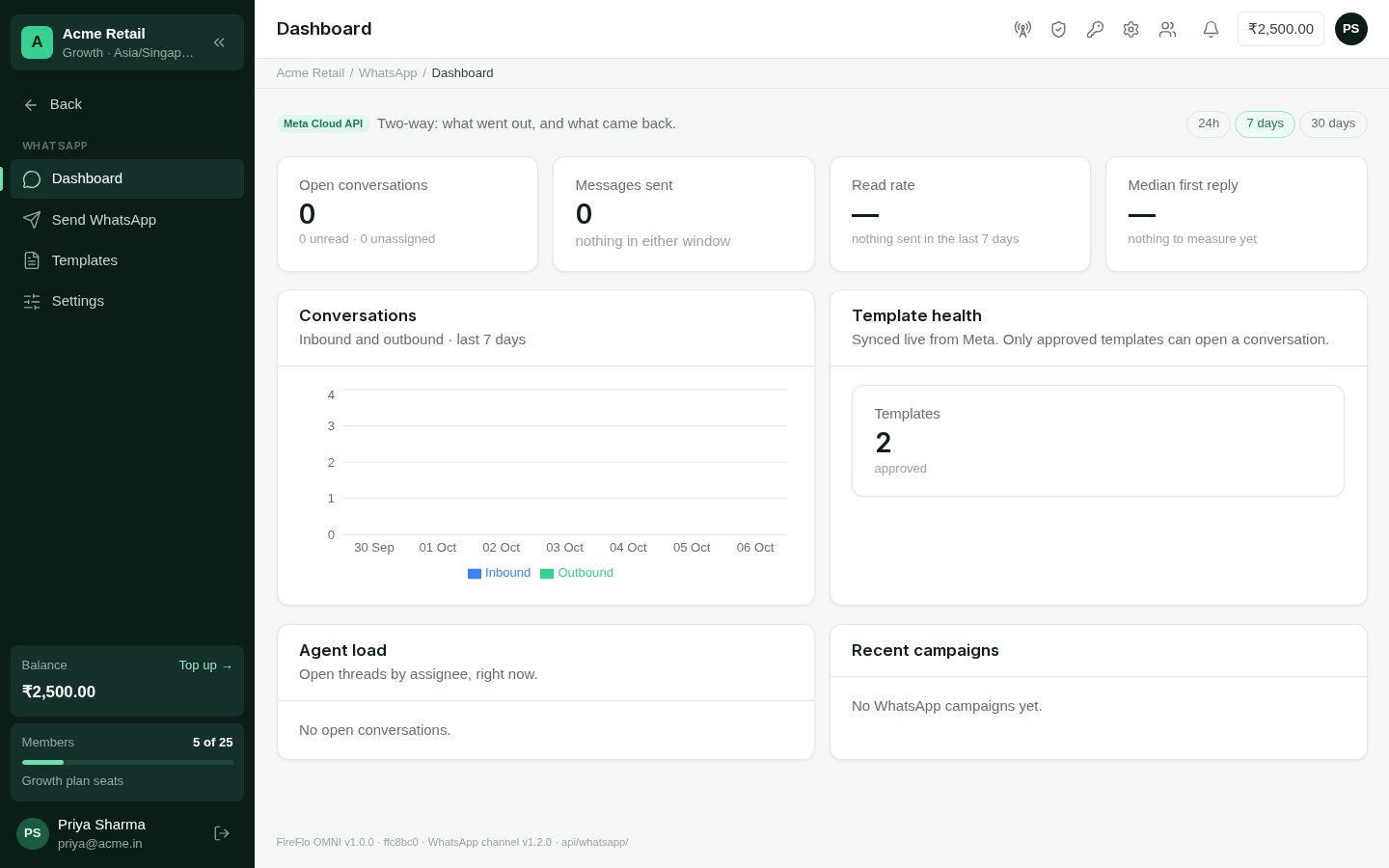
**WhatsApp → Dashboard** shows, for the period you pick: **Open conversations**,
**Messages sent**, **Read rate** and **Median first reply**; a chart of inbound and
outbound **Conversations**; **Agent load** (open threads by assignee, right now);
**Template health**, synced live from Meta; and **Recent campaigns**.
You can also start from a contact's page with **Send WhatsApp**.
## The WhatsApp dashboard
**WhatsApp → Dashboard** shows, for the period you pick: **Open conversations**,
**Messages sent**, **Read rate** and **Median first reply**; a chart of inbound and
outbound **Conversations**; **Agent load** (open threads by assignee, right now);
**Template health**, synced live from Meta; and **Recent campaigns**.
 ## Opt-outs
**STOP** stops a person on every channel; do-not-contact and quiet hours are always
honoured. With the [Customer data](/batteries/customer-data) battery, people can stop
WhatsApp alone, or WhatsApp marketing alone.
## What batteries add on WhatsApp
WhatsApp works with no battery at all. Each one below adds to it when it is in your plan.
| Battery | What it adds on WhatsApp |
| :- | :- |
| [AI Agents](/batteries/ai-agents) | An agent answers in free text inside the 24-hour window, and with an approved template outside it. When no template fits, it drafts one and submits it to WhatsApp (after approval, if your policy says so). An inbound message or a button tap starts or continues a workflow; questions go as reply buttons. Reminder stories go on WhatsApp first. You can ask about a WhatsApp broadcast's results in plain words. |
| [Calendar](/batteries/calendar) | Appointment messages with **Confirm**, **Reschedule** and **Cancel** buttons inside the window, and the approved reminder template outside it; a tap changes the appointment. A list of times that are really free, where a tap books one. The one-time code for booking online, with its own template. |
| [Catalogue](/batteries/catalogue) | On your own WABA: products edited in OMNI are pushed to your Meta catalogue, and people get native product cards and product lists they can order from. On a hosted or shared number: the picture, the price and a link. A WhatsApp cart becomes an order — and a deal too, with Pipelines. |
| [Customer data](/batteries/customer-data) | Someone can stop WhatsApp marketing or WhatsApp updates without stopping everything. You can require a recorded opt-in before WhatsApp marketing, add your own stop and start words with an optional confirmation reply, show WhatsApp on the preference page, use an audience as a WhatsApp broadcast's recipients, and build audience rules on WhatsApp consent. Messages feed last engaged, reply rate and preferred channel. |
| [Pipelines](/batteries/pipelines) | WhatsApp messages show on a deal's timeline; a contact's deals show beside their WhatsApp thread. |
| [Tickets](/batteries/tickets) | A WhatsApp conversation can be raised as a ticket, and closing or assigning it keeps the ticket in step. |
## Who may
| To | Permission | Roles by default |
| :- | :- | :- |
| Connect WhatsApp and change its settings | Configure channel modules | Owner, Admin |
| Submit, edit and delete templates | Manage WhatsApp message templates | Owner, Admin |
| Send WhatsApp and reply in the Inbox | Send messages | Owner, Admin, Support |
| See the WhatsApp dashboard | View the message log and delivery reports | Owner, Admin, Support, Viewer |
This documentation is built and hosted on [Mintlify](https://mintlify.com), a developer documentation platform.
## Opt-outs
**STOP** stops a person on every channel; do-not-contact and quiet hours are always
honoured. With the [Customer data](/batteries/customer-data) battery, people can stop
WhatsApp alone, or WhatsApp marketing alone.
## What batteries add on WhatsApp
WhatsApp works with no battery at all. Each one below adds to it when it is in your plan.
| Battery | What it adds on WhatsApp |
| :- | :- |
| [AI Agents](/batteries/ai-agents) | An agent answers in free text inside the 24-hour window, and with an approved template outside it. When no template fits, it drafts one and submits it to WhatsApp (after approval, if your policy says so). An inbound message or a button tap starts or continues a workflow; questions go as reply buttons. Reminder stories go on WhatsApp first. You can ask about a WhatsApp broadcast's results in plain words. |
| [Calendar](/batteries/calendar) | Appointment messages with **Confirm**, **Reschedule** and **Cancel** buttons inside the window, and the approved reminder template outside it; a tap changes the appointment. A list of times that are really free, where a tap books one. The one-time code for booking online, with its own template. |
| [Catalogue](/batteries/catalogue) | On your own WABA: products edited in OMNI are pushed to your Meta catalogue, and people get native product cards and product lists they can order from. On a hosted or shared number: the picture, the price and a link. A WhatsApp cart becomes an order — and a deal too, with Pipelines. |
| [Customer data](/batteries/customer-data) | Someone can stop WhatsApp marketing or WhatsApp updates without stopping everything. You can require a recorded opt-in before WhatsApp marketing, add your own stop and start words with an optional confirmation reply, show WhatsApp on the preference page, use an audience as a WhatsApp broadcast's recipients, and build audience rules on WhatsApp consent. Messages feed last engaged, reply rate and preferred channel. |
| [Pipelines](/batteries/pipelines) | WhatsApp messages show on a deal's timeline; a contact's deals show beside their WhatsApp thread. |
| [Tickets](/batteries/tickets) | A WhatsApp conversation can be raised as a ticket, and closing or assigning it keeps the ticket in step. |
## Who may
| To | Permission | Roles by default |
| :- | :- | :- |
| Connect WhatsApp and change its settings | Configure channel modules | Owner, Admin |
| Submit, edit and delete templates | Manage WhatsApp message templates | Owner, Admin |
| Send WhatsApp and reply in the Inbox | Send messages | Owner, Admin, Support |
| See the WhatsApp dashboard | View the message log and delivery reports | Owner, Admin, Support, Viewer |
This documentation is built and hosted on [Mintlify](https://mintlify.com), a developer documentation platform.