> ## Documentation Index
> Fetch the complete documentation index at: https://omni.fireflo.au/llms.txt
> Use this file to discover all available pages before exploring further.
# API & playground
> Every endpoint, run in the panel as one of your own keys, on your own data, with the code to take away.
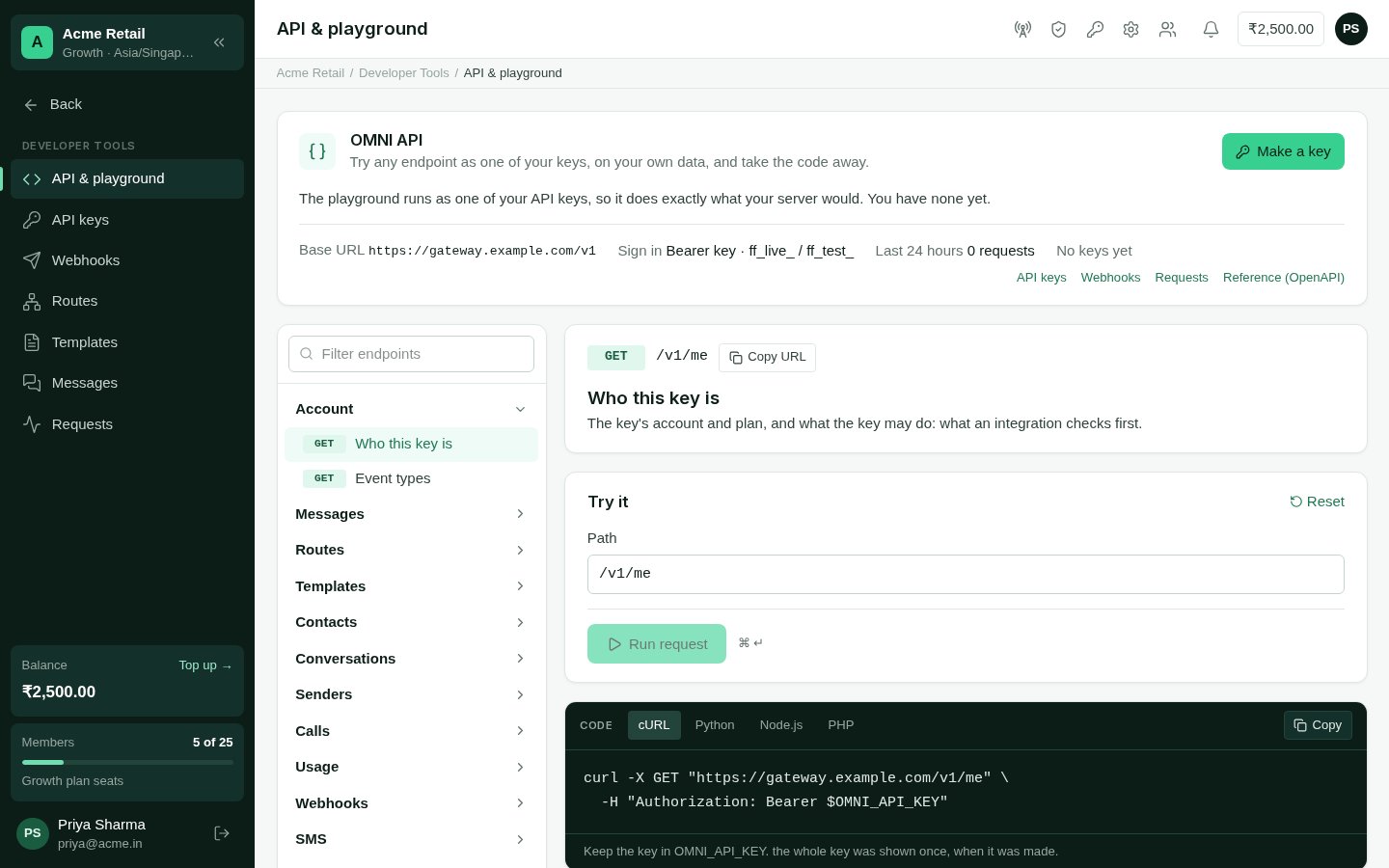
**API & playground** is in **Developer Tools**, the last entry in the side menu. It is
for Owners and Admins, on accounts whose plan includes the API.
 ## Using it
**Run as** lists your keys that are still in use. A request runs exactly as that key
would from your server: its scopes, and whether it is a test key. With no keys yet,
the playground offers to make one.
The list on the left groups every endpoint, then each of your channels' own. The
middle shows what it does, its parameters, and the scope it needs — and warns when
the chosen key doesn't have it.
The path and body come filled in from your own account — a real contact, template,
route or message — so the first run works. **Sample from your account** switches to
another record; **Reset** puts the sample back. Add an `Idempotency-Key` and run
twice to see a replay.
With a live key, anything that reaches people asks first: *Send a real message to
+91…?* Removing something always asks.
cURL, Python, Node.js or PHP, built from the same request. The key is read from the
`OMNI_API_KEY` environment variable — never written into the code.
## The answer, and Debug
The answer shows its status, how long it took and its request id, with three tabs:
**Body**, the answer itself; **Headers**, what came back with it; and **Debug**, the exact
request that was sent (the key shown by its start only) beside the answer's headers and
timing. A refusal shows its code and what to do about it above the body. In Debug, **Find in the request log** opens that one request in
**Developer Tools → Requests**, where runs from the playground carry a *Playground* badge.
This documentation is built and hosted on [Mintlify](https://mintlify.com), a developer documentation platform.
## Using it
**Run as** lists your keys that are still in use. A request runs exactly as that key
would from your server: its scopes, and whether it is a test key. With no keys yet,
the playground offers to make one.
The list on the left groups every endpoint, then each of your channels' own. The
middle shows what it does, its parameters, and the scope it needs — and warns when
the chosen key doesn't have it.
The path and body come filled in from your own account — a real contact, template,
route or message — so the first run works. **Sample from your account** switches to
another record; **Reset** puts the sample back. Add an `Idempotency-Key` and run
twice to see a replay.
With a live key, anything that reaches people asks first: *Send a real message to
+91…?* Removing something always asks.
cURL, Python, Node.js or PHP, built from the same request. The key is read from the
`OMNI_API_KEY` environment variable — never written into the code.
## The answer, and Debug
The answer shows its status, how long it took and its request id, with three tabs:
**Body**, the answer itself; **Headers**, what came back with it; and **Debug**, the exact
request that was sent (the key shown by its start only) beside the answer's headers and
timing. A refusal shows its code and what to do about it above the body. In Debug, **Find in the request log** opens that one request in
**Developer Tools → Requests**, where runs from the playground carry a *Playground* badge.
This documentation is built and hosted on [Mintlify](https://mintlify.com), a developer documentation platform.