> ## Documentation Index
> Fetch the complete documentation index at: https://omni.fireflo.au/llms.txt
> Use this file to discover all available pages before exploring further.
# Channel connections
> How to set up the shared connection customers send through when they don't bring their own, test it, host WhatsApp numbers, run RCS bots and routes, and switch a channel off for everyone.
Every channel can connect a customer in one of two ways: through **your shared
connection**, or through **their own** provider account. **Platform → Channels** is
where you set up the shared connection for each channel. It also holds the switch that
turns a channel on or off for every account.
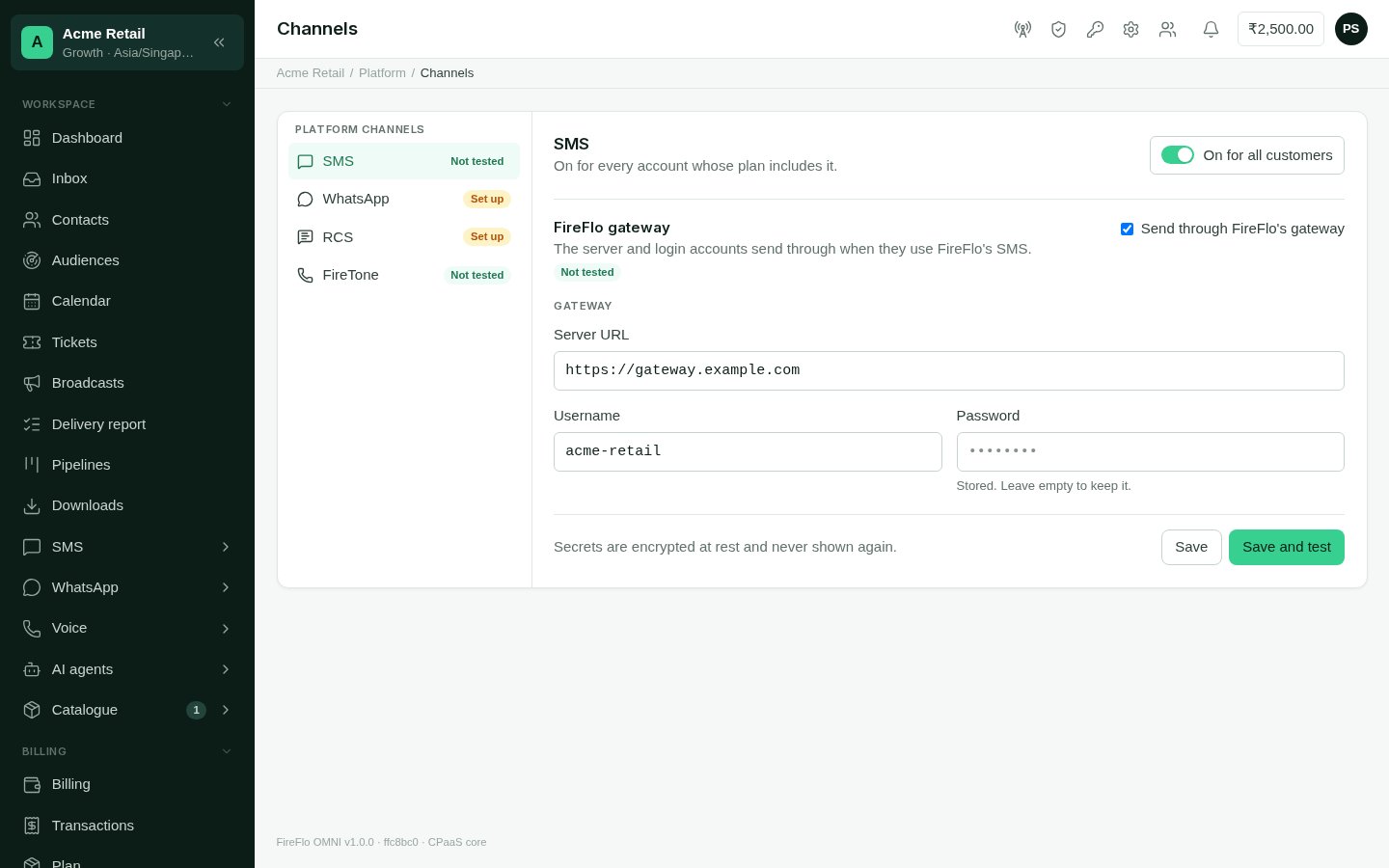 The list shows each channel with a badge:
| Badge | Meaning |
| :- | :- |
| **Switched off** | Off for every account. See [Switching a channel off](#switching-a-channel-off-for-everyone). |
| **Set up** | The shared connection isn't filled in yet. |
| **Off** | Filled in, but not in use. |
| **Not tested** | In use, but not tested since it last changed. |
| **Connected** | The last test worked. |
| **Not working** | The last test failed. The page shows the error. |
For RCS, the badge counts your provider connections instead.
## Who uses the shared connection
A customer sends through the shared connection when their product includes the channel
and they haven't connected their own. If they connect their own and it's complete, that
is used instead. If they switch back, their own details stay saved. Customers see which
one they're on in their channel settings. See [Channels](/channels/overview#shared-connection-or-your-own).
If a channel's shared connection is off or incomplete, customers without their own
connection have nothing to send through on that channel.
## Set up SMS, WhatsApp or Voice
Select the channel in the list.
Your SMS gateway's **Server URL**, **Username** and **Password**. All three are
needed.
Under **Meta app**: your app's **Access token** (a permanent system-user token),
**App ID** and **App secret**. All three are needed.
Under **Shared number**: the **Phone number ID** of the number customers without
their own send from, and the **WhatsApp Business Account ID** your hosted numbers
live in.
Under **Webhook**, copy the **Callback URL** and **Verify token** into your Meta
app's WhatsApp configuration, then subscribe it to messages.
Your voice organisation's **Integration key** (needed) and **Callback signing
secret**, plus an optional **Caller ID**: the number calls show as coming from.
Under **Advanced**, set the service's address or an organisation ID only if your
key needs them.
Tick **Send through FireFlo's gateway**. It won't save while a required field is
empty, and the message names the missing fields.
Select **Save and test**. SMS logs in to the gateway and shows its balance. WhatsApp
looks up the shared number, so it needs that number's Phone number ID to test.
The result is kept, so the list shows whether the connection works.
Secrets are encrypted when stored and never shown again. To keep a stored secret, leave
its field empty when you save. Changing any field marks the connection **Not tested**
until you test it again.
## Hosted WhatsApp numbers
Besides the shared number, you can give a customer **a number of their own, hosted in
your WhatsApp Business Account**. The customer has nothing to set up with Meta, and
replies reach their Inbox.
Staff assign a hosted number on the customer account's own **WhatsApp → Settings**
page. There, staff see a **Hosted phone number ID** field, marked "FireFlo staff only".
Enter the number's ID from Meta's WhatsApp Manager and select **Save**. Clear the field
and save to take the number away.
Hosted numbers share your WhatsApp Business Account, so they share its templates. Each
hosted customer sees only the templates they submitted.
## RCS: providers, bots and routes
RCS has a page of its own with three tabs:
* **Connections**: your logins at RCS providers. Select **Add connection**, choose the
**Provider**, give it a **Name**, and enter the login. Paste the **Callback URL** it
shows into the provider, so delivery reports, replies, taps and template status reach
OMNI. Each connection can be tested, switched off or deleted.
* **Bots and access**: the bots on each connection. Providers don't list their bots, so
add each with **Add bot**, with its id, name, type and the countries it is launched in.
Then choose which accounts can use it. Only those accounts can send through it.
Deleting a bot removes the routes through it.
* **Default routes**: for each country, the bot that sends there. A default route is used
by every account that has no route of its own for that country, through bots it is
allowed to use.
See [RCS](/channels/rcs) for how customers see bots and routes.
## Who may connect their own
Any customer can connect their own provider account for a channel their product
includes, with one exception. A reseller can keep a customer on the SMS gateway it sells
them. The customer then can't connect their own SMS gateway. See
[Resellers](/operators/resellers#their-own-sms-gateway).
## Switching a channel off for everyone
The switch at the top of each channel reads **On for all customers** or **Off for all
customers**. Switching off asks first and tells you who it reaches: how many accounts
have the channel in their plan, how many of those use their own connection, and how many
open broadcasts will be cancelled.
When a channel is off:
* it disappears from every account's menu, Inbox, contacts, broadcasts and agents,
whoever's connection they use;
* its sends are refused;
* its unfinished broadcasts are cancelled.
Plans, settings, templates and history are kept. Switching back on restores everything
except the cancelled broadcasts. While it's off, the page says who switched it off and
when.
The same switch appears for the channel under [Modules](/operators/modules).
This documentation is built and hosted on [Mintlify](https://mintlify.com), a developer documentation platform.
The list shows each channel with a badge:
| Badge | Meaning |
| :- | :- |
| **Switched off** | Off for every account. See [Switching a channel off](#switching-a-channel-off-for-everyone). |
| **Set up** | The shared connection isn't filled in yet. |
| **Off** | Filled in, but not in use. |
| **Not tested** | In use, but not tested since it last changed. |
| **Connected** | The last test worked. |
| **Not working** | The last test failed. The page shows the error. |
For RCS, the badge counts your provider connections instead.
## Who uses the shared connection
A customer sends through the shared connection when their product includes the channel
and they haven't connected their own. If they connect their own and it's complete, that
is used instead. If they switch back, their own details stay saved. Customers see which
one they're on in their channel settings. See [Channels](/channels/overview#shared-connection-or-your-own).
If a channel's shared connection is off or incomplete, customers without their own
connection have nothing to send through on that channel.
## Set up SMS, WhatsApp or Voice
Select the channel in the list.
Your SMS gateway's **Server URL**, **Username** and **Password**. All three are
needed.
Under **Meta app**: your app's **Access token** (a permanent system-user token),
**App ID** and **App secret**. All three are needed.
Under **Shared number**: the **Phone number ID** of the number customers without
their own send from, and the **WhatsApp Business Account ID** your hosted numbers
live in.
Under **Webhook**, copy the **Callback URL** and **Verify token** into your Meta
app's WhatsApp configuration, then subscribe it to messages.
Your voice organisation's **Integration key** (needed) and **Callback signing
secret**, plus an optional **Caller ID**: the number calls show as coming from.
Under **Advanced**, set the service's address or an organisation ID only if your
key needs them.
Tick **Send through FireFlo's gateway**. It won't save while a required field is
empty, and the message names the missing fields.
Select **Save and test**. SMS logs in to the gateway and shows its balance. WhatsApp
looks up the shared number, so it needs that number's Phone number ID to test.
The result is kept, so the list shows whether the connection works.
Secrets are encrypted when stored and never shown again. To keep a stored secret, leave
its field empty when you save. Changing any field marks the connection **Not tested**
until you test it again.
## Hosted WhatsApp numbers
Besides the shared number, you can give a customer **a number of their own, hosted in
your WhatsApp Business Account**. The customer has nothing to set up with Meta, and
replies reach their Inbox.
Staff assign a hosted number on the customer account's own **WhatsApp → Settings**
page. There, staff see a **Hosted phone number ID** field, marked "FireFlo staff only".
Enter the number's ID from Meta's WhatsApp Manager and select **Save**. Clear the field
and save to take the number away.
Hosted numbers share your WhatsApp Business Account, so they share its templates. Each
hosted customer sees only the templates they submitted.
## RCS: providers, bots and routes
RCS has a page of its own with three tabs:
* **Connections**: your logins at RCS providers. Select **Add connection**, choose the
**Provider**, give it a **Name**, and enter the login. Paste the **Callback URL** it
shows into the provider, so delivery reports, replies, taps and template status reach
OMNI. Each connection can be tested, switched off or deleted.
* **Bots and access**: the bots on each connection. Providers don't list their bots, so
add each with **Add bot**, with its id, name, type and the countries it is launched in.
Then choose which accounts can use it. Only those accounts can send through it.
Deleting a bot removes the routes through it.
* **Default routes**: for each country, the bot that sends there. A default route is used
by every account that has no route of its own for that country, through bots it is
allowed to use.
See [RCS](/channels/rcs) for how customers see bots and routes.
## Who may connect their own
Any customer can connect their own provider account for a channel their product
includes, with one exception. A reseller can keep a customer on the SMS gateway it sells
them. The customer then can't connect their own SMS gateway. See
[Resellers](/operators/resellers#their-own-sms-gateway).
## Switching a channel off for everyone
The switch at the top of each channel reads **On for all customers** or **Off for all
customers**. Switching off asks first and tells you who it reaches: how many accounts
have the channel in their plan, how many of those use their own connection, and how many
open broadcasts will be cancelled.
When a channel is off:
* it disappears from every account's menu, Inbox, contacts, broadcasts and agents,
whoever's connection they use;
* its sends are refused;
* its unfinished broadcasts are cancelled.
Plans, settings, templates and history are kept. Switching back on restores everything
except the cancelled broadcasts. While it's off, the page says who switched it off and
when.
The same switch appears for the channel under [Modules](/operators/modules).
This documentation is built and hosted on [Mintlify](https://mintlify.com), a developer documentation platform.