> ## Documentation Index
> Fetch the complete documentation index at: https://omni.fireflo.au/llms.txt
> Use this file to discover all available pages before exploring further.
# Modules
> What the Modules page shows about the channels, batteries and OMNI API a deployment carries, how a module reaches customers, and how to switch one off for everyone or clear its data.
OMNI is built from **modules**:
* **Channels** carry messages and calls: SMS, WhatsApp, RCS and Voice.
* **Batteries** add what the panel can do beyond messaging: AI Agents, Calendar,
Catalogue, Customer data, Pipelines and Tickets.
* **Pluggable modules** sit in front of everything else. The **OMNI API** is one. They
are optional: without them, every channel and battery works as before.
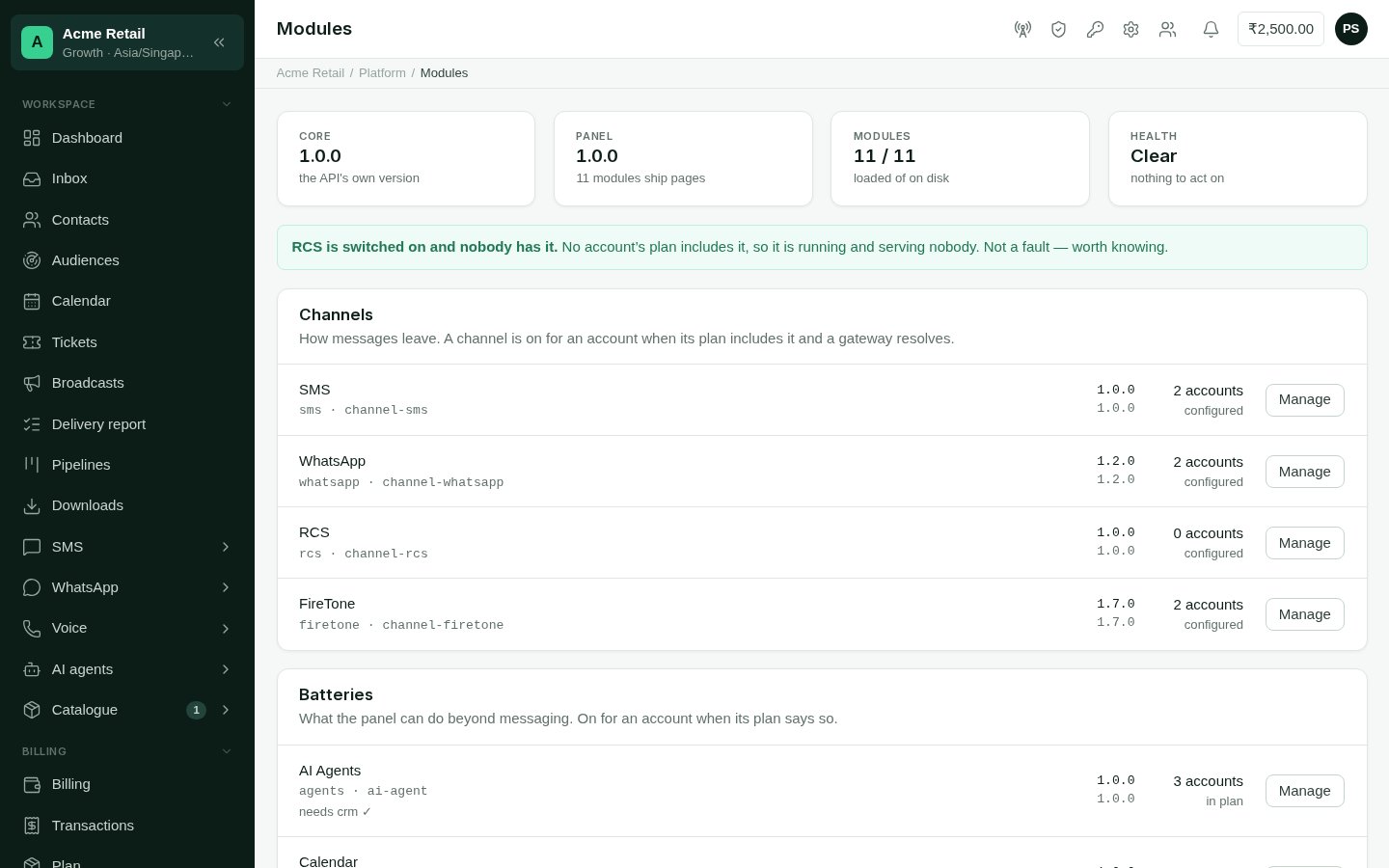
**Platform → Modules** shows which of these your deployment carries, at what version, and
how many accounts use each. It is the page to open when something seems to be missing.
 ## How a module reaches a customer
Three things must all be true:
1. **The deployment carries it.** A module this deployment doesn't load has no pages and
no menu entries for anyone, whatever their plan says.
2. **It isn't switched off for everyone** on this page (or, for a channel, under
[Channels](/operators/channel-connections#switching-a-channel-off-for-everyone)).
3. **The customer's product includes it**, or you've given it to them with an
[override](/operators/customers#modules). A channel also needs a connection, shared or
their own.
A module with no plan feature is on for everyone it reaches.
## Turning a module on for customers
This page doesn't decide who has a module. That is set in two places:
* **For a product**: [Products](/operators/products-and-plans). Every customer on it gets
the module.
* **For one customer**: the **Modules** tab on [their page](/operators/customers#modules).
## Reading the page
The figures at the top show the core and panel versions, how many modules are loaded out
of those installed, and **Health**: **Clear**, or the number of issues to look at.
Each issue is spelled out above the list:
| Issue | What it means |
| :- | :- |
| **Is two different versions** | The two halves of the module (the server and the panel) are at different versions. A page can call something that isn't there yet. |
| **Is on disk but not loaded** | The deployment carries the module but doesn't load it. Its pages and menu entries don't appear for anyone. |
| **Is missing something it needs** | It depends on another module that isn't loaded at a version it accepts. |
| **Is switched on and nobody has it** | No account's plan includes it. Not a fault, but worth knowing. |
Each module's row shows its badges (**Not loaded**, **Version mismatch**, **Off for
everyone**), what it depends on, its version, and how many accounts use it. For a
channel, that's accounts that have it configured. For anything else, it's accounts whose
plan includes it.
## Switching a module off for everyone
Select **Manage** on its row.
Under **For every account**, select **Switch off for everyone**. The page tells you
how many accounts have it.
Switching off is immediate and reversible. The module disappears from every account's
menus and pages, and nothing is deleted. Select **Switch back on** to restore it. For a
channel, this is the same switch as under
[Channels](/operators/channel-connections#switching-a-channel-off-for-everyone), and its
open broadcasts are cancelled.
Switching off stops a module reaching anyone, but the deployment still loads it. To
stop carrying a module altogether, contact [support@fireflo.au](mailto:support@fireflo.au).
## Backing up and deleting a module's data
The **Its data** section of **Manage** shows how many rows the module holds, and in how
many tables.
**Back up** downloads all of it to you as one file. The page checks that what you
received matches what was sent, and says so. **Nothing is kept on the server.** The file
you download is the only copy.
Deleting a module's data is permanent. The page refuses until every reason not to has
been dealt with, and lists them all:
* the module is still switched on;
* some accounts still have it;
* another module still depends on its data, and has to be emptied first;
* no backup has been taken, the last one was never confirmed as received in full, or the
last one has already been used for a delete.
When nothing stands in the way, type the module's key to confirm and select **Delete
this data**.
This empties every table the module holds and can't be undone. Keep your backup
somewhere you trust before you delete.
This documentation is built and hosted on [Mintlify](https://mintlify.com), a developer documentation platform.
## How a module reaches a customer
Three things must all be true:
1. **The deployment carries it.** A module this deployment doesn't load has no pages and
no menu entries for anyone, whatever their plan says.
2. **It isn't switched off for everyone** on this page (or, for a channel, under
[Channels](/operators/channel-connections#switching-a-channel-off-for-everyone)).
3. **The customer's product includes it**, or you've given it to them with an
[override](/operators/customers#modules). A channel also needs a connection, shared or
their own.
A module with no plan feature is on for everyone it reaches.
## Turning a module on for customers
This page doesn't decide who has a module. That is set in two places:
* **For a product**: [Products](/operators/products-and-plans). Every customer on it gets
the module.
* **For one customer**: the **Modules** tab on [their page](/operators/customers#modules).
## Reading the page
The figures at the top show the core and panel versions, how many modules are loaded out
of those installed, and **Health**: **Clear**, or the number of issues to look at.
Each issue is spelled out above the list:
| Issue | What it means |
| :- | :- |
| **Is two different versions** | The two halves of the module (the server and the panel) are at different versions. A page can call something that isn't there yet. |
| **Is on disk but not loaded** | The deployment carries the module but doesn't load it. Its pages and menu entries don't appear for anyone. |
| **Is missing something it needs** | It depends on another module that isn't loaded at a version it accepts. |
| **Is switched on and nobody has it** | No account's plan includes it. Not a fault, but worth knowing. |
Each module's row shows its badges (**Not loaded**, **Version mismatch**, **Off for
everyone**), what it depends on, its version, and how many accounts use it. For a
channel, that's accounts that have it configured. For anything else, it's accounts whose
plan includes it.
## Switching a module off for everyone
Select **Manage** on its row.
Under **For every account**, select **Switch off for everyone**. The page tells you
how many accounts have it.
Switching off is immediate and reversible. The module disappears from every account's
menus and pages, and nothing is deleted. Select **Switch back on** to restore it. For a
channel, this is the same switch as under
[Channels](/operators/channel-connections#switching-a-channel-off-for-everyone), and its
open broadcasts are cancelled.
Switching off stops a module reaching anyone, but the deployment still loads it. To
stop carrying a module altogether, contact [support@fireflo.au](mailto:support@fireflo.au).
## Backing up and deleting a module's data
The **Its data** section of **Manage** shows how many rows the module holds, and in how
many tables.
**Back up** downloads all of it to you as one file. The page checks that what you
received matches what was sent, and says so. **Nothing is kept on the server.** The file
you download is the only copy.
Deleting a module's data is permanent. The page refuses until every reason not to has
been dealt with, and lists them all:
* the module is still switched on;
* some accounts still have it;
* another module still depends on its data, and has to be emptied first;
* no backup has been taken, the last one was never confirmed as received in full, or the
last one has already been used for a delete.
When nothing stands in the way, type the module's key to confirm and select **Delete
this data**.
This empties every table the module holds and can't be undone. Keep your backup
somewhere you trust before you delete.
This documentation is built and hosted on [Mintlify](https://mintlify.com), a developer documentation platform.