> ## Documentation Index
> Fetch the complete documentation index at: https://omni.fireflo.au/llms.txt
> Use this file to discover all available pages before exploring further.
# Broadcasts
> How to send one message to many people on any channel, schedule it, and follow how it went.
Broadcasts answers **"what have we sent to many people, and how did it go?"** A
broadcast (a *campaign* in the panel) sends one message to a list or to segments of
your contacts, on one channel.
 **Who can use it:** anyone who may read messages sees the list and reports (Owner,
Admin, Support and Viewer). Starting, pausing, retrying and cancelling a campaign needs
permission to send (Owner, Admin and Support).
**Plan:** at least one channel that sends broadcasts must be switched on and connected.
## The list
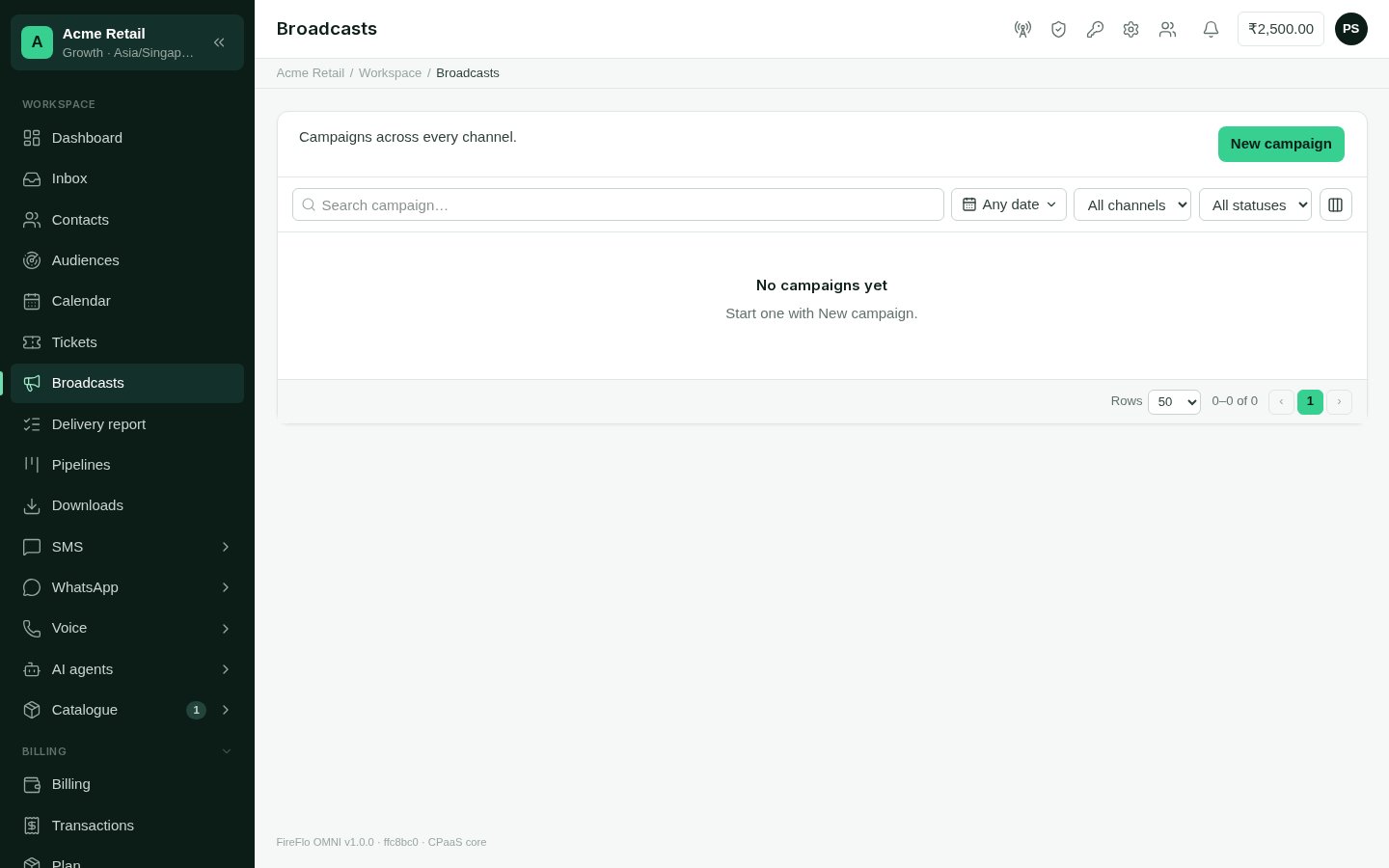
Each campaign shows its channel, status, progress and when it was scheduled, started
and finished. Search by name, and filter by date, channel and status (*scheduled*,
*sending*, *sent*, *failed* or *cancelled*). The list refreshes itself while a campaign
is sending. Choose **Report** to open one.
## Starting a campaign
Choose **New campaign**. One wizard serves every channel; the channel you pick supplies
the parts it needs.
**Who can use it:** anyone who may read messages sees the list and reports (Owner,
Admin, Support and Viewer). Starting, pausing, retrying and cancelling a campaign needs
permission to send (Owner, Admin and Support).
**Plan:** at least one channel that sends broadcasts must be switched on and connected.
## The list
Each campaign shows its channel, status, progress and when it was scheduled, started
and finished. Search by name, and filter by date, channel and status (*scheduled*,
*sending*, *sent*, *failed* or *cancelled*). The list refreshes itself while a campaign
is sending. Choose **Report** to open one.
## Starting a campaign
Choose **New campaign**. One wizard serves every channel; the channel you pick supplies
the parts it needs.
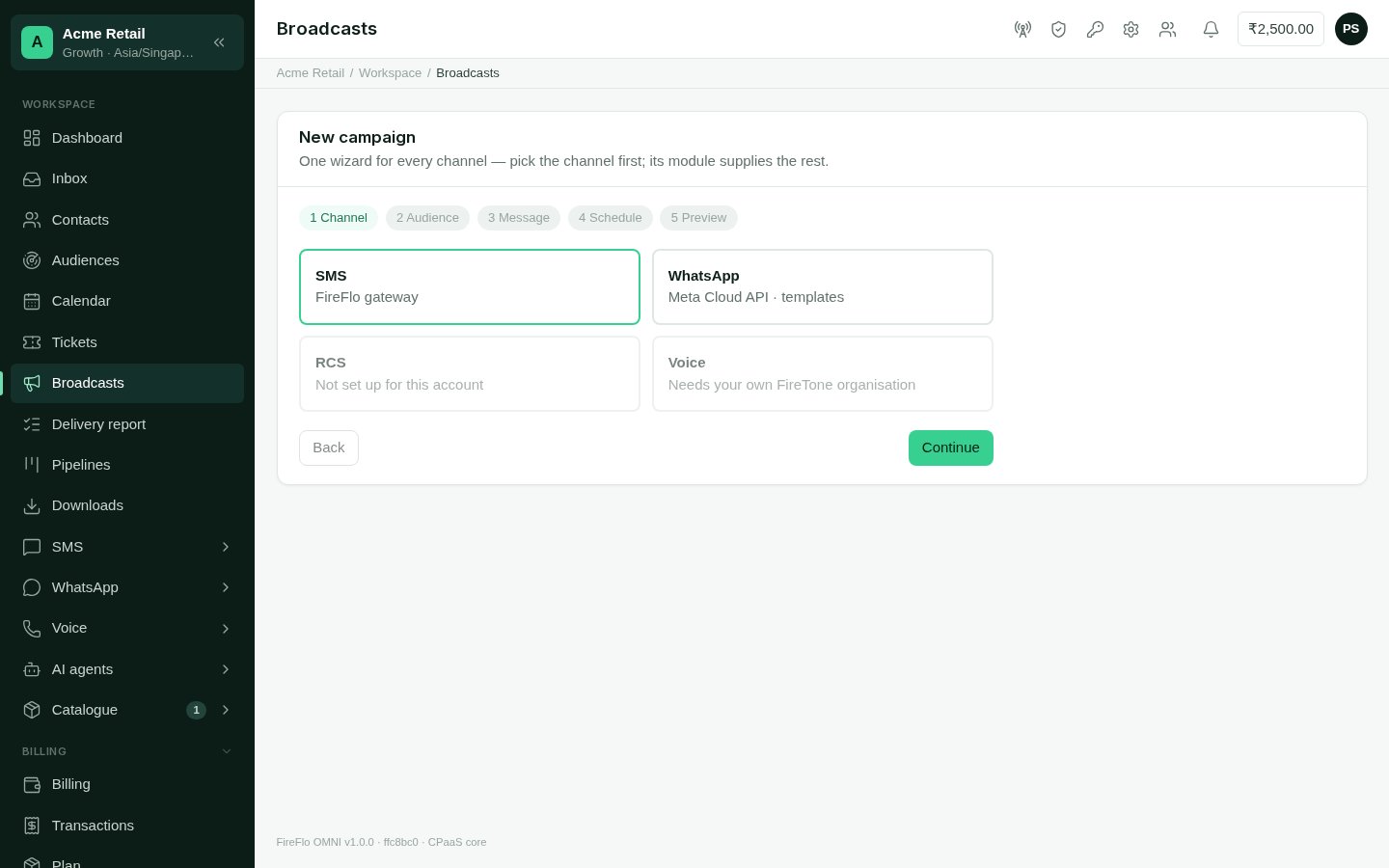 Pick the channel to send on. Channels that aren't connected can't be picked.
Either **upload a file** (CSV or Excel, up to ten lakh rows) or choose **contact
segments**. A file goes straight to the server; nothing is sent until you start the
campaign. For a file, say which column is the number, and match other columns to
the fields your message uses. Batteries can add audiences of their own, such as
saved audiences from [Customer data](/batteries/customer-data).
Write or choose the message in the form the channel needs: an approved template on
WhatsApp or RCS, a sender ID and (in India) a registered template on SMS. Each
channel's page explains its rules: see [Channels](/channels/overview).
| Choice | When it sends |
| - | - |
| **Send now** | As soon as you confirm. |
| **At a time** | One time for everyone, from a few minutes to 30 days ahead. |
| **By a date column** | Each row on its own date, from a date column in an uploaded sheet, at the time you choose. |
Times use your account's timezone (Settings). Rows whose date is blank, unreadable,
past, or more than 30 days away are skipped.
See how many messages **will send**, how many are **skipped** and why, and, for SMS,
how many parts. Look through the rows, or only the skipped ones, and download the
skipped rows.
Say what kind of message this is:
* **marketing** skips people who stopped offers;
* **an update they expect** skips only people who stopped everything.
When an uploaded file brought new values, you can save them to contact profiles.
Then **Start** (or **Schedule**) the campaign.
### Why rows are skipped
The preview gives a reason for every skipped row, such as:
* not a valid phone number, or a number Excel shortened;
* the same number as an earlier row;
* the person stopped these messages, or has no opt-in for marketing;
* **Do not contact**, or inside the person's quiet hours;
* a date that is missing, unreadable, past or too far away;
* the message can't be written for that row, or the channel can't reach that country.
## A campaign's report
Open a campaign to see how it is going.
* **Figures**: recipients, delivered, failed, awaiting a report, and replied.
* **Details**: the message or template, sender, audience, who was left out, and whether
it was marketing or an update.
* **Delivery**: what carriers reported, why messages failed, and deliveries per hour. The
analysis runs by itself when the campaign finishes, and you can refresh it.
* **Recipients**: every number, its message, status and the carrier's answer or error.
* **Reports**: choose **Prepare** to write the full report as files you can download.
They are kept in [Downloads](/using/downloads).
While a campaign runs, you can **Pause** and **Resume** it, or **Cancel** it (what was
already sent stays sent). When some messages failed and the channel can send again,
**Retry** queues the failed ones.
With [AI Agents](/batteries/ai-agents), you can also **ask about the campaign** in
plain words. Answers come from the campaign's analysis, never its raw rows, and count
towards your AI usage.
This documentation is built and hosted on [Mintlify](https://mintlify.com), a developer documentation platform.
Pick the channel to send on. Channels that aren't connected can't be picked.
Either **upload a file** (CSV or Excel, up to ten lakh rows) or choose **contact
segments**. A file goes straight to the server; nothing is sent until you start the
campaign. For a file, say which column is the number, and match other columns to
the fields your message uses. Batteries can add audiences of their own, such as
saved audiences from [Customer data](/batteries/customer-data).
Write or choose the message in the form the channel needs: an approved template on
WhatsApp or RCS, a sender ID and (in India) a registered template on SMS. Each
channel's page explains its rules: see [Channels](/channels/overview).
| Choice | When it sends |
| - | - |
| **Send now** | As soon as you confirm. |
| **At a time** | One time for everyone, from a few minutes to 30 days ahead. |
| **By a date column** | Each row on its own date, from a date column in an uploaded sheet, at the time you choose. |
Times use your account's timezone (Settings). Rows whose date is blank, unreadable,
past, or more than 30 days away are skipped.
See how many messages **will send**, how many are **skipped** and why, and, for SMS,
how many parts. Look through the rows, or only the skipped ones, and download the
skipped rows.
Say what kind of message this is:
* **marketing** skips people who stopped offers;
* **an update they expect** skips only people who stopped everything.
When an uploaded file brought new values, you can save them to contact profiles.
Then **Start** (or **Schedule**) the campaign.
### Why rows are skipped
The preview gives a reason for every skipped row, such as:
* not a valid phone number, or a number Excel shortened;
* the same number as an earlier row;
* the person stopped these messages, or has no opt-in for marketing;
* **Do not contact**, or inside the person's quiet hours;
* a date that is missing, unreadable, past or too far away;
* the message can't be written for that row, or the channel can't reach that country.
## A campaign's report
Open a campaign to see how it is going.
* **Figures**: recipients, delivered, failed, awaiting a report, and replied.
* **Details**: the message or template, sender, audience, who was left out, and whether
it was marketing or an update.
* **Delivery**: what carriers reported, why messages failed, and deliveries per hour. The
analysis runs by itself when the campaign finishes, and you can refresh it.
* **Recipients**: every number, its message, status and the carrier's answer or error.
* **Reports**: choose **Prepare** to write the full report as files you can download.
They are kept in [Downloads](/using/downloads).
While a campaign runs, you can **Pause** and **Resume** it, or **Cancel** it (what was
already sent stays sent). When some messages failed and the channel can send again,
**Retry** queues the failed ones.
With [AI Agents](/batteries/ai-agents), you can also **ask about the campaign** in
plain words. Answers come from the campaign's analysis, never its raw rows, and count
towards your AI usage.
This documentation is built and hosted on [Mintlify](https://mintlify.com), a developer documentation platform.