> ## Documentation Index
> Fetch the complete documentation index at: https://omni.fireflo.au/llms.txt
> Use this file to discover all available pages before exploring further.
# Contacts
> How to find, add, import, organise and export the people you message, with segments, fields and tags.
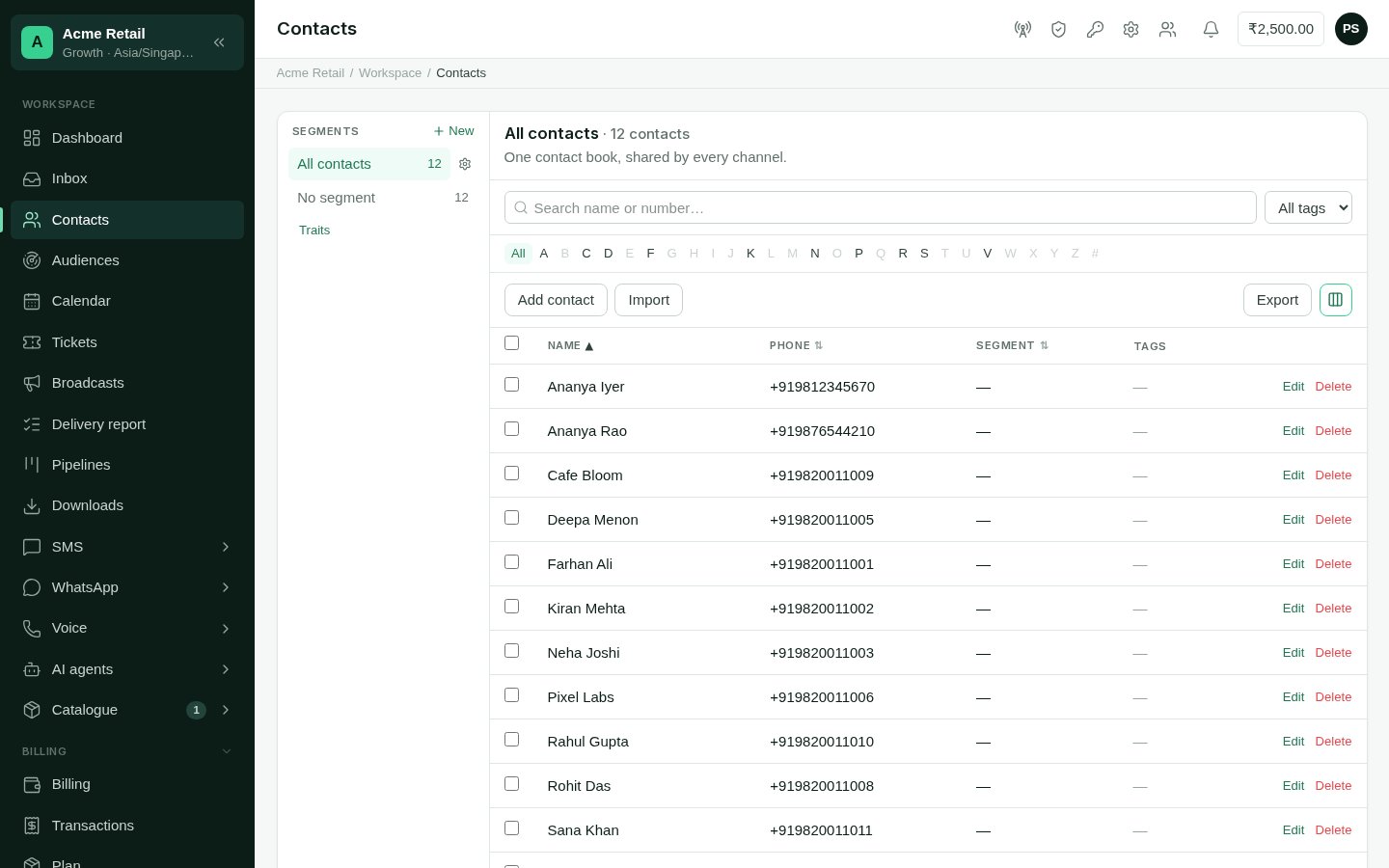
Contacts answers **"who do we talk to?"** It is one contact book, shared by every
channel: a person is one contact, whichever channel they use.
 **Who can use it:** anyone who may see contacts (Owner, Admin, Support and Viewer).
Adding, editing, importing, tagging and deleting needs permission to manage contacts
(Owner, Admin and Support).
## Segments, fields and tags
* **Segments** are the groups down the left: *All contacts*, each segment, and the
contacts in no segment. A contact is in one segment at a time. Make a new segment
from the list; rename or remove one from the gear beside it.
* **Fields** are what you know about a person beyond their name and number: an email,
a loan amount, a renewal date. **Shared fields** apply to every contact; a segment can
also have **fields of its own**. Set them up from the gear beside the segment (or
beside *All contacts*, for shared fields). The table's columns follow the segment's
fields.
* **Tags** are labels you can put on any contact, in any segment.
Renaming a segment moves all its contacts to the new name; past campaigns keep the
name they were sent with. Removing a segment keeps its contacts, without a segment.
## Finding people
* **Search** by name or number.
* Pick a **tag**, or a **letter** from the strip to jump through names.
* **Advanced** search looks inside fields: a value, a range of numbers or a range of
dates.
* The **column picker** chooses which columns show, per segment.
## Adding and changing contacts
Choose **Add contact**, and enter a name, a phone number and, optionally, a segment.
Tick contacts in the table to **apply a tag**, **move them to a segment**, or delete
them. Deleting can't be undone.
Selecting a contact opens their [contact page](/using/contact-page).
## Importing a file
Choose **Import**, and drop a CSV or Excel file (also TSV or plain text), up to 25 MB.
For each column, say what it is: the phone number (required, and only one), the name,
an email or customer id to recognise people by, a field, or **+ New field**. Choose
**Don't import** to skip a column.
Choose what happens when a number is already in your contacts:
| Choice | What it does |
| - | - |
| **Add and update** (recommended) | Fills in values from the file. Blank cells never clear what you have. |
| **Replace** | Mapped columns overwrite what is saved. Blank cells clear the value, and mapped tags replace existing tags. |
| **Only add new** | Numbers already in your contacts are skipped untouched. |
Optionally, put everyone in a segment and add tags to everyone.
The import runs in the background; you can close the page. When it finishes it
shows how many contacts were created, updated, skipped and refused. Find it again
under **Past imports**.
Importing never deletes contacts or opt-outs. Someone who replied STOP stays stopped,
even if they are in the file.
## Exporting
**Export** downloads the contacts on screen, with the filters and columns you are
looking at, as a CSV. For a very large export, the panel offers **Save to Downloads**
instead, so the file is written in the background and kept in
[Downloads](/using/downloads).
This documentation is built and hosted on [Mintlify](https://mintlify.com), a developer documentation platform.
**Who can use it:** anyone who may see contacts (Owner, Admin, Support and Viewer).
Adding, editing, importing, tagging and deleting needs permission to manage contacts
(Owner, Admin and Support).
## Segments, fields and tags
* **Segments** are the groups down the left: *All contacts*, each segment, and the
contacts in no segment. A contact is in one segment at a time. Make a new segment
from the list; rename or remove one from the gear beside it.
* **Fields** are what you know about a person beyond their name and number: an email,
a loan amount, a renewal date. **Shared fields** apply to every contact; a segment can
also have **fields of its own**. Set them up from the gear beside the segment (or
beside *All contacts*, for shared fields). The table's columns follow the segment's
fields.
* **Tags** are labels you can put on any contact, in any segment.
Renaming a segment moves all its contacts to the new name; past campaigns keep the
name they were sent with. Removing a segment keeps its contacts, without a segment.
## Finding people
* **Search** by name or number.
* Pick a **tag**, or a **letter** from the strip to jump through names.
* **Advanced** search looks inside fields: a value, a range of numbers or a range of
dates.
* The **column picker** chooses which columns show, per segment.
## Adding and changing contacts
Choose **Add contact**, and enter a name, a phone number and, optionally, a segment.
Tick contacts in the table to **apply a tag**, **move them to a segment**, or delete
them. Deleting can't be undone.
Selecting a contact opens their [contact page](/using/contact-page).
## Importing a file
Choose **Import**, and drop a CSV or Excel file (also TSV or plain text), up to 25 MB.
For each column, say what it is: the phone number (required, and only one), the name,
an email or customer id to recognise people by, a field, or **+ New field**. Choose
**Don't import** to skip a column.
Choose what happens when a number is already in your contacts:
| Choice | What it does |
| - | - |
| **Add and update** (recommended) | Fills in values from the file. Blank cells never clear what you have. |
| **Replace** | Mapped columns overwrite what is saved. Blank cells clear the value, and mapped tags replace existing tags. |
| **Only add new** | Numbers already in your contacts are skipped untouched. |
Optionally, put everyone in a segment and add tags to everyone.
The import runs in the background; you can close the page. When it finishes it
shows how many contacts were created, updated, skipped and refused. Find it again
under **Past imports**.
Importing never deletes contacts or opt-outs. Someone who replied STOP stays stopped,
even if they are in the file.
## Exporting
**Export** downloads the contacts on screen, with the filters and columns you are
looking at, as a CSV. For a very large export, the panel offers **Save to Downloads**
instead, so the file is written in the background and kept in
[Downloads](/using/downloads).
This documentation is built and hosted on [Mintlify](https://mintlify.com), a developer documentation platform.