> ## Documentation Index
> Fetch the complete documentation index at: https://omni.fireflo.au/llms.txt
> Use this file to discover all available pages before exploring further.
# Dashboard
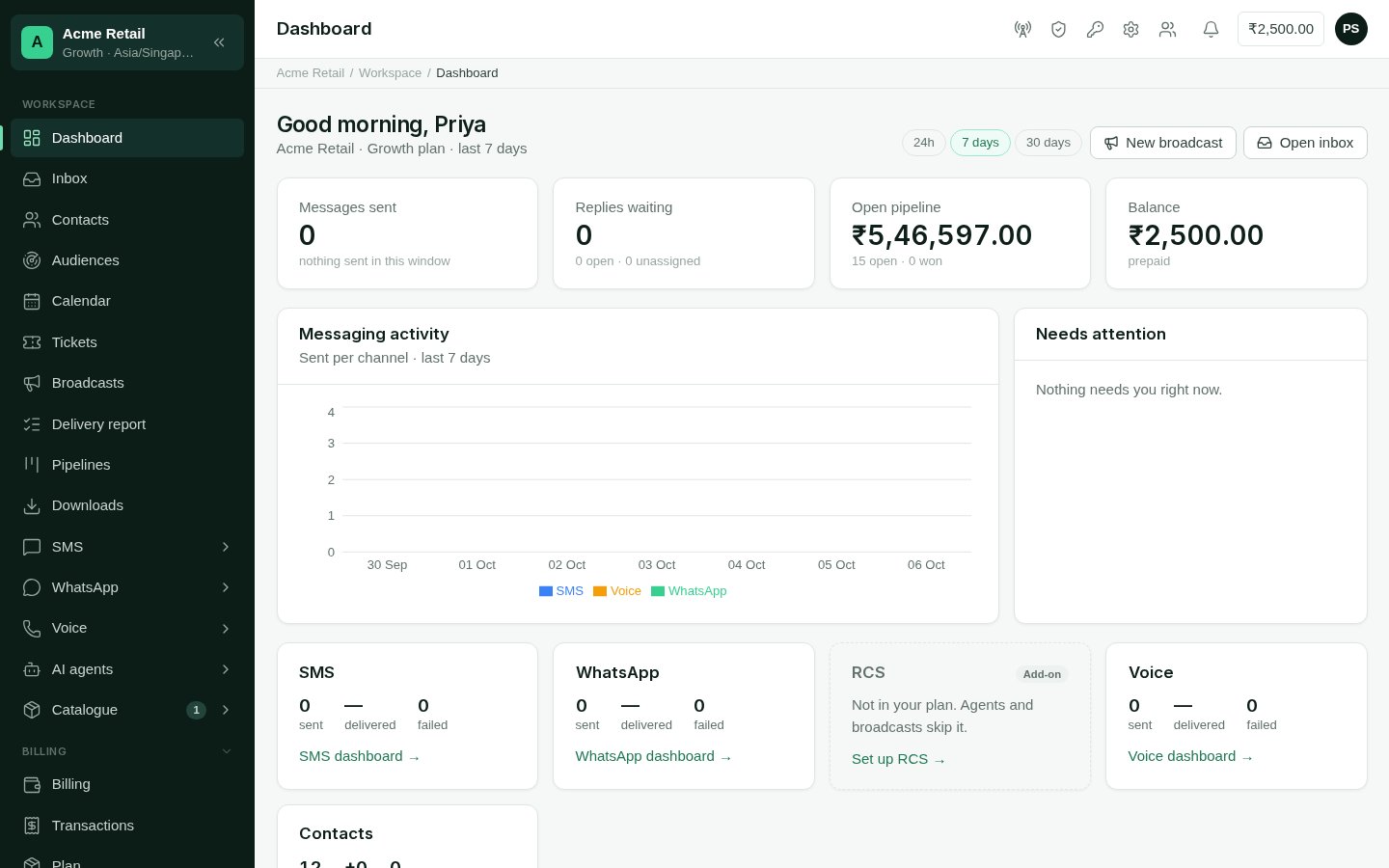
> What the dashboard shows: messages sent, replies waiting, what needs attention, and how each channel is doing.
The dashboard answers **"how are we doing, and what needs me now?"** It is the first
screen after you sign in.
 **Who can use it:** everyone in the account. What each person sees depends on their
role: someone who can't read messages sees no message figures, and someone who can't
see contacts sees no contact figures.
## What is on it
**At the top**, a greeting, your account and plan, and the time window: **24h**,
**7 days** or **30 days**. With the right role, **New broadcast** and **Open inbox** are
one click away.
**Four figures** for the window:
| Tile | What it counts |
| - | - |
| **Messages sent** | Messages sent on every channel, and the share delivered |
| **Replies waiting** | Unread conversations, with how many are open and unassigned |
| **Open pipeline** or **Members** | The value of open deals when you have [Pipelines](/batteries/pipelines); otherwise how many people are on the team, and how many are invited |
| **Balance** or **Contacts** | Your prepaid balance, when your role may see it; otherwise the number of contacts and how many are new |
**Messaging activity** charts messages sent per channel across the window.
**Needs attention** lists what wants doing, each linking to where to do it:
* conversations nobody is assigned to;
* messages that failed, with the most common reason;
* an empty balance, which means sends will stop;
* anything a battery flags, such as AI agent plans waiting for approval.
**A card per channel** your account can have. A connected channel shows how its
messages did. A channel in your plan but not set up, or not in your plan, says so;
broadcasts and agents skip it until it is connected. An Owner or Admin can set it up
from the card.
**Contacts** shows the total, how many are new, and how many have opted out.
**Recent broadcasts** lists the latest four, with how many each went to and the share
delivered. Batteries may add cards of their own beside it.
## A new account
Until a channel is connected, the message figures are empty and the dashboard points
you to **Channels**. See the [Quickstart](/get-started/quickstart).
This documentation is built and hosted on [Mintlify](https://mintlify.com), a developer documentation platform.
**Who can use it:** everyone in the account. What each person sees depends on their
role: someone who can't read messages sees no message figures, and someone who can't
see contacts sees no contact figures.
## What is on it
**At the top**, a greeting, your account and plan, and the time window: **24h**,
**7 days** or **30 days**. With the right role, **New broadcast** and **Open inbox** are
one click away.
**Four figures** for the window:
| Tile | What it counts |
| - | - |
| **Messages sent** | Messages sent on every channel, and the share delivered |
| **Replies waiting** | Unread conversations, with how many are open and unassigned |
| **Open pipeline** or **Members** | The value of open deals when you have [Pipelines](/batteries/pipelines); otherwise how many people are on the team, and how many are invited |
| **Balance** or **Contacts** | Your prepaid balance, when your role may see it; otherwise the number of contacts and how many are new |
**Messaging activity** charts messages sent per channel across the window.
**Needs attention** lists what wants doing, each linking to where to do it:
* conversations nobody is assigned to;
* messages that failed, with the most common reason;
* an empty balance, which means sends will stop;
* anything a battery flags, such as AI agent plans waiting for approval.
**A card per channel** your account can have. A connected channel shows how its
messages did. A channel in your plan but not set up, or not in your plan, says so;
broadcasts and agents skip it until it is connected. An Owner or Admin can set it up
from the card.
**Contacts** shows the total, how many are new, and how many have opted out.
**Recent broadcasts** lists the latest four, with how many each went to and the share
delivered. Batteries may add cards of their own beside it.
## A new account
Until a channel is connected, the message figures are empty and the dashboard points
you to **Channels**. See the [Quickstart](/get-started/quickstart).
This documentation is built and hosted on [Mintlify](https://mintlify.com), a developer documentation platform.