> ## Documentation Index
> Fetch the complete documentation index at: https://omni.fireflo.au/llms.txt
> Use this file to discover all available pages before exploring further.
# Finding your way
> How the OMNI panel is laid out: the menu, the account icons, your balance, notices and your own preferences.
The panel shows you only what your roles allow and your plan includes. Two people in
the same account can see different menus, and that is expected.
## The menu
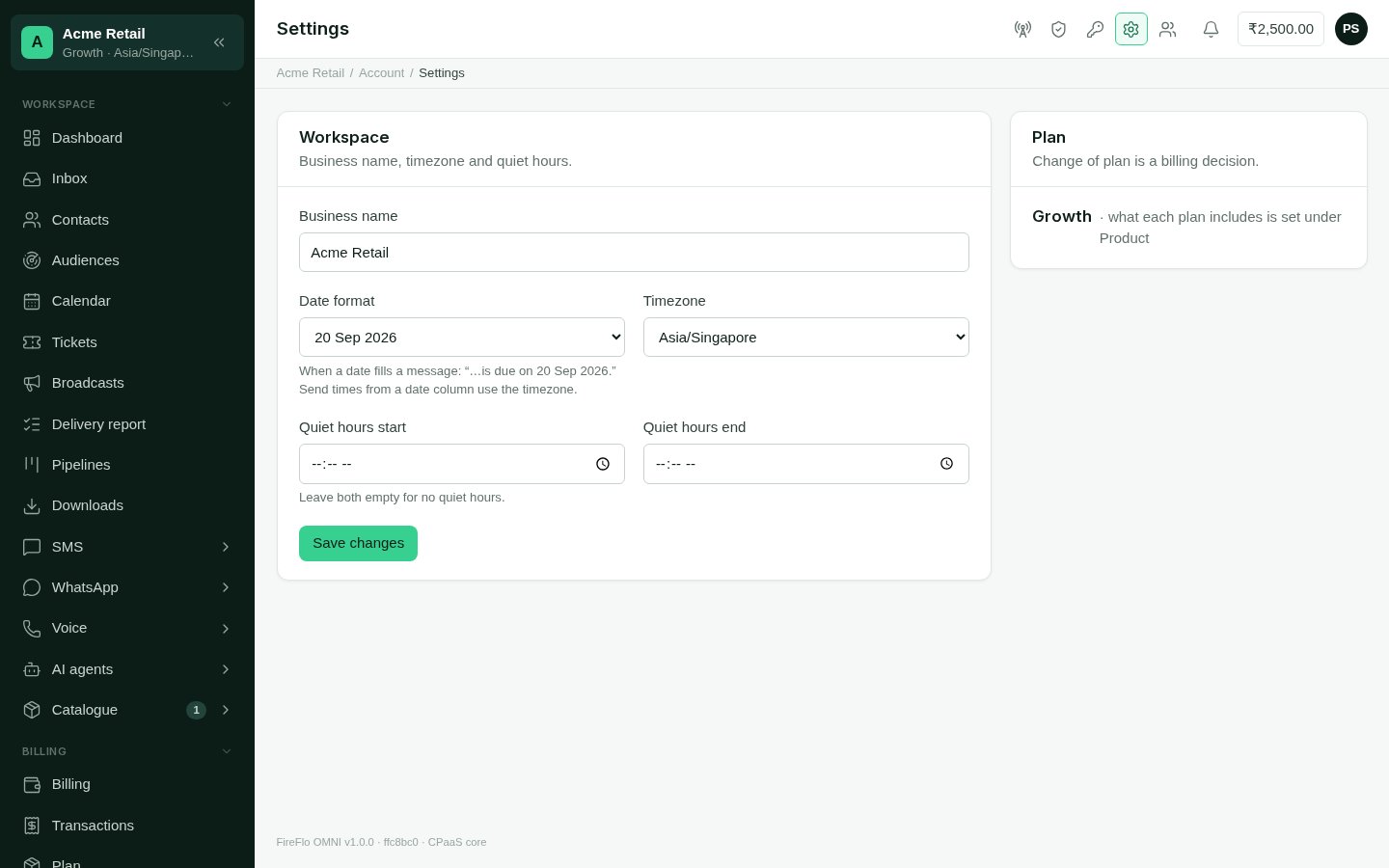
The menu lists the screens you work in, in groups:
| Group | What is in it |
| - | - |
| **Workspace** | [Dashboard](/using/dashboard), [Inbox](/using/inbox), [Contacts](/using/contacts), [Broadcasts](/using/broadcasts), [Delivery report](/using/delivery-report), [Downloads](/using/downloads) |
| **Billing** | [Billing](/using/billing), Transactions, [Plan](/using/plan-and-modules), and [Resellers](/using/resellers) for a reseller |
| **Channels and batteries** | Each channel and battery your account has is **one entry**, such as SMS, WhatsApp or AI agents. Click it to see only its own screens, and **Back** to return. See [Channels](/channels/overview) and [Batteries](/batteries/overview) |
| **Developer Tools** | One entry, last in the menu, when your plan includes the API: API & playground, API keys, Webhooks, Routes, Templates, Messages and Requests. See [Developers](/developers/overview) |
A badge beside an item shows waiting work, such as unread conversations in the Inbox.
A folded group still shows the total on its header, so nothing waiting is hidden.
**Top menu or sidebar.** On a desktop the menu runs across the top by default. To have it
down the side instead, open your account menu (your initials, top right) and choose
**Use the sidebar**. In the sidebar, when you're on a channel's or battery's screen the
menu opens inside it, with **Back** to the rest; you can fold the other groups, and press \[ to shrink
it to icons and back. The panel remembers your choice.
**On a phone** the bar at the bottom holds Dashboard, Inbox and Contacts, with **Menu**
for everything else.
## The account icons
The icons at the top right are about the account rather than the day's work:
| Icon | What it opens | Who sees it |
| - | - | - |
| **Channels** | Each channel your plan includes and whether it is connected | Everyone in the account |
| **Branding** | Your brand and web address, for your customers | Resellers only |
| **Settings** | Business name, timezone, date format and quiet hours | Owner and Admin |
| **Team** | Members and their roles | Everyone who may see the team |
 ## Balance, notices and your account menu
* **Balance**: when your role may see it, your prepaid balance sits in the top bar.
It turns red below zero. Select it to open [Billing](/using/billing).
* **Notices**: the bell holds short news for you, such as a new booking, each with a
link to where it happened, and a count of unread ones.
* **Your account menu** (your initials) shows your account and roles, switches between
the top menu and the sidebar, sets the **Appearance** (Light, Dark or System), and
signs you out.
## Banners about your plan
A banner across the top tells you when your plan needs attention: how many trial days
are left, when your paid time ends, or that a payment is due. While a payment is due,
sending, campaigns and agents are paused until FireFlo records it. The banner links to
**How to pay** on the [Plan](/using/plan-and-modules) page.
## When something is missing
If a screen you expect isn't there, one of three things is true:
1. **Your role doesn't allow it.** Ask an Owner or Admin. See
[Team and roles](/using/team-and-roles).
2. **Your plan doesn't include it.** See [Plan and modules](/using/plan-and-modules).
3. **A channel isn't connected yet.** Channel screens and the messaging parts of the
dashboard appear once a channel is set up. See [Channels](/channels/overview).
This documentation is built and hosted on [Mintlify](https://mintlify.com), a developer documentation platform.
## Balance, notices and your account menu
* **Balance**: when your role may see it, your prepaid balance sits in the top bar.
It turns red below zero. Select it to open [Billing](/using/billing).
* **Notices**: the bell holds short news for you, such as a new booking, each with a
link to where it happened, and a count of unread ones.
* **Your account menu** (your initials) shows your account and roles, switches between
the top menu and the sidebar, sets the **Appearance** (Light, Dark or System), and
signs you out.
## Banners about your plan
A banner across the top tells you when your plan needs attention: how many trial days
are left, when your paid time ends, or that a payment is due. While a payment is due,
sending, campaigns and agents are paused until FireFlo records it. The banner links to
**How to pay** on the [Plan](/using/plan-and-modules) page.
## When something is missing
If a screen you expect isn't there, one of three things is true:
1. **Your role doesn't allow it.** Ask an Owner or Admin. See
[Team and roles](/using/team-and-roles).
2. **Your plan doesn't include it.** See [Plan and modules](/using/plan-and-modules).
3. **A channel isn't connected yet.** Channel screens and the messaging parts of the
dashboard appear once a channel is set up. See [Channels](/channels/overview).
This documentation is built and hosted on [Mintlify](https://mintlify.com), a developer documentation platform.