> ## Documentation Index
> Fetch the complete documentation index at: https://omni.fireflo.au/llms.txt
> Use this file to discover all available pages before exploring further.
# Inbox
> How to read, sort, assign and answer conversations from every channel in one place.
The Inbox answers **"who is waiting for us, and what do they need?"** Every message a
person sends, on any channel, lands in one thread for that person.
 **Who can use it:** anyone who may read messages (Owner, Admin, Support and Viewer).
Replying needs permission to send (Owner, Admin and Support). A Viewer can read
threads but not reply.
**Plan:** the Inbox shows the channels your account has switched on.
## The conversation list
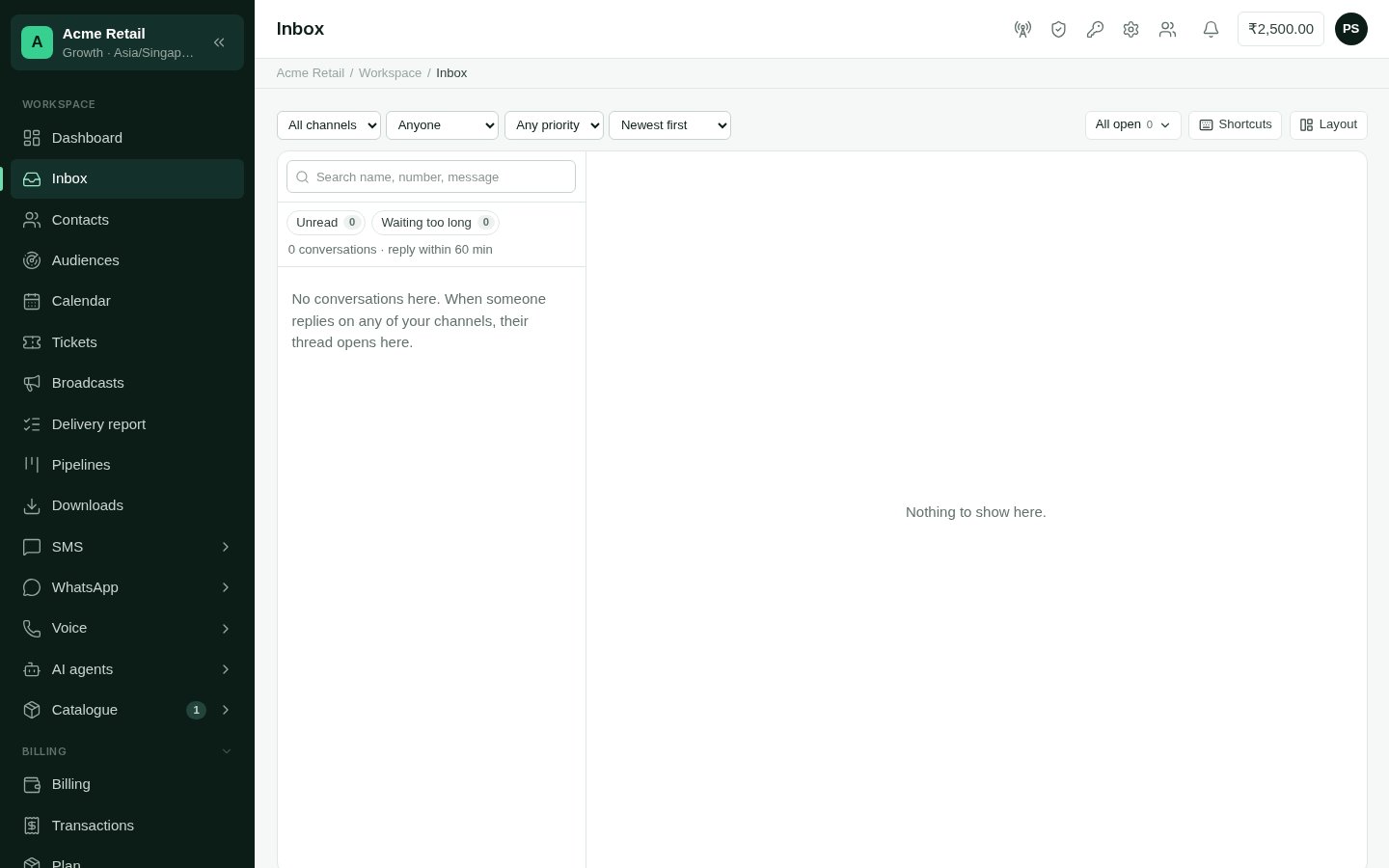
Each row is one person, with their latest message, labels, and how long they have been
waiting for a reply.
* **Views** pick which conversations you see. Every inbox has *All open*, *Mine*,
*Unassigned*, *Unread*, *Waiting too long*, *Snoozed* and *Closed*.
* **Unread** and **Waiting too long** are quick toggles above the list, each with a
count. A conversation is *waiting too long* when the customer has waited past your
account's reply target. The list says what the target is ("reply within 60 min").
* **Search** finds a name, a number or words in a message.
* **Filters** narrow by channel, assignee (anyone, me, unassigned, or a teammate),
label and priority. **Sort** by newest first, waiting longest, or priority.
**Save a view.** Set the filters you want, then save them as a view with a name. A view
is yours alone, unless you share it with the team. Team views need the Owner or Admin
role.
## A thread
The thread shows everything that has passed with the person, on every channel, day by
day. Events such as assignments and label changes appear in line.
At the top of the thread you can:
* **Assign** it to yourself, a teammate, or nobody;
* set its **priority**: normal, high or urgent;
* add **labels**, or make a new one (Owner, Admin and Support);
* **Pin** it to the top of the list;
* **Snooze** it: for an hour, until this evening, until tomorrow 9:00, until Monday
9:00, or until they reply;
* **Close** it, or reopen it;
* show or hide the **contact details** panel.
The header also says each channel's **reply window**: "SMS any time", or for WhatsApp
how long the window stays open, or "templates only" once it has closed.
## Replying
The reply goes out on the channel the person last wrote on. To use another, choose
it under **Reply via**.
Type your reply and press Enter to send (Shift+Enter
for a new line). Type / to pick a **quick reply**, attach a file, or,
on channels that support them, add up to three **reply buttons**.
Some channels only take a typed reply for a while after the person last wrote, such
as WhatsApp's 24-hour window. Once it closes, the composer says so and offers
**Send a template** instead. See [WhatsApp](/channels/whatsapp).
Nothing is sent to a person on **Do not contact**. See [Contact page](/using/contact-page).
## The contact panel
Beside the thread, the contact panel shows who you are talking to: their profile and
tags, fields, notes, their other channels and recent activity. You can add tags and
notes here without leaving the Inbox.
## Making it yours
The layout menu sets how the Inbox looks for you: message previews, avatars, whether
the contact panel shows, the default sort, and which panel sections appear in which
order. It is saved to your account, so it is the same on every device.
## Batteries in the Inbox
Batteries add to the Inbox when your account has them. [Tickets](/batteries/tickets)
can group a thread into tickets with notes, [AI Agents](/batteries/ai-agents) can answer
and hand a conversation back to a person, and [Calendar](/batteries/calendar) can offer
free times as quick replies.
This documentation is built and hosted on [Mintlify](https://mintlify.com), a developer documentation platform.
**Who can use it:** anyone who may read messages (Owner, Admin, Support and Viewer).
Replying needs permission to send (Owner, Admin and Support). A Viewer can read
threads but not reply.
**Plan:** the Inbox shows the channels your account has switched on.
## The conversation list
Each row is one person, with their latest message, labels, and how long they have been
waiting for a reply.
* **Views** pick which conversations you see. Every inbox has *All open*, *Mine*,
*Unassigned*, *Unread*, *Waiting too long*, *Snoozed* and *Closed*.
* **Unread** and **Waiting too long** are quick toggles above the list, each with a
count. A conversation is *waiting too long* when the customer has waited past your
account's reply target. The list says what the target is ("reply within 60 min").
* **Search** finds a name, a number or words in a message.
* **Filters** narrow by channel, assignee (anyone, me, unassigned, or a teammate),
label and priority. **Sort** by newest first, waiting longest, or priority.
**Save a view.** Set the filters you want, then save them as a view with a name. A view
is yours alone, unless you share it with the team. Team views need the Owner or Admin
role.
## A thread
The thread shows everything that has passed with the person, on every channel, day by
day. Events such as assignments and label changes appear in line.
At the top of the thread you can:
* **Assign** it to yourself, a teammate, or nobody;
* set its **priority**: normal, high or urgent;
* add **labels**, or make a new one (Owner, Admin and Support);
* **Pin** it to the top of the list;
* **Snooze** it: for an hour, until this evening, until tomorrow 9:00, until Monday
9:00, or until they reply;
* **Close** it, or reopen it;
* show or hide the **contact details** panel.
The header also says each channel's **reply window**: "SMS any time", or for WhatsApp
how long the window stays open, or "templates only" once it has closed.
## Replying
The reply goes out on the channel the person last wrote on. To use another, choose
it under **Reply via**.
Type your reply and press Enter to send (Shift+Enter
for a new line). Type / to pick a **quick reply**, attach a file, or,
on channels that support them, add up to three **reply buttons**.
Some channels only take a typed reply for a while after the person last wrote, such
as WhatsApp's 24-hour window. Once it closes, the composer says so and offers
**Send a template** instead. See [WhatsApp](/channels/whatsapp).
Nothing is sent to a person on **Do not contact**. See [Contact page](/using/contact-page).
## The contact panel
Beside the thread, the contact panel shows who you are talking to: their profile and
tags, fields, notes, their other channels and recent activity. You can add tags and
notes here without leaving the Inbox.
## Making it yours
The layout menu sets how the Inbox looks for you: message previews, avatars, whether
the contact panel shows, the default sort, and which panel sections appear in which
order. It is saved to your account, so it is the same on every device.
## Batteries in the Inbox
Batteries add to the Inbox when your account has them. [Tickets](/batteries/tickets)
can group a thread into tickets with notes, [AI Agents](/batteries/ai-agents) can answer
and hand a conversation back to a person, and [Calendar](/batteries/calendar) can offer
free times as quick replies.
This documentation is built and hosted on [Mintlify](https://mintlify.com), a developer documentation platform.