> ## Documentation Index
> Fetch the complete documentation index at: https://omni.fireflo.au/llms.txt
> Use this file to discover all available pages before exploring further.
# Plan and modules
> What your plan includes, where your subscription stands, how to pay, and which channels and batteries your account has.
Two screens under **Billing** answer **"what have we got?"**: **Plan** for the
subscription, and **Modules** for the channels and batteries it gives you. Modules is
reached from the Plan page: **Your channels and batteries →**.
**Who can use them:** Owner, Admin and Billing. Switching to another plan needs the
**Owner** or **Admin** role.
## Plan
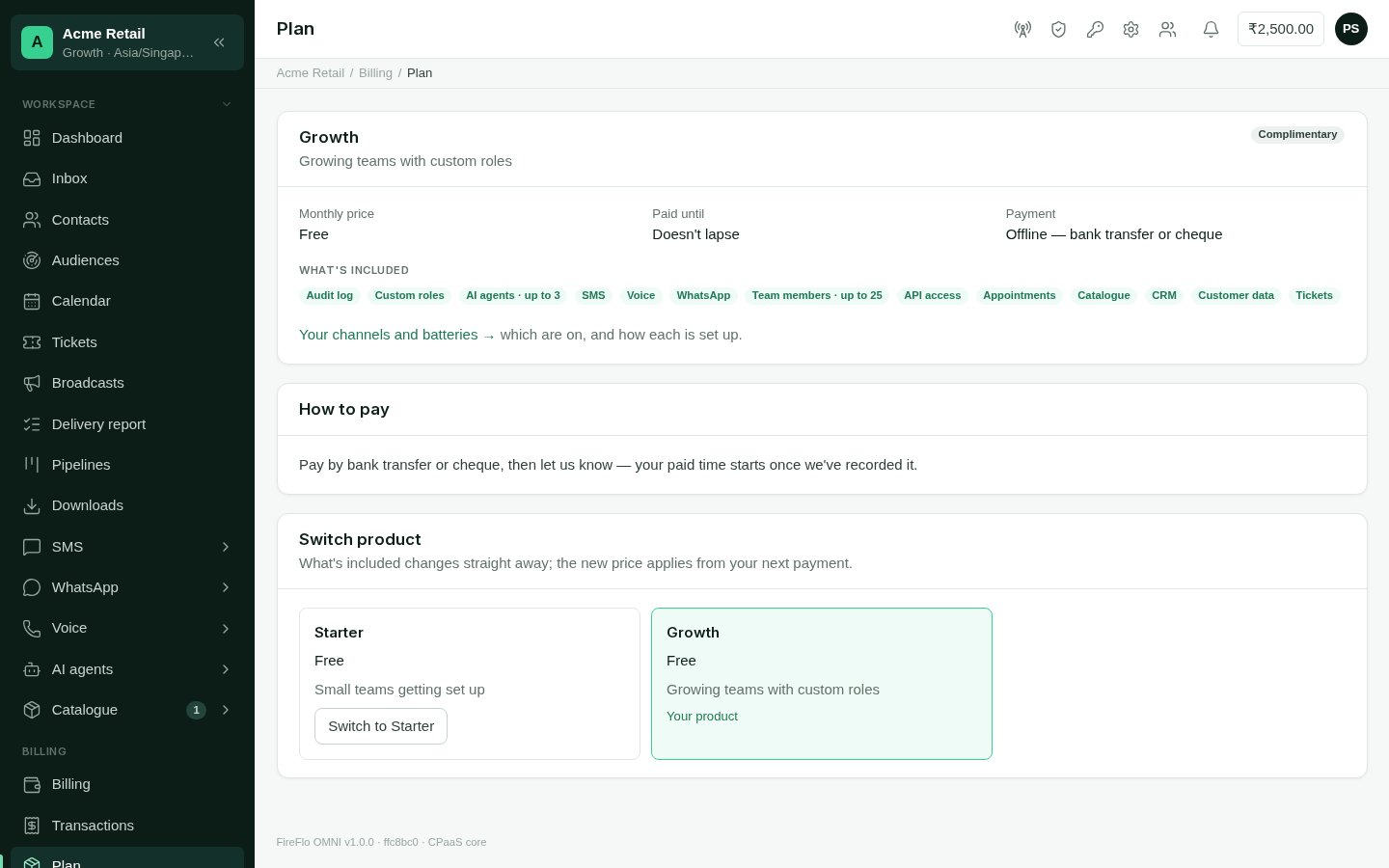 The panel calls your plan your **product**. The screen shows:
* its **name** and description, with a **status**: *Trial* (with the days left),
*Active*, *Payment due*, or *Complimentary*;
* the **monthly price**;
* when the **trial ends** or until when you have **paid**;
* **payment**: offline, by bank transfer or cheque;
* **what's included**: each feature your account has, with its limit where there is
one ("Team members · up to 25").
**How to pay** gives the payment instructions. Your paid time starts once FireFlo has
recorded the payment. While a payment is due, sending, campaigns and agents are paused.
### Switch to another plan
When more than one plan is offered to you, **Switch product** lists them.
Choose the plan you want, and confirm.
What's included changes straight away. The new price applies from your next
payment.
What each plan includes, and what it costs, is set by FireFlo. See
[Plans and roles](/get-started/plans-and-roles#plans).
## Modules
The panel calls your plan your **product**. The screen shows:
* its **name** and description, with a **status**: *Trial* (with the days left),
*Active*, *Payment due*, or *Complimentary*;
* the **monthly price**;
* when the **trial ends** or until when you have **paid**;
* **payment**: offline, by bank transfer or cheque;
* **what's included**: each feature your account has, with its limit where there is
one ("Team members · up to 25").
**How to pay** gives the payment instructions. Your paid time starts once FireFlo has
recorded the payment. While a payment is due, sending, campaigns and agents are paused.
### Switch to another plan
When more than one plan is offered to you, **Switch product** lists them.
Choose the plan you want, and confirm.
What's included changes straight away. The new price applies from your next
payment.
What each plan includes, and what it costs, is set by FireFlo. See
[Plans and roles](/get-started/plans-and-roles#plans).
## Modules
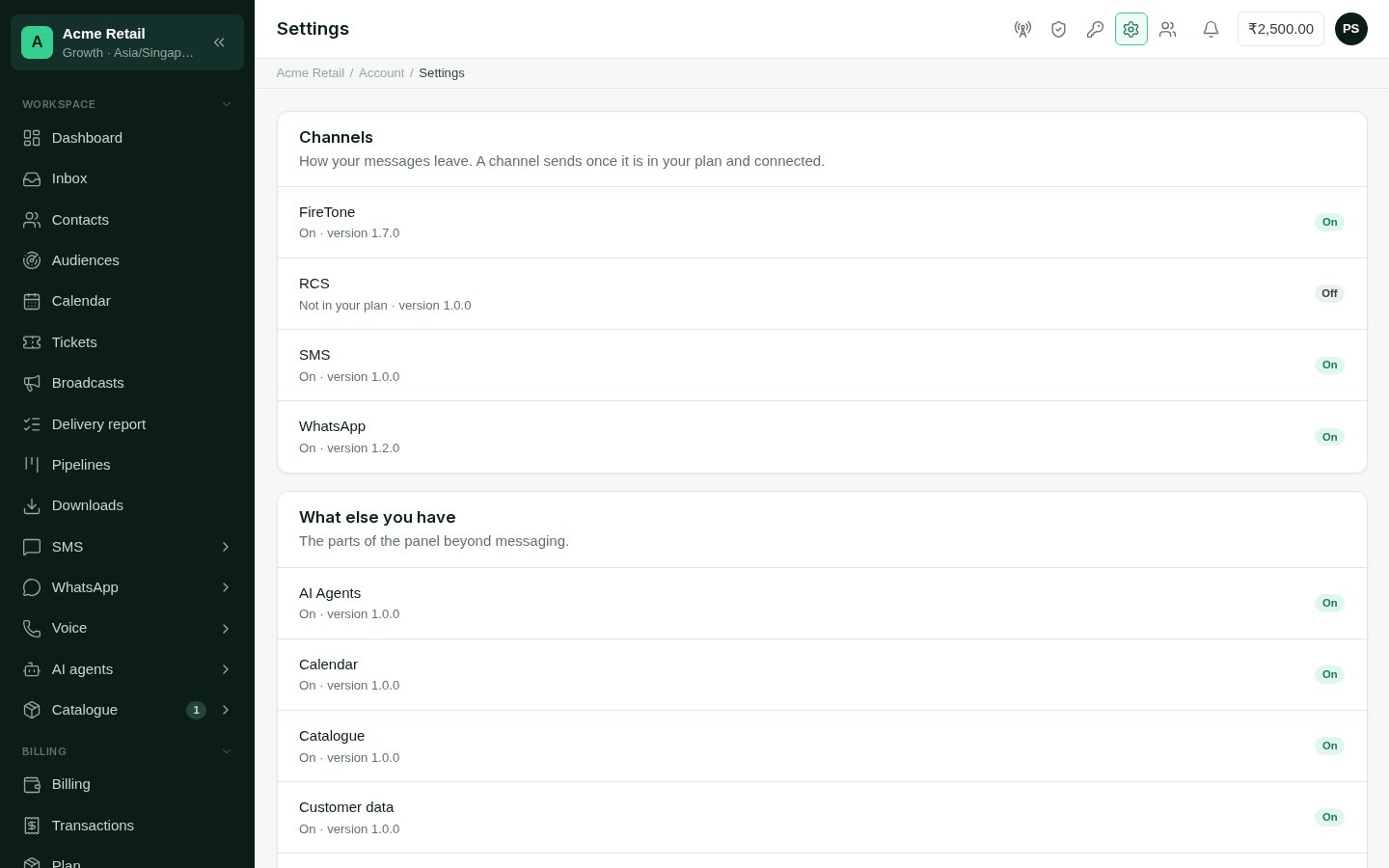 Modules lists, in two sections, what your account has:
* **Channels**: how your messages leave. A channel sends once it is in your plan
**and** connected.
* **What else you have**: the batteries, the parts of the panel beyond messaging.
Each shows one of three states:
| State | Meaning |
| - | - |
| **On** | Your account has it, and it works. |
| **Set up** | It is in your plan, but not connected yet. Connect it from [Channels](/channels/overview). |
| **Off** | It is not in your plan. |
Things your account can't have at all are left off the list.
Adding a module is a change of plan. Switch plan above, or write to
[support@fireflo.au](mailto:support@fireflo.au).
SMS, WhatsApp, RCS and Voice.
AI Agents, Calendar, Catalogue, Customer data, Pipelines and Tickets.
This documentation is built and hosted on [Mintlify](https://mintlify.com), a developer documentation platform.
Modules lists, in two sections, what your account has:
* **Channels**: how your messages leave. A channel sends once it is in your plan
**and** connected.
* **What else you have**: the batteries, the parts of the panel beyond messaging.
Each shows one of three states:
| State | Meaning |
| - | - |
| **On** | Your account has it, and it works. |
| **Set up** | It is in your plan, but not connected yet. Connect it from [Channels](/channels/overview). |
| **Off** | It is not in your plan. |
Things your account can't have at all are left off the list.
Adding a module is a change of plan. Switch plan above, or write to
[support@fireflo.au](mailto:support@fireflo.au).
SMS, WhatsApp, RCS and Voice.
AI Agents, Calendar, Catalogue, Customer data, Pipelines and Tickets.
This documentation is built and hosted on [Mintlify](https://mintlify.com), a developer documentation platform.