> ## Documentation Index
> Fetch the complete documentation index at: https://omni.fireflo.au/llms.txt
> Use this file to discover all available pages before exploring further.
# Team and roles
> How to add people to your account, give them roles, and make roles of your own.
Team answers **"who can sign in, and what may each of them do?"** Open it from the
**Team** icon at the top of the panel.
 **Who can use it:** anyone who may see the team (Owner, Admin, Billing, Support and
Reseller) sees the list. Adding and removing members, and changing roles, needs the
**Owner** or **Admin** role.
**Plan:** your plan may limit how many people can sign in. Custom roles need a plan
that includes them.
## Members
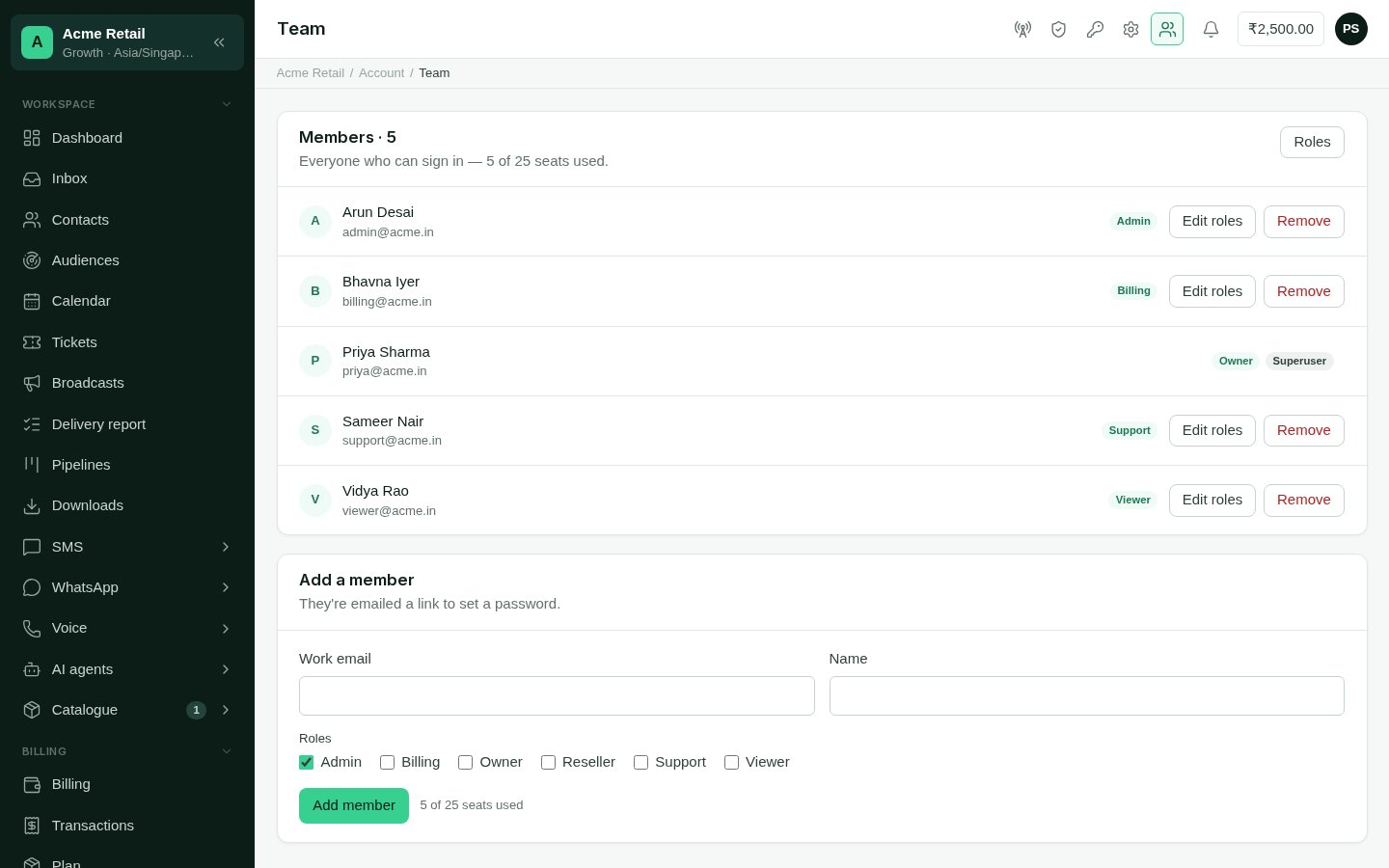
Each member shows their name, email and roles. *Invitation pending* means they haven't
set a password yet; you can send the invitation again. When your plan limits seats,
the heading shows how many are used.
### Add a member
Under **Add a member**, enter their work email and name.
Tick one or more roles. You can only pick roles whose permissions you already hold,
and only an Owner can give the Owner role.
Choose **Add member**. They are emailed a link to set a password. Once every seat is
used, adding is refused until you remove someone or move to a plan with more.
### Change roles or remove someone
Choose **Edit roles** on a member, tick the roles they should hold, and save. Roles you
can't give or take away are locked. To take someone off the account, remove them.
Nobody can change their own roles or remove themselves; another Owner or Admin does it.
## Roles
**Who can use it:** anyone who may see the team (Owner, Admin, Billing, Support and
Reseller) sees the list. Adding and removing members, and changing roles, needs the
**Owner** or **Admin** role.
**Plan:** your plan may limit how many people can sign in. Custom roles need a plan
that includes them.
## Members
Each member shows their name, email and roles. *Invitation pending* means they haven't
set a password yet; you can send the invitation again. When your plan limits seats,
the heading shows how many are used.
### Add a member
Under **Add a member**, enter their work email and name.
Tick one or more roles. You can only pick roles whose permissions you already hold,
and only an Owner can give the Owner role.
Choose **Add member**. They are emailed a link to set a password. Once every seat is
used, adding is refused until you remove someone or move to a plan with more.
### Change roles or remove someone
Choose **Edit roles** on a member, tick the roles they should hold, and save. Roles you
can't give or take away are locked. To take someone off the account, remove them.
Nobody can change their own roles or remove themselves; another Owner or Admin does it.
## Roles
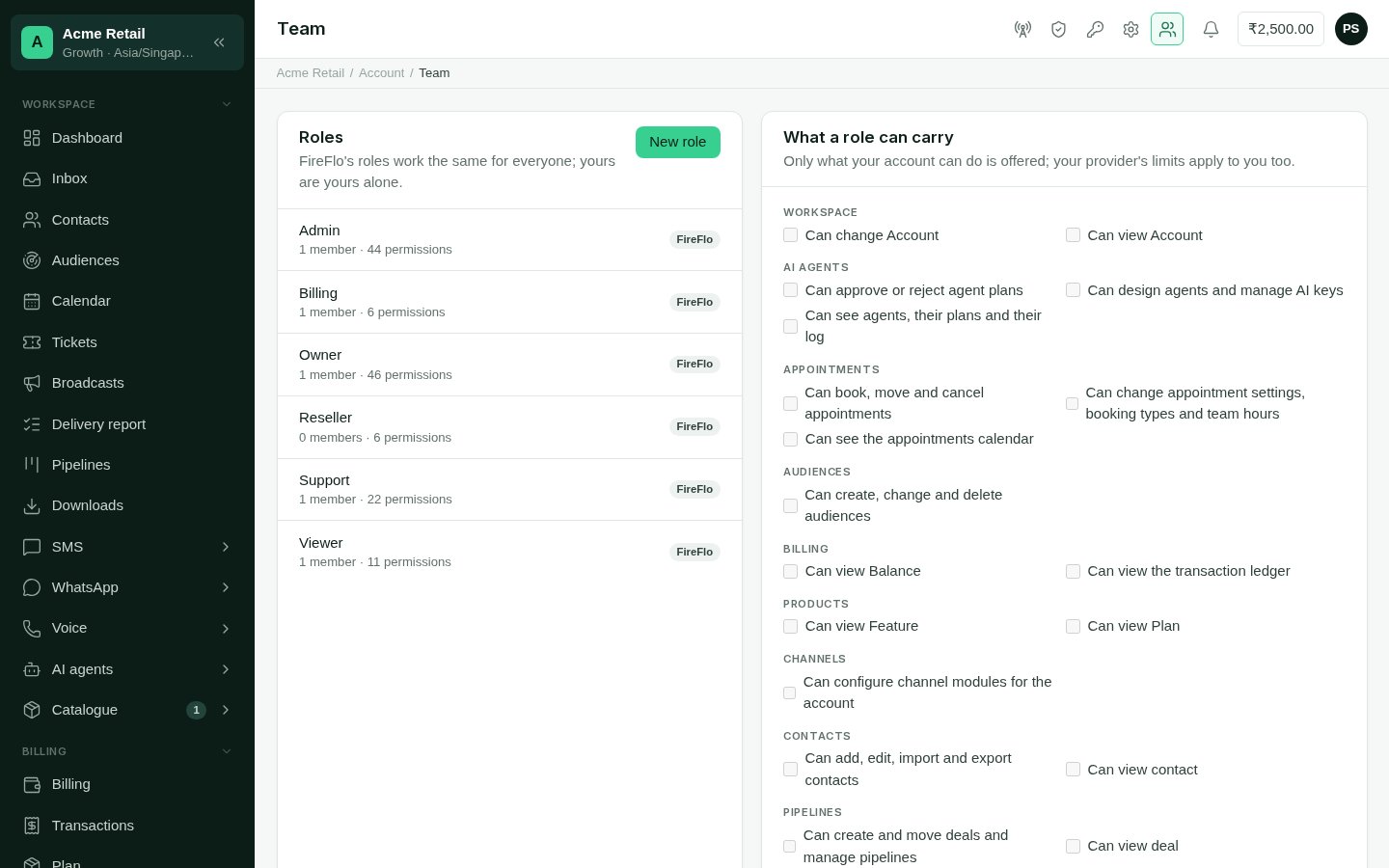 **Roles** (from the Team screen) lists every role your account can give:
* **FireFlo's roles**, the same for every account: Owner, Admin, Billing, Support,
Viewer and Reseller. What each one may do is set out in
[Plans and roles](/get-started/plans-and-roles).
* **Your own roles**, marked *Yours*, which only your account can see.
### Make a role of your own
Choose to add a role, and name it after the job, such as "Sales rep".
Tick its permissions, grouped by area: workspace, messaging, contacts, billing,
channels, downloads and each battery. Only what your account can do is offered;
anything your account doesn't have is shown but can't be ticked.
Save the role, then give it to people from **Team** like any other.
Making and changing custom roles needs the **Owner** or **Admin** role. On a plan
without custom roles, the screen says your product doesn't include them.
This documentation is built and hosted on [Mintlify](https://mintlify.com), a developer documentation platform.
**Roles** (from the Team screen) lists every role your account can give:
* **FireFlo's roles**, the same for every account: Owner, Admin, Billing, Support,
Viewer and Reseller. What each one may do is set out in
[Plans and roles](/get-started/plans-and-roles).
* **Your own roles**, marked *Yours*, which only your account can see.
### Make a role of your own
Choose to add a role, and name it after the job, such as "Sales rep".
Tick its permissions, grouped by area: workspace, messaging, contacts, billing,
channels, downloads and each battery. Only what your account can do is offered;
anything your account doesn't have is shown but can't be ticked.
Save the role, then give it to people from **Team** like any other.
Making and changing custom roles needs the **Owner** or **Admin** role. On a plan
without custom roles, the screen says your product doesn't include them.
This documentation is built and hosted on [Mintlify](https://mintlify.com), a developer documentation platform.