
Your plan must include AI agents. The plan also sets how many agents can be live at
once. If agents are in your plan but switched off for your account, the screens say so,
and your agents and their history are kept.
Overview
AI agents → Overview answers “what are my agents doing right now?”- Your channels, and which ones agents can use.
- Live agents, Contacts worked, Actions today and Tokens today.
- Waiting on you — plans to approve and conversations handed over to a person.
- Recent activity, and Your agents with the channels and pipelines each one works.
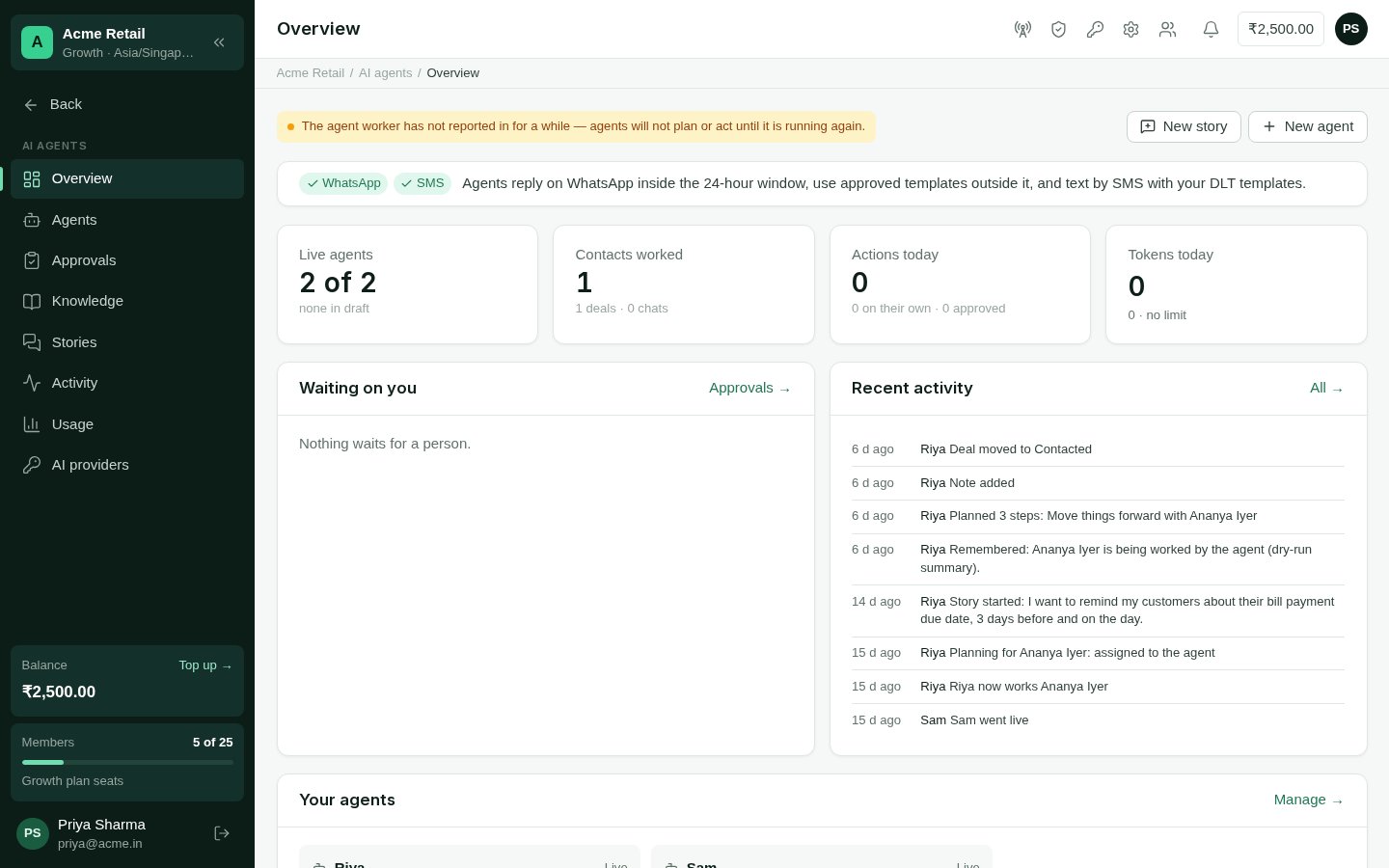
The AI agents overview
Roles
Every agent has one role. The role decides which actions it may take and what it does by default.
A contact can have one sales agent and one support agent at the same time, but never two
agents in the same role. The role of a live agent cannot change — design a new agent
instead.
Design an agent
AI agents → Agents lists your agents. Choose New agent to design one in five steps.1
Goal
Say in your own words what the agent should achieve — for example, “Answer order and
refund questions within minutes and hand complaints to the team.” The agent reads this
every time it plans. Pick the role (OMNI suggests one from your goal) and give the agent
a name. Customers may see the name, so pick a name rather than a job title.
2
Model & key
Choose one of your AI keys and a model. You can add a key here too. Tick the box to
confirm that, to plan, agents send contact names, numbers, recent messages and memory
to your chosen AI provider under your own key and its terms. This is asked once per
account.
3
Verify
OMNI sends one small test request to your provider and model, checking it can plan in
the format agents use. Nothing about your customers is sent. Changing the key or the
model later sends the agent back through this step.
4
Configure
Set the instructions, channels, how the agent shares conversations with your team,
knowledge, hand-overs, actions and approvals, when to plan again, working hours and
limits. Draft my configuration lets your model suggest settings from your goal; you
pick what to keep. For a support
agent, Use this workflow starts a ready-made knowledge-first workflow.
5
Engage
Choose the pipelines the agent works. Each pipeline brings its own strategy — goal,
stage playbooks, approval rules and token budget. Then choose Go live. You can
disengage a pipeline at any time; pending work on it stops.
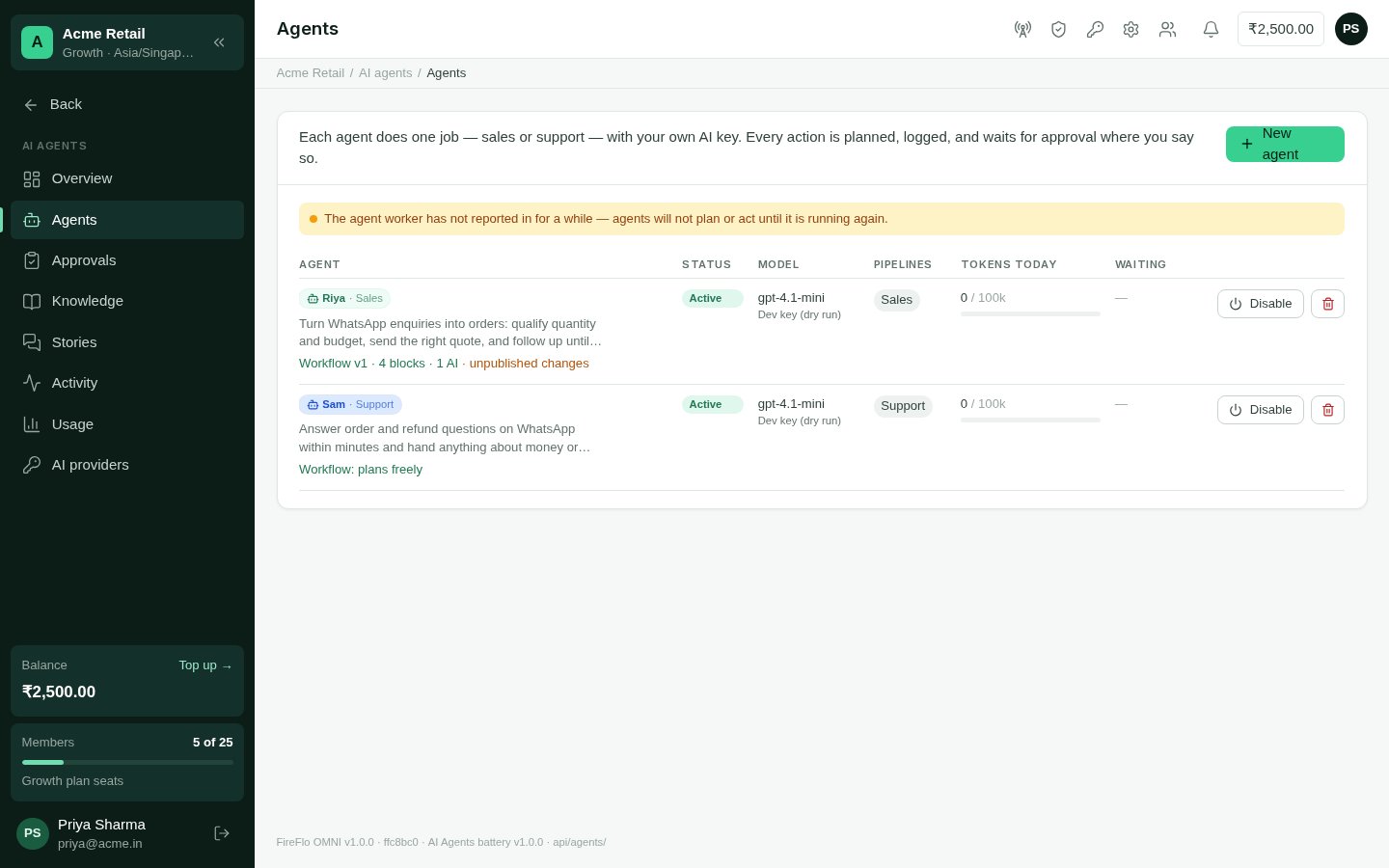
Your agents
What you configure
Actions
These are the actions an agent can be allowed. Hand-over can never be switched off: an agent must always be able to give up.
Other batteries add actions of their own when your plan includes them: booking,
rescheduling and cancelling appointments (Calendar); finding,
sending, adding and changing products and drafting orders (Catalogue);
updating and solving tickets (Tickets).
A pipeline’s strategy can override an agent’s settings for deals in that pipeline, and a
stage can narrow them further: an action a stage does not list is off there.
How agents reply on each channel
Template requests an agent drafts appear under Template requests on the Approvals
screen. Check the wording, then approve to submit it. OMNI checks every 10 minutes
whether it has been decided; waiting conversations carry on once it is
approved.
Sharing conversations with your team
An agent steps back as soon as a person steps in.- A teammate replies in the Inbox, or the conversation is assigned to a person: every agent working that contact pauses for them (when Step back when a person replies is on). Anything the agent had planned is cancelled.
- How long it steps back is set in the agent’s settings: a number of minutes, after which it takes over again, or 0 to wait until someone hands the conversation back. You can also choose that it leaves the conversation with the team.
- In the Inbox, a banner shows which agent is working the thread. Take over assigns the conversation to you and pauses the agent. While it is paused, Hand back now returns it to the agent, and Keep with team means the agent won’t take it back.
- When an agent hands over to a person, it pauses for that contact and leaves your team a short summary — what the customer wants, what it tried and what is needed. With Tickets, the summary is a note on the ticket.
Plans and approvals
Each time an agent works a contact, it makes a plan: a goal, the reason for it, and a list of steps. A plan starts when a contact is assigned to the agent, the customer replies, a deal changes stage, a follow-up falls due, a person chooses Run now on the contact, or a workflow block asks for it. AI agents → Approvals lists the plans waiting for a person. You can edit a note or an amount, or drop a step, before approving — what you approve is exactly what runs. To reject, tell the agent why; it reads your note the next time it plans for that contact. An unanswered plan is dropped after a time you set (24 hours by default), not run late.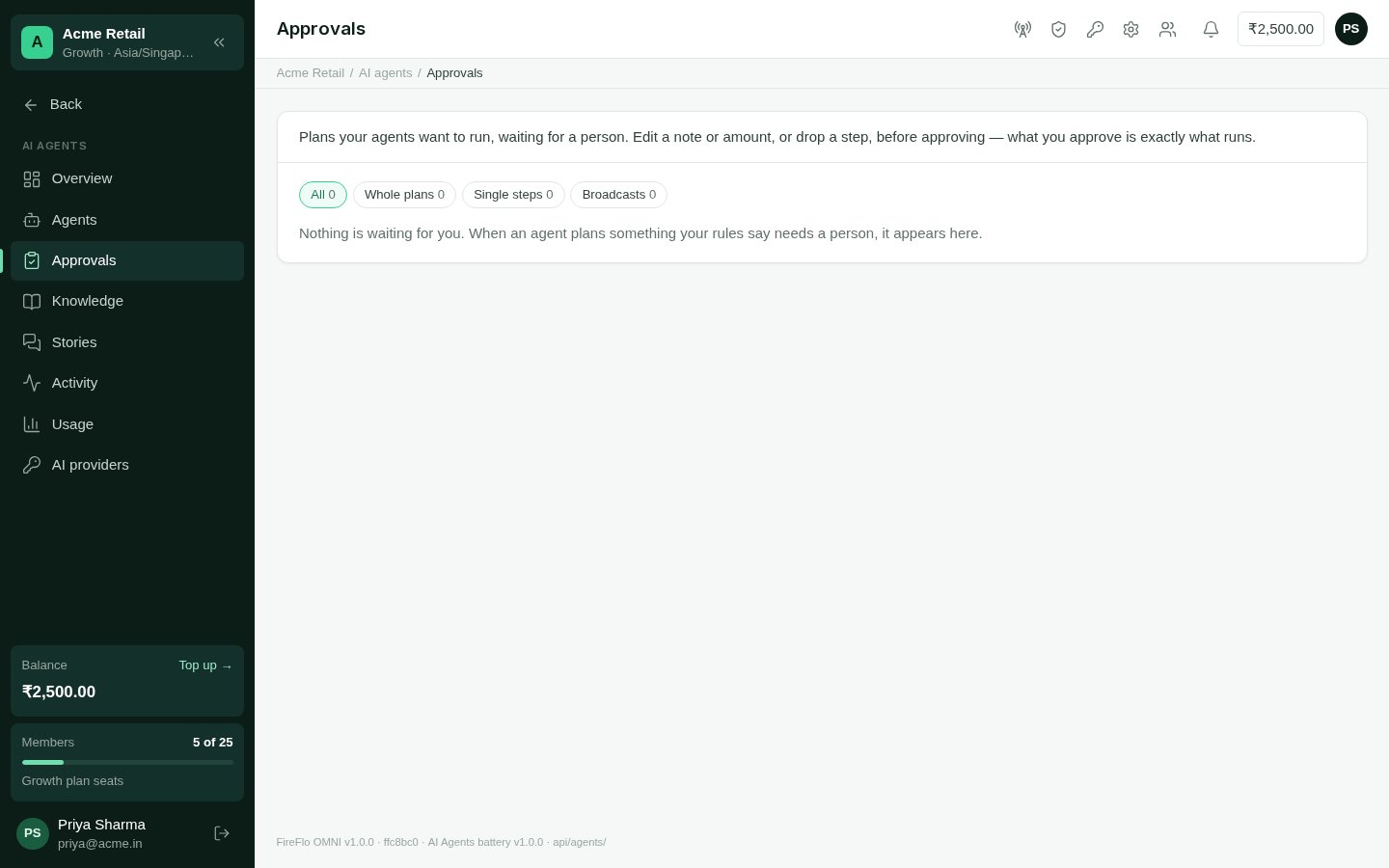
Plans waiting for approval
Workflows
Each agent has a workflow: a diagram of blocks that decides what happens in a conversation, and when the AI is called at all. Open it from the agent’s page.
Other batteries add blocks when your plan includes them: appointment blocks (Calendar),
Send products (Catalogue), Ticket is, Set ticket and Add ticket note
(Tickets), and a start block for someone joining or leaving an audience (Customer data).
Workflows are versioned:
- You edit a draft. Checks show anything broken, and how many AI calls each path makes.
- Test run a sample message on a channel to see the path it takes. Nothing is sent.
- Publish with a short note. Published versions never change; you can compare one with the draft, restore it as the draft, or roll back to it.
- Design with AI proposes a workflow from a brief. Export JSON and Import JSON move a workflow between agents or accounts; an import replaces only the draft.
Stories
AI agents → Stories lets you tell an agent what you want in plain words — “remind my customers about their bill due dates, 3 days before and on the day”. Today, stories send date-based reminders from a list.1
Say what you want
Write it the way you would to a colleague. The agent asks for anything it needs.
2
Give it the list
Upload a CSV or Excel file and point to the phone number column and the date column.
3
Choose when and what
The agent proposes when to send and which approved message to use.
4
Approve and run
Someone who can approve plans approves it. Rejecting ends the story; nothing is
imported or sent.
Questions about a broadcast
On a broadcast’s page, Ask about this campaign answers questions about its results in plain words, on SMS, WhatsApp and RCS broadcasts alike.Activity
AI agents → Activity is everything every agent did — plans, approvals, actions, AI calls with their token cost, and anything a guardrail stopped. It is append-only. Filter it by Plans & approvals, Actions, AI calls, Stopped or Setup. Each agent’s page has its own plans, log, pipelines, tokens used today and limits.Usage
AI agents → Usage shows the tokens your agents used on your own AI keys over 7, 14 or 30 days. Your AI provider bills those tokens directly; OMNI never charges for AI. Account limits apply to every agent in the account, on top of each agent’s and each pipeline’s own limits:- Pause every agent — no agent plans or acts while this is on.
- Daily token budget, all agents — empty means no account-wide limit.
- Approvals lapse after (hours) — an unanswered plan is dropped, not run late.
AI providers
AI agents → AI providers holds your own AI keys. Agents work with any of these:
A key is encrypted when you save it and is never shown again. Test a key to list the
models it offers (Save and test does both when you add one); you can limit which models agents may use with it. Replacing a key that
agents use means those agents must be verified again before they go live. A key that
agents still use cannot be deleted — move its agents to another key first.
Who may use AI agents
An Owner or Admin can change these on the Roles screen. See
Team and roles.