
Your plan must include Appointments (the plan’s name for Calendar). Without it, the
Calendar screens say that appointments aren’t in your plan.
Before you start
Appointments are switched off until someone turns them on. In Calendar → Settings, turn on Appointments on. Until then, nothing can be booked and the calendar screens show a notice.1
Switch appointments on
In Settings, turn on Appointments on and save.
2
Add booking types
In Booking types, add what people can book — a consultation, a fitting, a demo.
3
Set your team's hours
In Settings → Team availability, set each teammate’s working hours and the booking
types they take.
4
Choose reminders
In Settings, add the reminders you want, for contacts and for teammates.
The calendar
The Calendar tab shows appointments by Month or by Day. Choose whose calendar to see — the whole organisation, My calendar, or one teammate — and filter by booking type. The day view shows each teammate’s appointments side by side, with busy times from their own Google or Outlook calendar.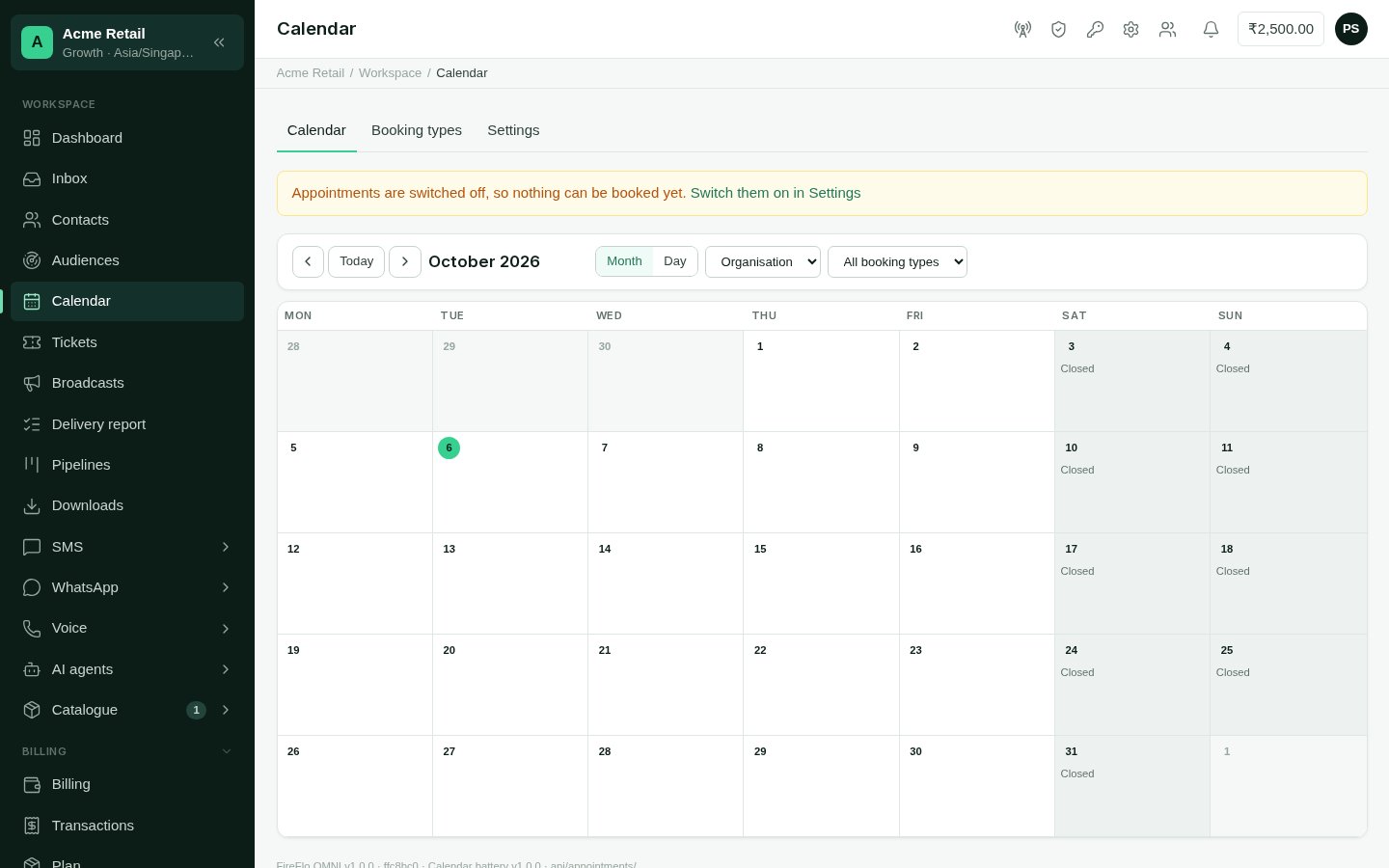
The shared calendar
Book an appointment
1
Open the booking form
Choose Book on the calendar, or Book an appointment beside a conversation in the
Inbox.
2
Pick the contact and booking type
Search a name or number, then choose the booking type.
3
Pick a teammate and time
Leave the teammate as Any available, or pick one. OMNI lists the free times for the
day you choose. You can type a time outside the free times; nothing then checks hours
or time off, but it still can’t overlap another appointment.
4
Book
Add notes for the team if you like, and choose Book.
Booking types
Booking types are what people can book.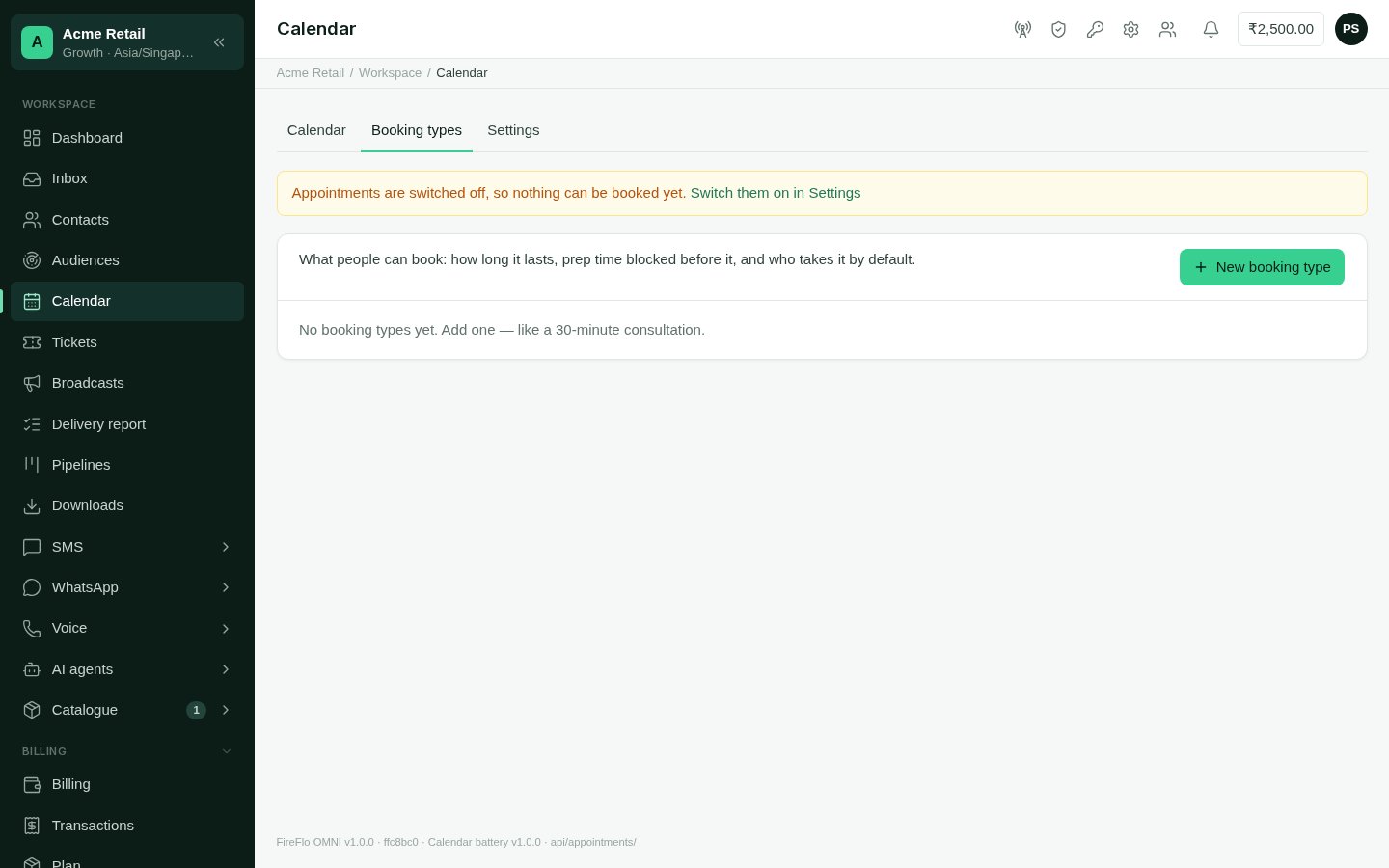
Booking types
Changes to a booking type apply to new bookings; existing appointments keep their times.
Settings
Team availability
Team availability shows who can be booked, when, for what — and how full their week is. For each teammate, set their working hours, the booking types they take, their meeting link for online appointments and their location for in-person ones. A teammate can also be marked as not taking bookings. Time off blocks a teammate’s free times — or, with Everyone — the organisation is closed, everyone’s. Give the dates and, if you like, a reason.Appointment settings
Reminders
Add up to six reminders. Each is sent on booking or a set time before the appointment, to the Contact, the Teammate, or both.- Contacts get WhatsApp, or SMS when they have no open WhatsApp route. Opt-outs are always respected, and nothing goes to contacts in your quiet hours, if you have set them.
- Teammates get an email with a calendar invite and a notice in the panel.
Calendar does not send on RCS or Voice.
Confirmations and no-shows
- Ask contacts to confirm — on WhatsApp, with Confirm, Reschedule and Cancel buttons.
- Mark as a no-show a set time after the appointment ends, if nobody marks it done.
- After a no-show, send “Sorry we missed you — would you like to book again?”
Your calendar
Each teammate can connect their own Google Calendar or Outlook / Microsoft 365, where your provider has made it available. Their other meetings then block their free times, and their appointments appear in their calendar. Only free/busy is read — never titles or guests. One calendar at a time; you choose which of its calendars count as busy.Online booking
Online booking gives you a page where anyone can book themselves in — only the booking types you choose, only at free times.1
Switch it on
In Settings → Online booking, turn on Online booking and set the address ending
of your page. Copy the Booking page link to share it. Each booking type you offer
online has its own direct link too; a type you keep for staff only isn’t offered.
2
Choose how bookings arrive
Confirmed straight away, or Requested — a teammate confirms.
3
Choose how people confirm their number
A code on WhatsApp (SMS if no WhatsApp), or A code on SMS. WhatsApp codes to new
numbers use your own code template; set its name here.
4
Set the limits
Book up to sets how far ahead, and Limit per number stops one number filling the
diary.
With AI agents
When your plan also includes AI Agents:- An Appointments agent (AppointmentBot) offers real free times, books, reschedules and cancels appointments, and chases confirmations and no-shows.
- Sales and support agents can be allowed to offer times and book, reschedule or cancel appointments — each needs approval by default.
- Workflows gain the blocks Appointment changes, Has appointment?, Offer free times and Book appointment.
Who may use Calendar
An Owner or Admin can change these on the Roles screen. See
Team and roles.