
Sender IDs
A sender ID is the name people see your SMS come from.1
Start a request
Open SMS → Sender IDs and choose Request sender ID.
2
Enter the sender ID
Exactly as recipients will see it — casing counts. Use up to 11 letters or digits,
or a phone number.
3
Add a label and a reason (optional)
The label is for you and is never matched against anything. Why you need it
is read by whoever reviews it; a good reason is answered faster.
4
Send request
It shows as Waiting for approval and can send once it is approved.
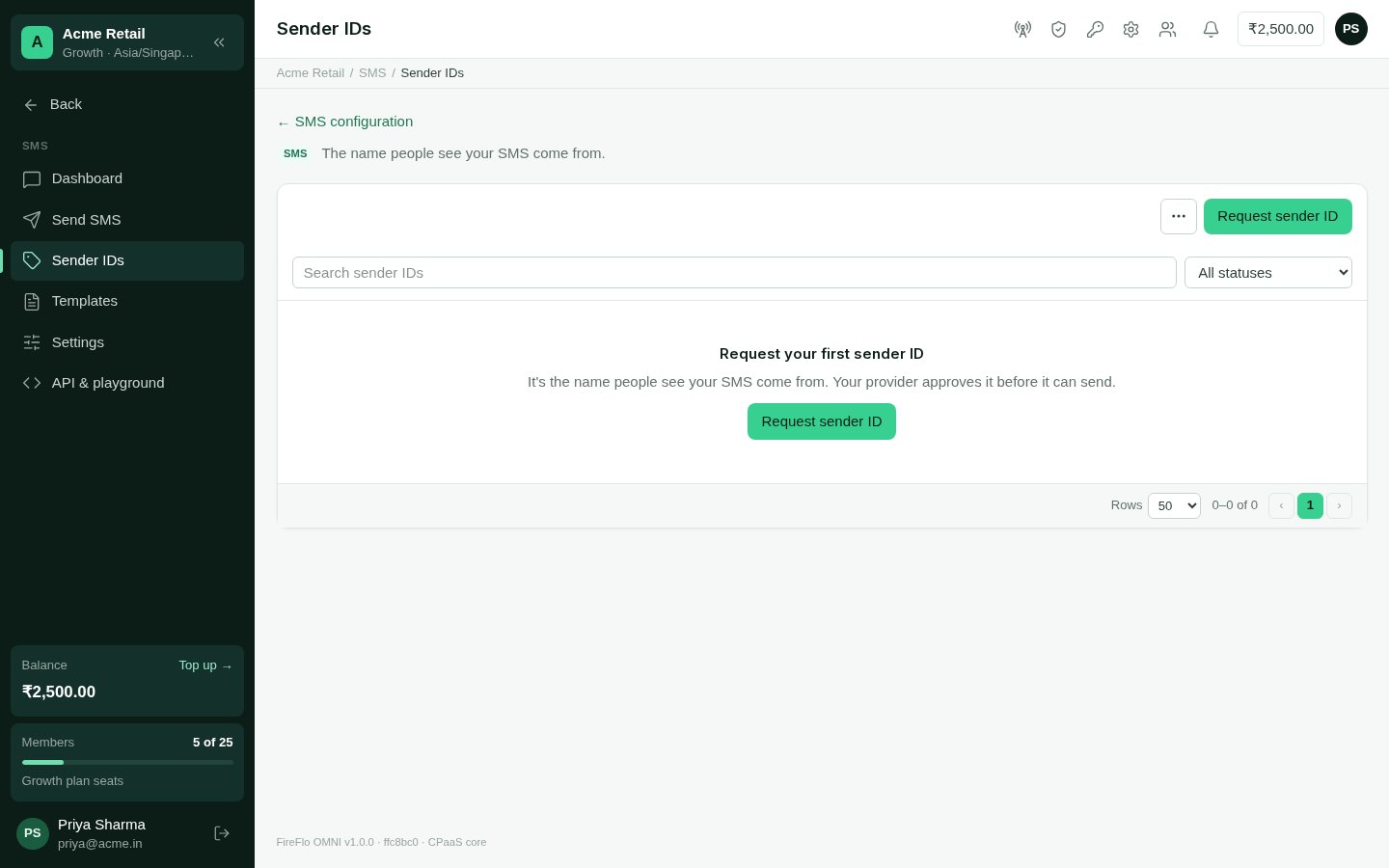
Sender IDs, with each one's status.
What a sender ID can be
- Letters, digits and ordinary punctuation, with no spaces at the start or end — it is matched exactly.
- At most 64 characters. Longer than 21 won’t reach most carriers, and names longer than 11 characters are cut or refused by some carriers. The form warns you as you type.
Its status
Templates
A template is approved wording with blanks for the parts that change: a code, a name, an amount.1
Start a template
Open SMS → Templates and choose New template.
2
Name it
What you and your provider call it.
3
Write the wording
Use Insert a blank to add the parts that change. Under the box, OMNI shows an
example message the template would accept, with its number of segments.
4
Submit for approval
Add a note for the reviewer if it helps — a registration reference, for example.
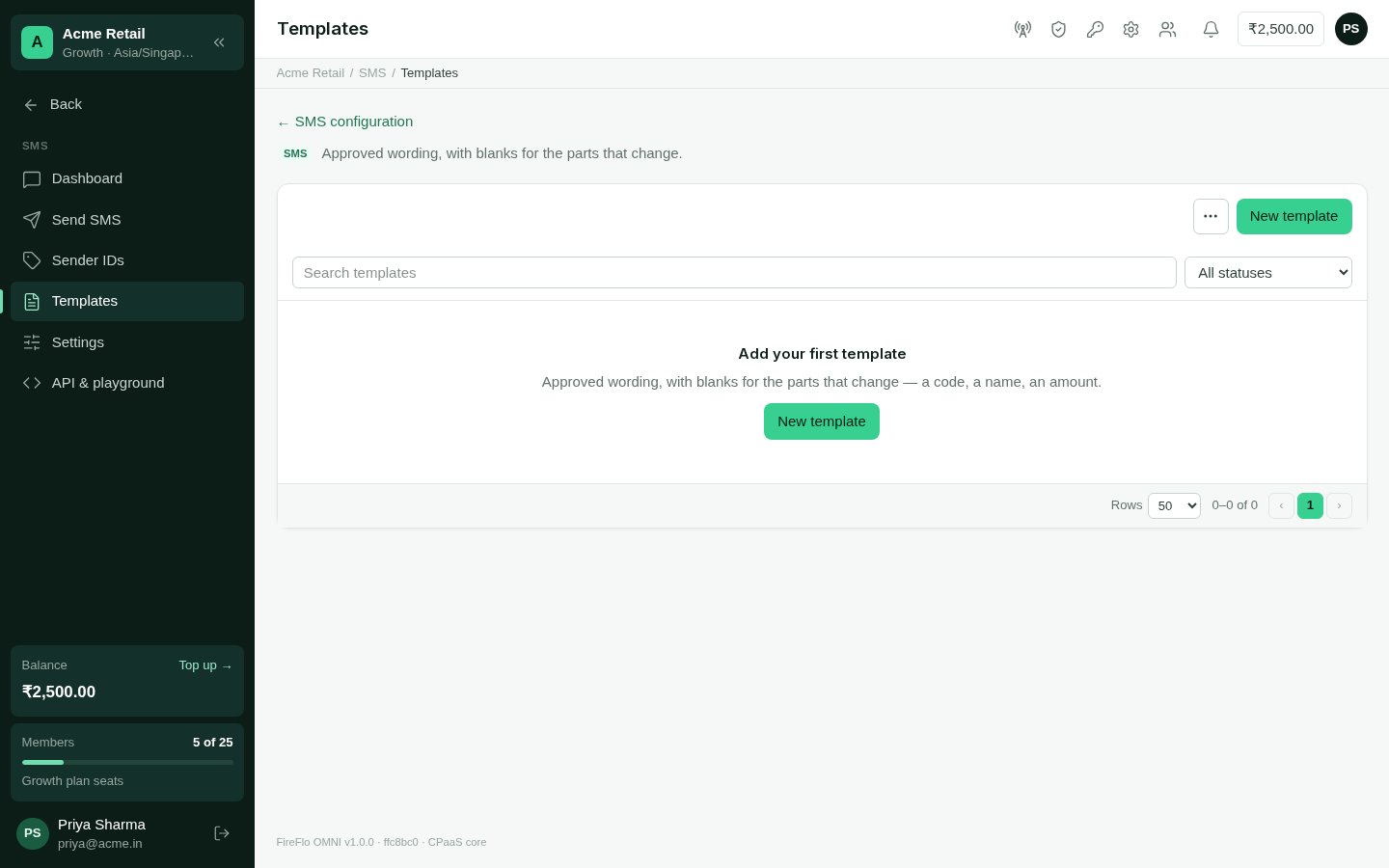
SMS templates, with their blanks drawn as chips.
Blanks
How a message is matched
Everything around a blank is matched exactly — every word, space and punctuation mark. Only the blanks change. Wording with no blank approves exactly one message. When you send with Use a template, OMNI shows a box for each blank and won’t send until every blank holds something its kind accepts. OMNI refuses wording that could never match safely:- more than 2,000 characters;
- a blank in the wrong case or spelling, such as
{#VAR#}or{#code#}; {{1}}— that is WhatsApp’s blank, not SMS’s;- a template that is nothing but a blank, which would accept every message;
- two blanks with nothing between them, which can’t be told apart.
Many at once
The ⋯ menu on both screens imports and exports the list as a CSV or Excel file. An export has exactly the columns an import reads, so a downloaded list is a working file. After an import, OMNI says how many rows were submitted and how many refused, and lets you download the refused rows with their reasons.DLT (India)
India’s DLT registry gives every business an entity ID, and every registered template a template ID. Messages to India carry them.1
Switch DLT on
In SMS → Settings → DLT (India), turn on We send to India under DLT.
2
Enter your DLT entity ID
Issued once per business by the DLT registry. It goes with every send.
3
Add the DLT template ID to each template
The template and sender ID forms now have an Advanced · DLT (India) section. Enter
the DLT template ID from your DLT portal — it is numeric. A sender ID or template
can carry its own entity ID; it defaults to the one in SMS settings.