
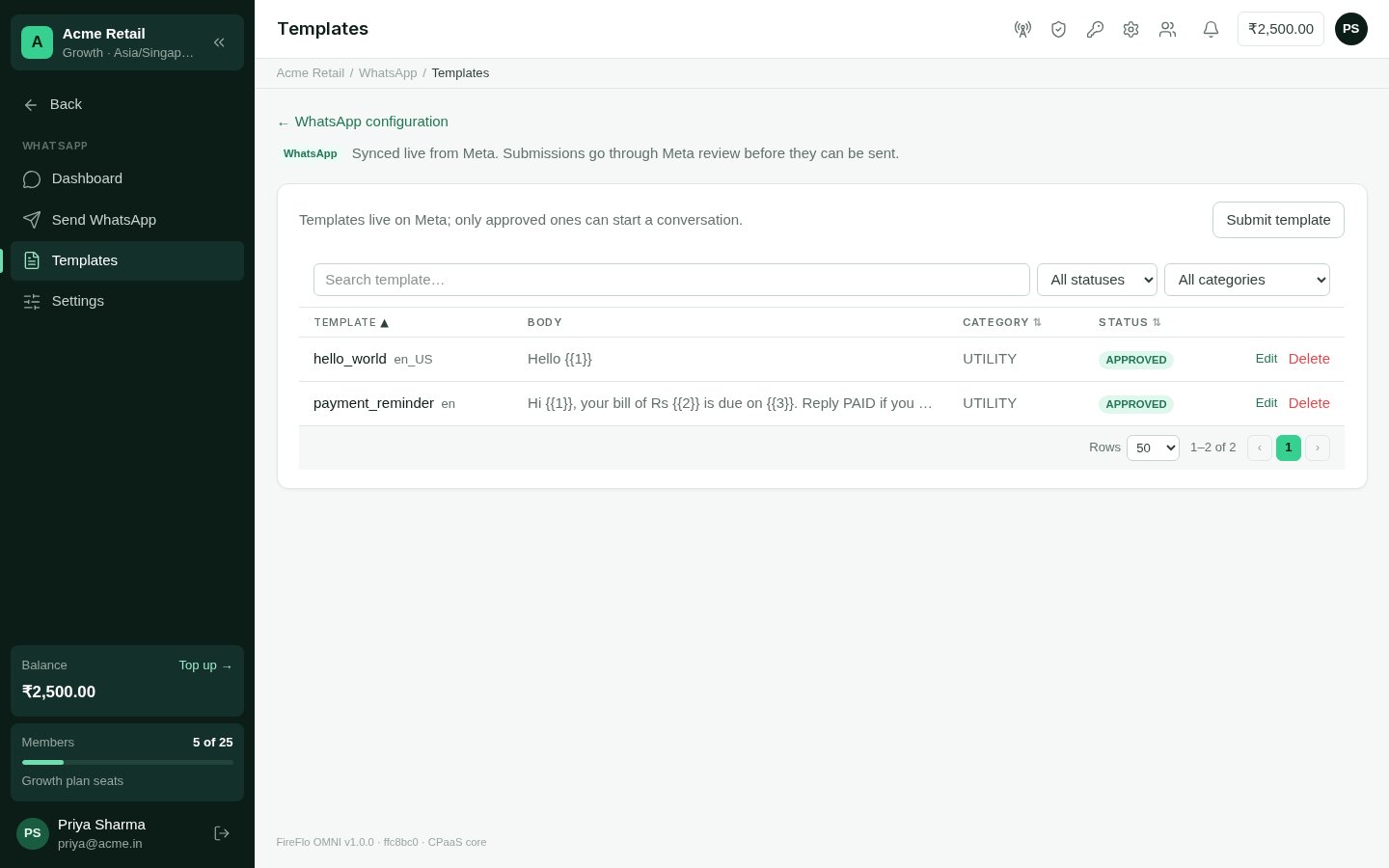
WhatsApp templates, synced live from Meta.
Submit a template
1
Open the form
In WhatsApp → Templates, choose Submit template.
2
Name, category and language
The name is lowercase with underscores, such as
order_shipped. The
category is Utility, Marketing or Authentication. The language is a code such as en.3
Header and footer (optional)
A header is either text, up to 60 characters, or an image — JPEG or PNG, up to
4 MB — which replaces a text header. A footer is up to 60 characters.
4
Body
The message itself. Mark the parts that change with numbered variables:
{{1}},
{{2}} and so on.5
Submit for review
The template appears as PENDING while Meta reviews it.
Its status
Meta decides how long review takes.
Edit or delete
Edit is offered on approved and rejected templates. You can change the body and footer; the edit goes back to Meta, and the template returns to PENDING until it is approved again. Delete removes the template at Meta.On a number FireFlo hosts for you, you see and use only the templates your account
submitted, and only those can be changed or deleted from your account.
Send with a template
- Send WhatsApp offers approved templates only. Fill in each variable, then send to numbers, contacts or segments. See Send WhatsApp.
- In a broadcast, fill each variable from a column of your
recipient list (start typing
{{or pick from the list), or type your own text. The preview shows the message as the first person will see it. - For a template that opens your catalogue, a broadcast lets you choose the product shown on its card — or leave it empty to open the catalogue itself.