
Set up SMS
1
Choose how you connect
Open SMS → Settings. Under Connection, choose FireFlo gateway (included,
nothing to set up) or My own gateway, and for your own enter its address, login
and password. Save and test checks the login straight away.
2
Set your default country
Under Numbers, the Default country is used for numbers typed without a
country code —
IN for India.3
Turn on DLT if you send to India
Under DLT (India), switch on We send to India under DLT and enter your DLT
entity ID. See Sender IDs and DLT.
4
Request a sender ID and add templates
Under Sender IDs and Templates, request the names and wording you will send.
Your provider approves each one.
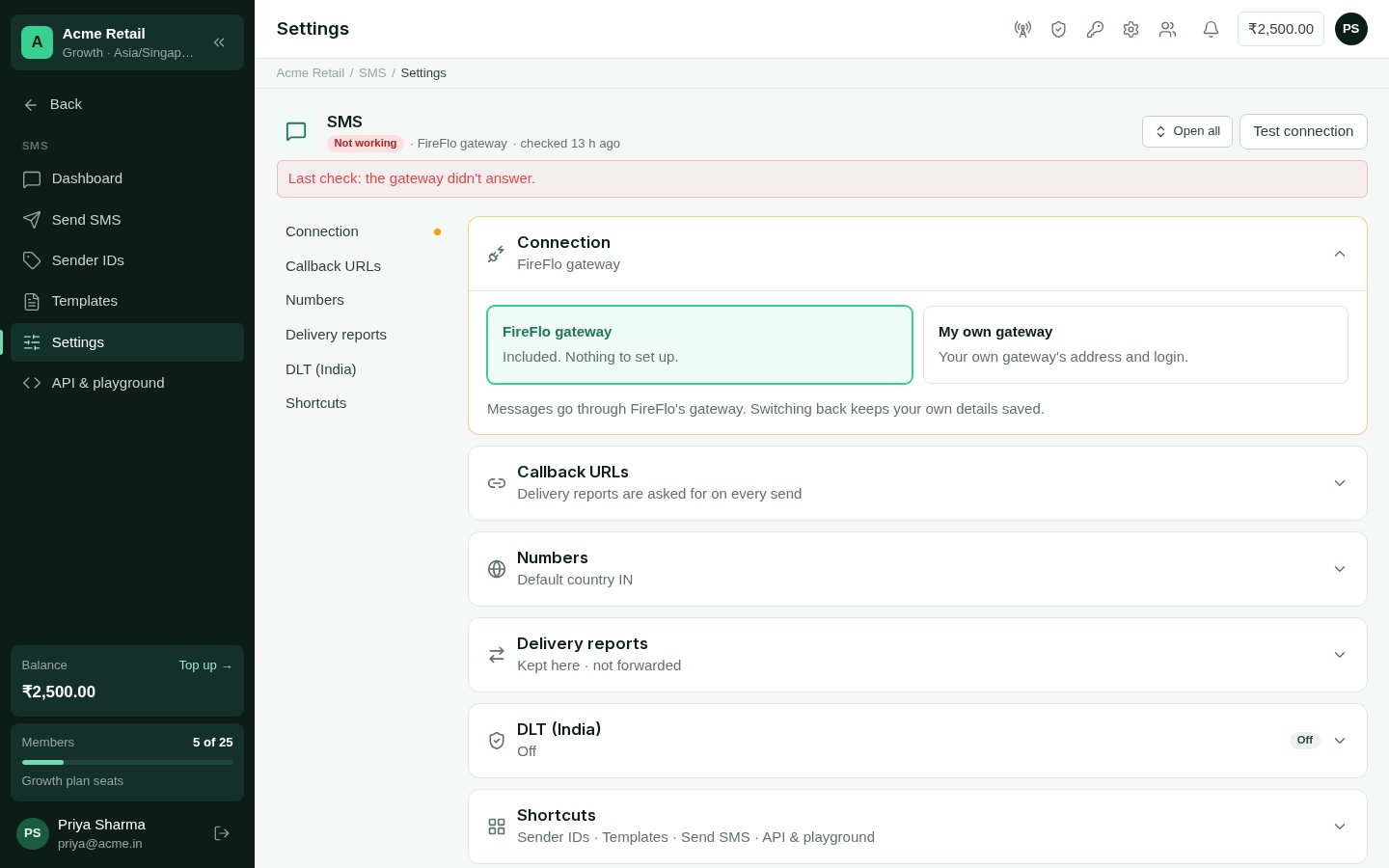
SMS settings: connection, callback URLs, numbers, delivery reports and DLT on one page.
On your own gateway
Settings shows two Callback URLs:- Delivery reports — sent with every message automatically. Nothing to set up.
- Replies (inbound SMS) — give this to your gateway provider so replies reach your Inbox.
Send SMS
SMS → Send SMS sends straight from the channel.1
To
Type numbers, pick contacts, or pick segments. Up to 500 numbers and contacts at a
time; for more, upload a file in a broadcast. Picking a segment
makes the send a broadcast, sent in the background.
2
From
Pick one of your approved sender IDs. Where your provider doesn’t require approved
sender IDs, you can also leave it on your gateway login’s default.
3
Message
Use a template and fill in its blanks, or Write a message. When your account
sends approved templates only, the page says so and offers templates alone.
4
Check and send
Under the message, OMNI shows the encoding (GSM-7 or Unicode), the length, the number
of segments, and how many messages that makes for everyone you picked. A preview
shows the message as it will arrive. Confirm to send.
- Send later — a date and time. Until then you can cancel it or send it early.
- Keep trying for — how long the carrier retries a phone that’s off: the carrier’s default, 1 hour, 6 hours, 1 day or 2 days.
- High priority — for codes and alerts that can’t wait.
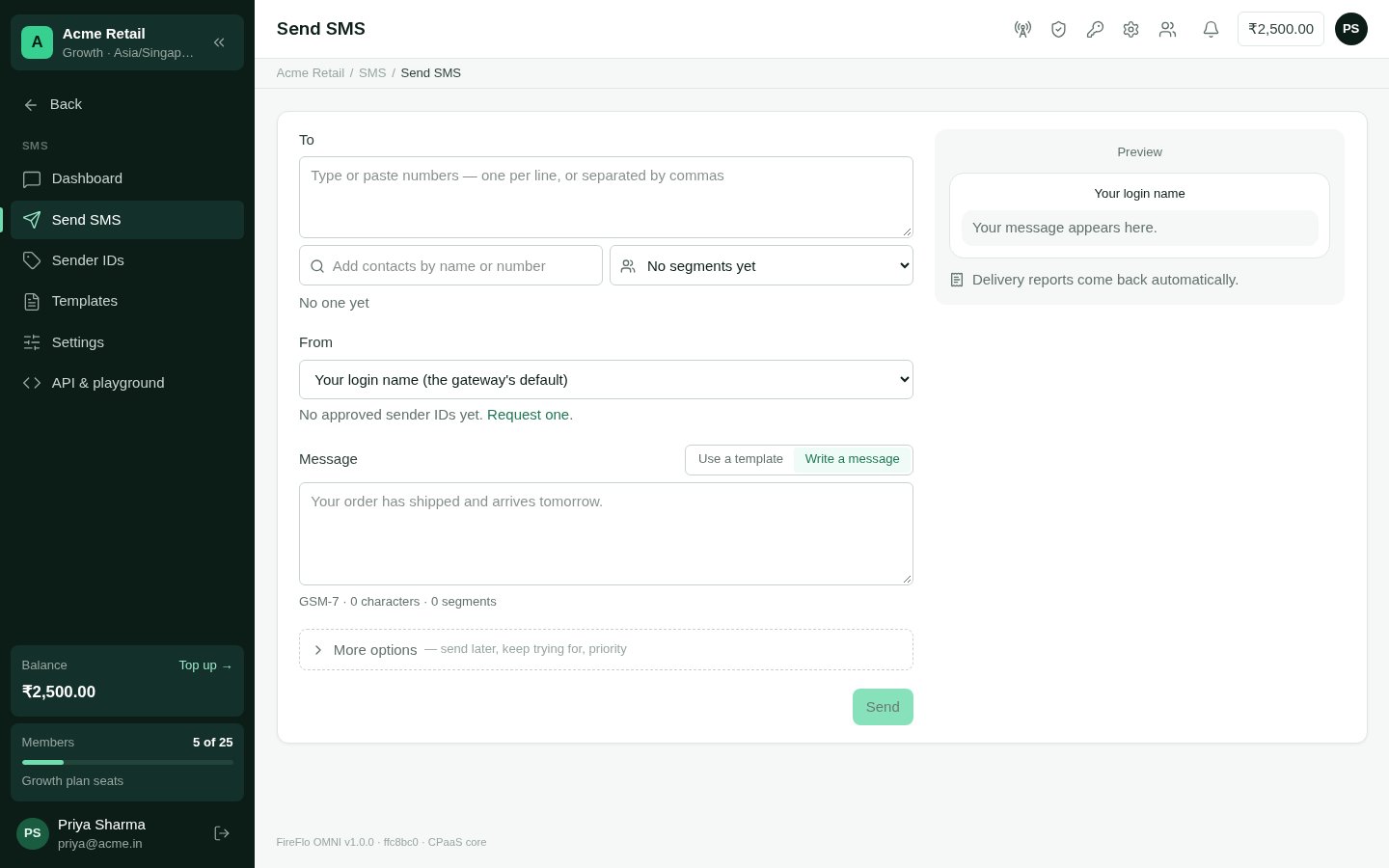
Send SMS: recipients, sender ID, template or free text, and a live preview.
The SMS dashboard
SMS → Dashboard shows what the gateway reports live and what OMNI logged, over the period you pick:- your gateway balance, live;
- Submitted — messages and segments, with an estimated spend;
- Delivery rate, and how many failed;
- Traffic — submitted and failed over time;
- What the carrier said — the delivery report status, kept exactly as the gateway gave it;
- Top failure reasons and Recent campaigns;
- Registration health — your sender IDs and templates by status. Only approved ones are offered when you send.
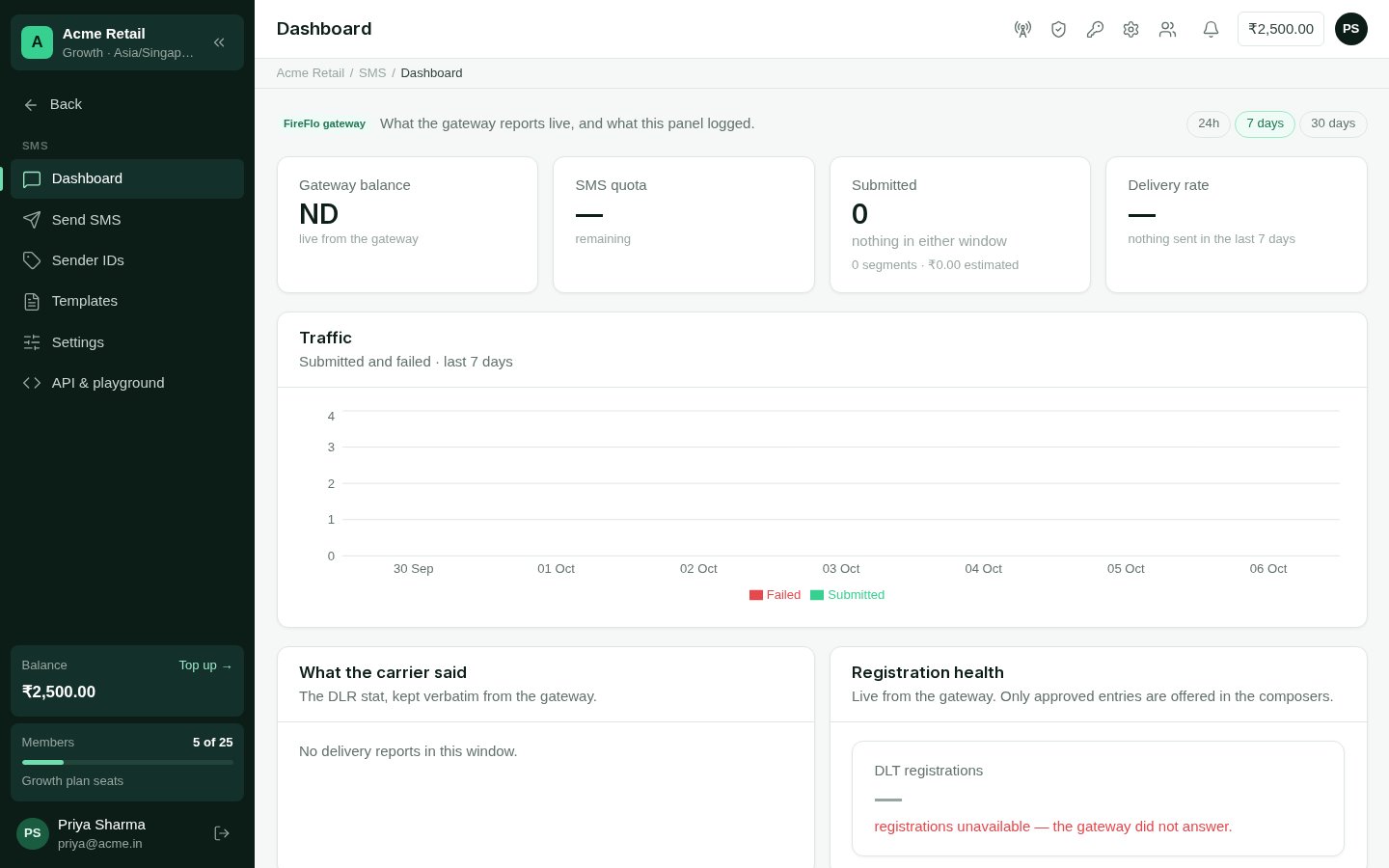
The SMS dashboard.
API & playground
People who can configure channels also see API & playground, when the plan includes API access: the SMS gateway’s own API with its documentation, a live runner and code samples. For sending from your own software, most integrations use the OMNI API instead, which also manages sender IDs and templates.Replies, opt-outs and limits
- Replies arrive in the Inbox in the person’s SMS thread.
- STOP stops a person on every channel; do-not-contact and quiet hours are always honoured. With the Customer data battery, people can stop SMS alone, or SMS marketing alone.
- When your provider enforces approval, a message from an unapproved sender ID, or one that matches no approved template, is refused. See Sender IDs and DLT.