
Your plan must include Customer data. Without it, every contact still keeps its
messages and activity, and a STOP reply still stops messages — on every channel at once.
Audiences
An audience is a group of people described by rules — “added to cart in the last 7 days and didn’t order”. People join and leave as they match, within a few minutes of what they do. Open Audiences from the menu.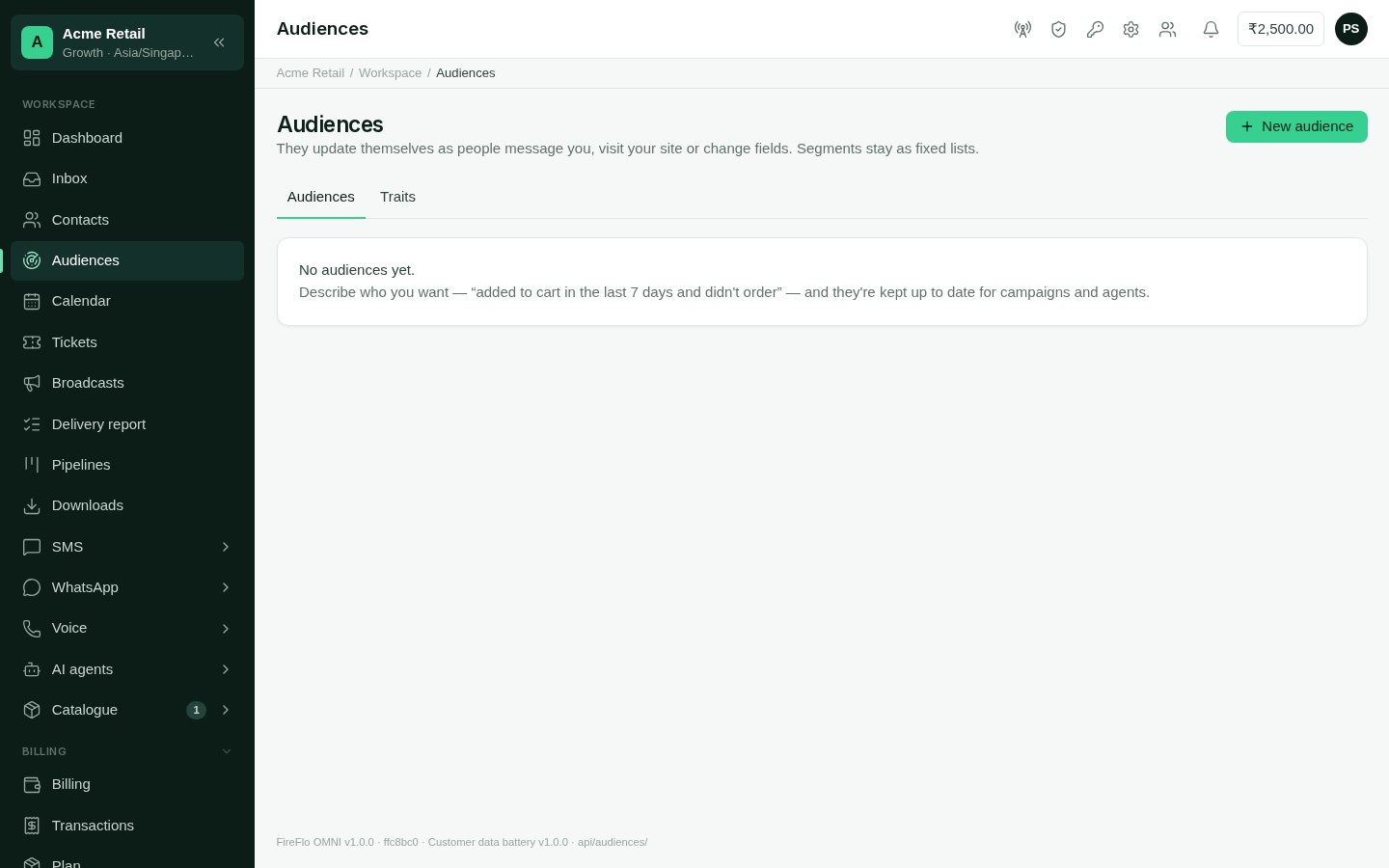
Audiences
Build an audience
1
Name it
Choose New audience, and give it a name and, if you like, a description.
2
Add conditions
Choose whether people must match all or any of the conditions. You can add up
to 20 conditions in up to 5 groups.
3
Check who matches
Matching right now counts as you edit, and Sample shows some of the people.
4
Save
Choose Save audience. OMNI works out who’s in, and keeps it current from then on.
Used in shows where an audience is used. An audience can be:
- the recipients of a broadcast on SMS, WhatsApp or RCS — see Broadcasts;
- what starts an AI agent’s workflow, when someone joins or leaves it — with AI Agents;
- a condition in another audience.
Traits
Traits are facts worked out for every contact from their messages, visits and deals. See them under Audiences → Traits, and on each contact’s page. Built-in traits include Last engaged, Last message from them, Last message to them, messages each way over 90 days, Reply rate · 90 days, Delivered rate · 90 days, Preferred channel, Lifetime value and Open deals (from Pipelines), Activity · 30 days and First seen. Messages on SMS, WhatsApp and RCS all feed them. You can add a custom trait worked out from an event your website or server sends: how many times it happened, when it last happened, or the total of a number in it, over the last so many days — “Cart adds · 30 days”, for example.Duplicates and merging
OMNI looks for contacts that may be the same person every night: Same email, Same customer id, Same number, or Same name and email domain. When it finds some, Possible duplicates appears on the Contacts screen with a count.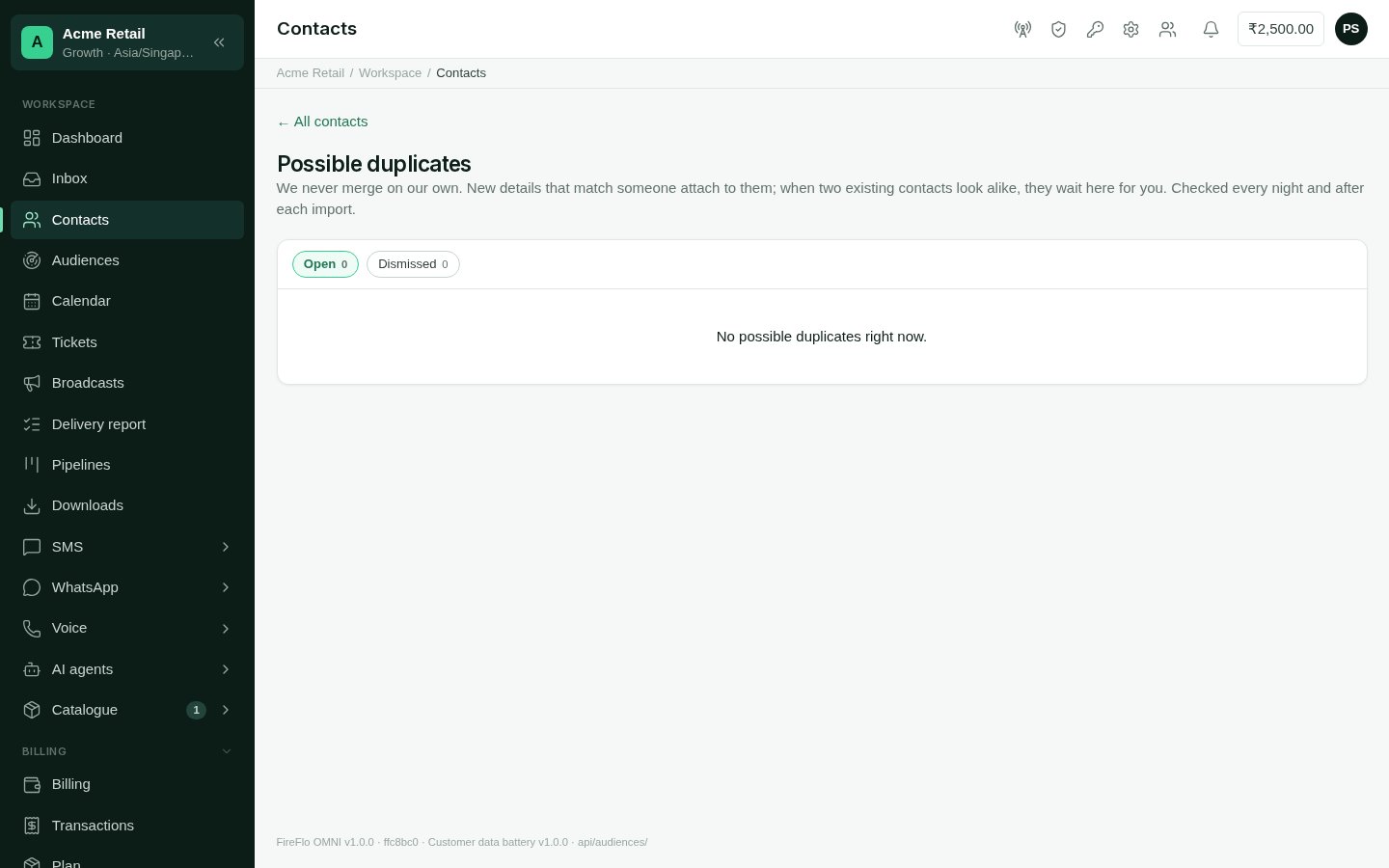
Possible duplicates
1
Open the pair
Choose Merge on the pair.
2
Pick what to keep
Where the two differ, pick which value to keep. Everything else from both is kept.
3
Merge
The other contact’s history moves to the one you keep. If both have an open ticket,
the older one is solved as merged.
Consent per channel
With Customer data, consent is kept per channel and per kind of message:- Marketing — campaigns, promotional templates, offers;
- Updates — replies, order and appointment updates.
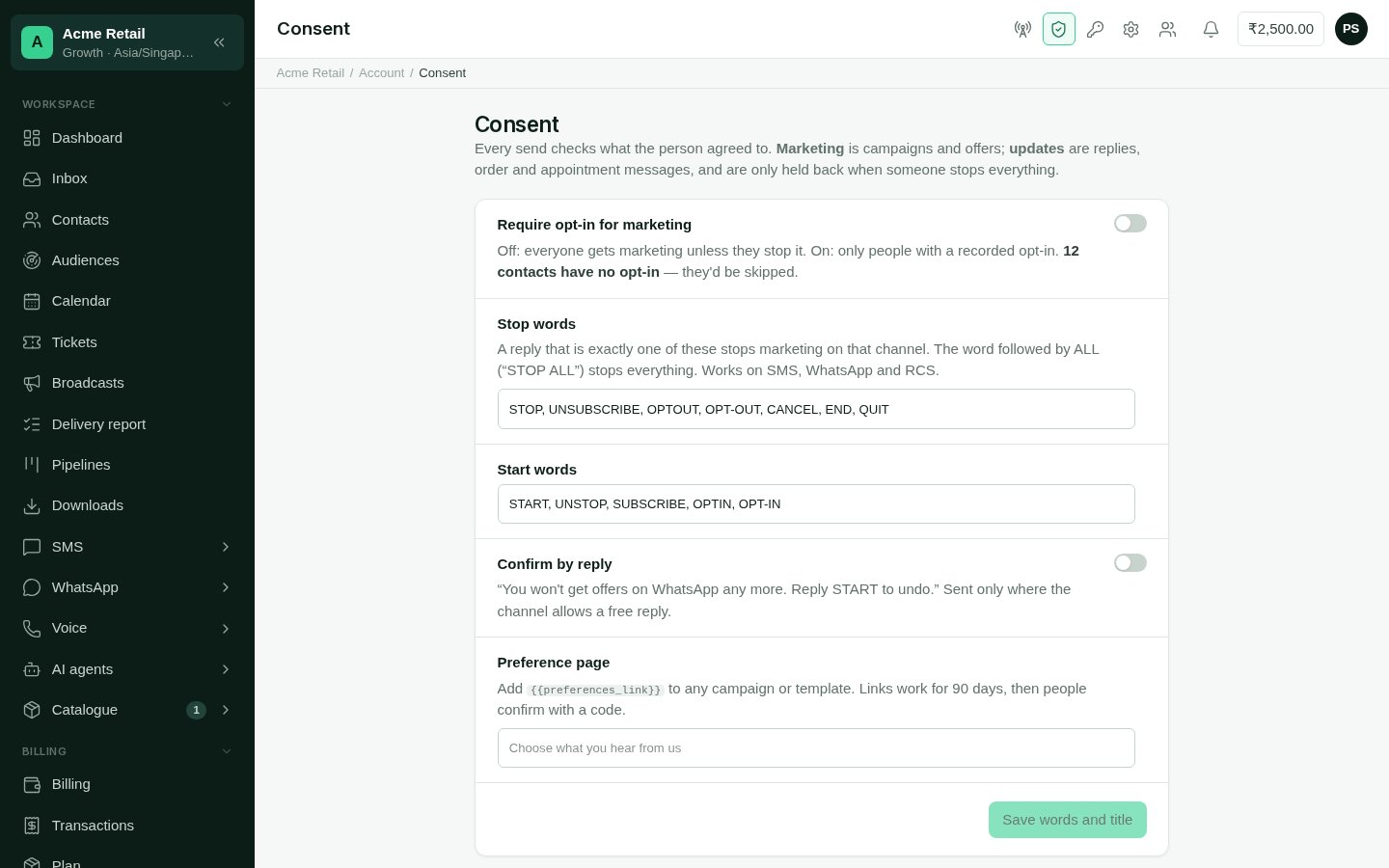
Consent settings
Held back · 7 days lists campaigns that skipped people who stopped or didn’t opt in.
The preference page
Add{{preferences_link}} to any broadcast or template. It opens a page where the person
chooses what they hear from you:
- Offers on each channel your account has, one switch each;
- Order and appointment updates, which are always on;
- Stop all messages.
Data sources
Settings → Data sources takes in what customers do on your website and in your own systems. Events join the contact they belong to and show on their timeline; they can feed audiences and custom traits.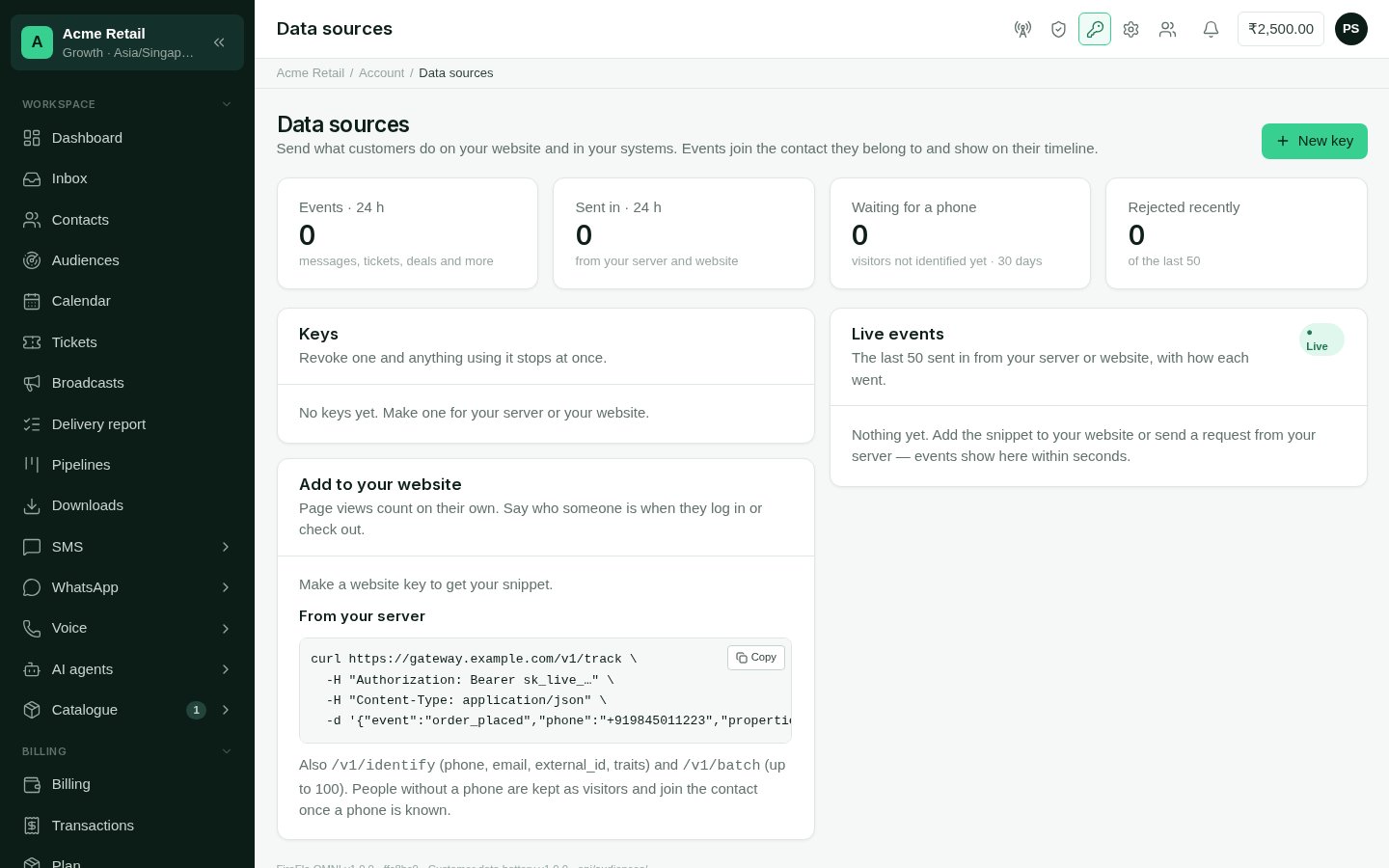
Data sources
Keys
Choose New key and say where it is used:
Revoke a key and anything using it stops at once.
Sending events
- From your website: make a website key to get your snippet, and add it to your pages. Page views count on their own. Say who someone is when they log in or check out.
- From your server: the screen shows a ready example with your key. You can identify people (by phone, email or customer id, with traits), send single events, or send up to 100 at a time.
Who may use Customer data
An Owner or Admin can change these on the Roles screen. See
Team and roles.