
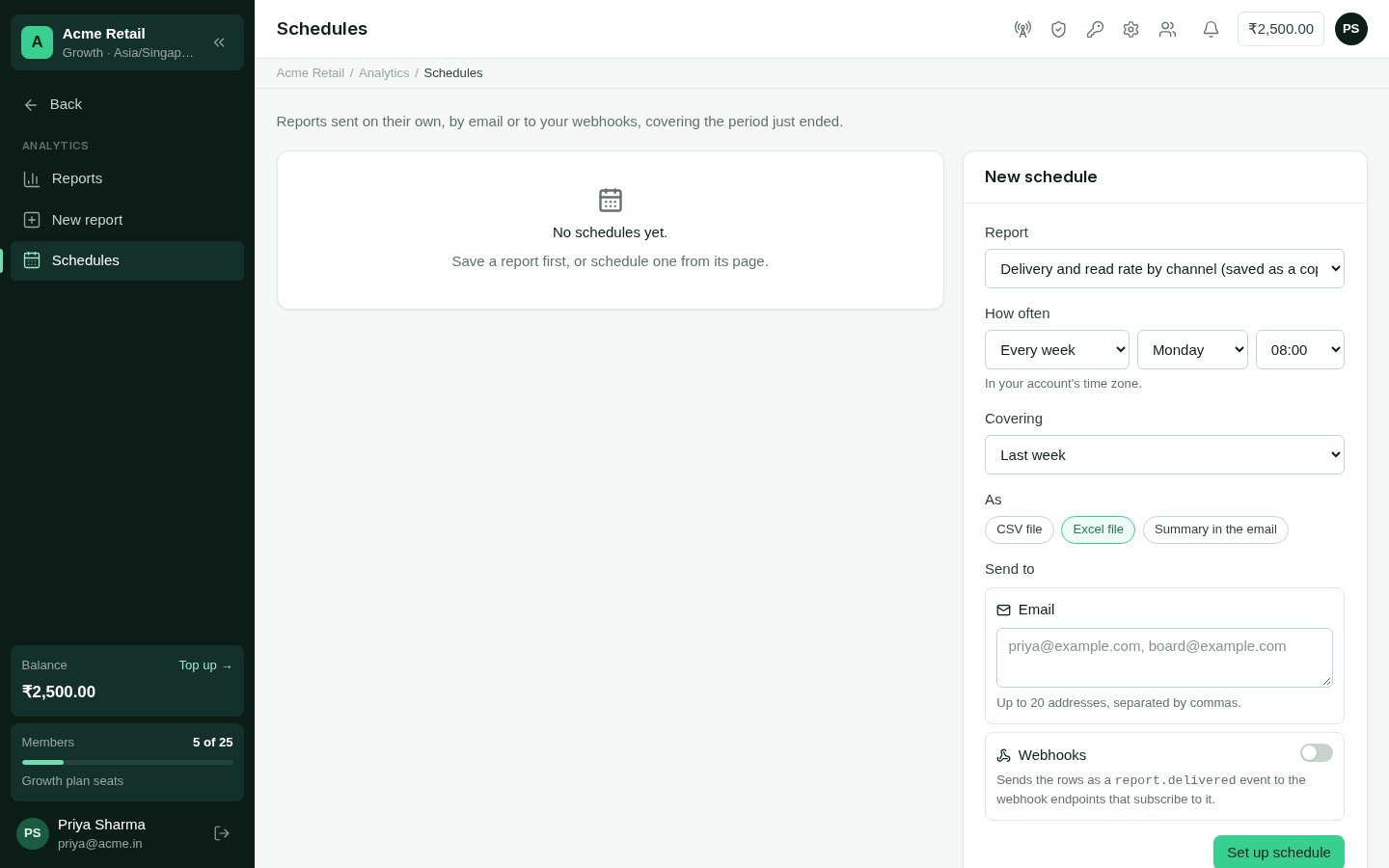
Schedules: each schedule, where it goes and how its last run went, with the form beside.
Setting one up
Open a report and choose Schedule, or Analytics → Schedules → New schedule. Scheduling a built-in report saves a copy of it, shared with your team, and schedules the copy.1
How often
Every day, every week (on a day you choose) or every month (on a day from the 1st to
the 28th), at an hour — in your account’s time zone. A report goes out within a few
minutes of that hour.
2
Covering
The period each report covers: yesterday, today so far, last week, the last 7 days,
this month so far, last month, or the last 30 days.
3
As
A CSV file, an Excel file, or a summary in the email: each total, with its
change when the report compares, and the first 25 rows.
4
Send to
Email — up to 20 addresses — and, if your account has the OMNI API, Webhooks.
By email
The email comes from the same sender as the panel’s other emails, with the report’s name and period in the subject. A CSV or Excel file is attached when it is 10 MB or less; a larger one stays in Downloads, and the email links there.To webhooks
With the OMNI API in your plan, a schedule can send the report to your own systems as a signedreport.delivered event — retried and logged like every other webhook. At least
one of your webhook endpoints must listen for
report.delivered; until one does, the schedule can’t be set to send there.
The event carries the report’s columns, totals and up to 1,000 rows, and the address of
its file for the rest. See Reports through the API.
Keeping an eye on them
The Schedules page lists each schedule with where it goes and how its last run went.- On switches a schedule off and on.
- Send one now sends it at once, outside its schedule.
- Recent runs shows the last twenty: when, the period covered, and why one failed.
- Change and Delete do what they say.