
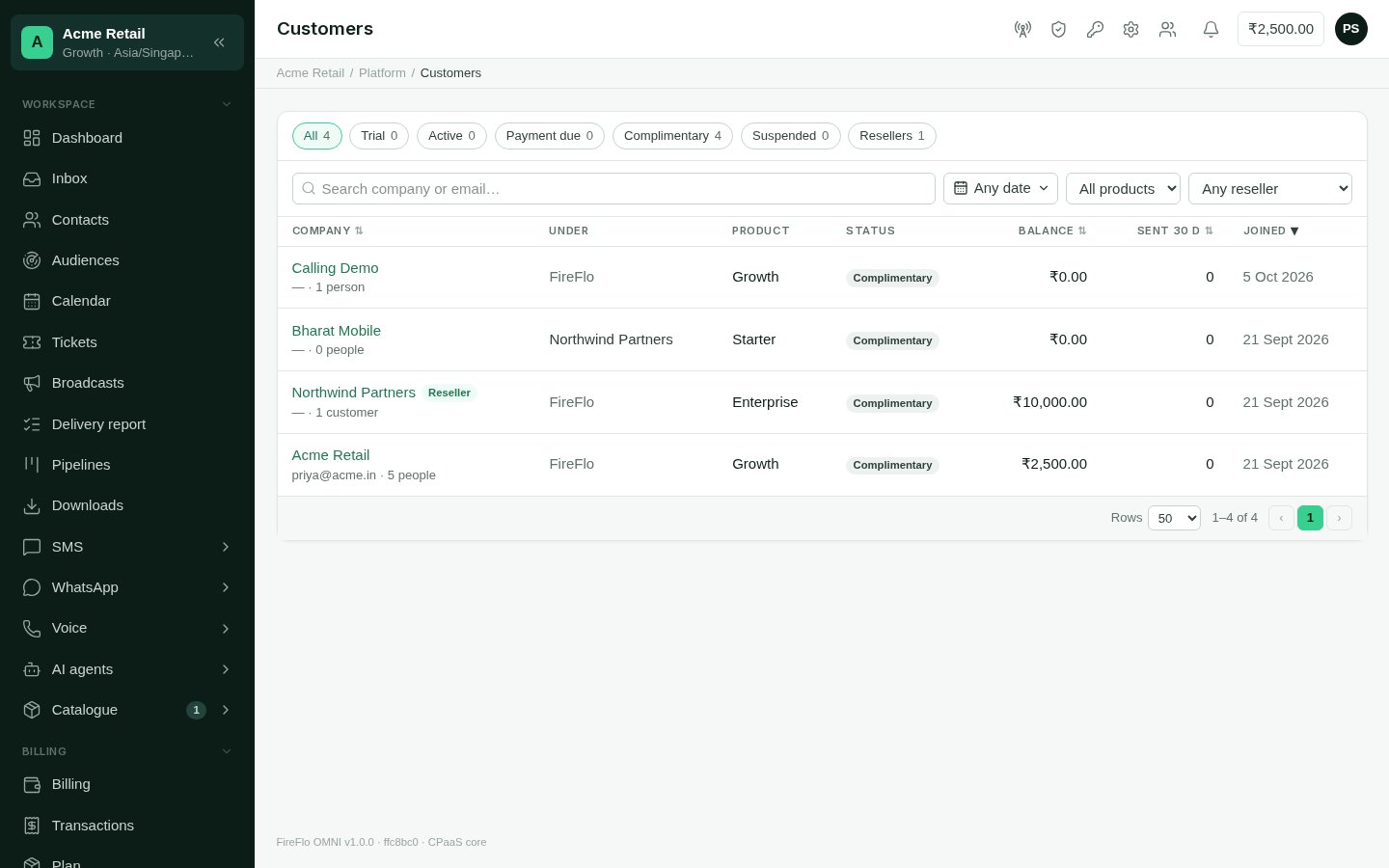
Platform → Customers: every account, its product, status and balance.
The list
The chips along the top filter by status and show how many accounts are in each:
Each row shows the Company with its owner’s email and how many people it has (for a
reseller, how many customers). It also shows who it is Under (FireFlo, or the
reseller it belongs to), its Product, Status, wallet Balance, messages
Sent in the last 30 days, and when it Joined.
Search by company name or email. You can also narrow the list by the date the account
joined, by product, or to one reseller’s customers. Sort by name, balance, messages sent
or joining date.
A customer’s page
The top of the page shows the company, its status, its owner’s email and the Suspend button. The tabs below hold everything else.Overview
Account shows the company, owner, time zone, who it is under, whether it is a reseller, its number of people and when it joined. Select Edit to change:- Company, its name.
- Time zone, as a name such as
Asia/Kolkata. - Monthly price, a price for this customer alone. It survives a change of product.
- They resell to their own customers, which makes the account a reseller. You can’t turn this off while it still has customers of its own.
- Change the product. What’s included changes straight away. The new product’s price applies from the next payment, unless the customer has a price of their own, which is kept. Changing product never starts another trial, and you can only choose an active product.
- Make the account complimentary. Tick Complimentary (never lapses). Untick it to put the account back on paid terms. Its status then follows its trial and paid dates again.
- Extend the trial. Enter 1 to 365 days and select Extend. The days are added to the trial’s current end, or to today if the trial has already ended.
Team
Everyone who can sign in, with their roles, when they last signed in, and whether they are active or still have an invitation pending. The customer runs their own team. This tab is for reading.Customers (resellers only)
A reseller’s page has a Customers tab listing the accounts under it, in the same table as the main list. See Resellers.Modules
The channels, batteries and pluggable modules (such as the OMNI API) this account has, and why. Each row is badged:
An override bends the product for this one account. It doesn’t change the product.
1
Open the override
Select Override (or Change) on the row.
2
Say why
Under Why, write the reason, such as “Negotiated at signup”. An override stays in
place when the customer changes product, so someone will need to know why it is there.
3
Set a limit if it has one
Leave Limit blank for no ceiling. The product’s own limit is not borrowed. If the
feature has a ceiling, such as a number of AI agents, enter it here.
4
Switch it on or off
Select Switch on or Switch off.