
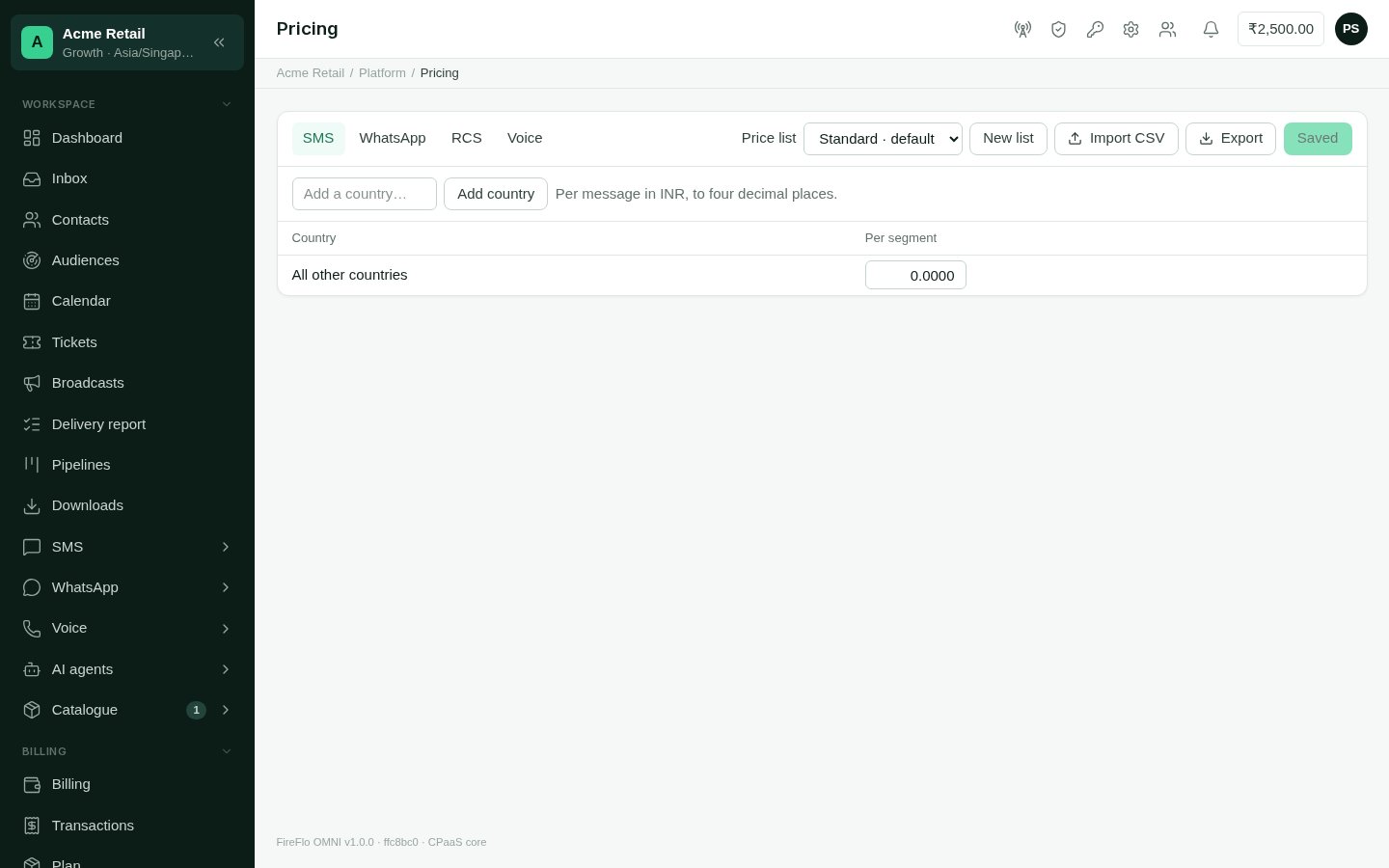
Platform → Pricing: one channel's prices in one list, a country per row.
Which price a customer pays
Three questions decide the price of one message:- Whose list? The customer’s own list if you’ve given them one. Otherwise, the list their product carries. Otherwise, the default list.
- Which row? The row for the recipient’s country. If that country has no price of its own, the All other countries row applies. That means a country nobody has priced still has a price.
- Is there a markup? A reseller’s customer pays its reseller’s markup on top.
What each channel charges for
Only channels this deployment carries appear as tabs.
Set prices
1
Choose the channel and list
Pick the channel from the tabs, and the list from Price list. The default list is
marked · default.
2
Add the countries you price
Type a two-letter country code in Add a country… and select Add country. The
All other countries row is always last.
3
Enter prices
Type each price in the currency shown above the grid, to up to four decimal places.
Changed rows are highlighted. Clearing a cell removes that price, so the country falls
back to All other countries for that kind.
4
Save
Select Save N changes. Only the rows you changed are sent, so two people pricing
different countries at the same time don’t overwrite each other.
Many countries at once
Select Export to download the channel’s prices in the chosen list as a CSV: acountry column, then one column per kind. Edit it and bring it back with Import
CSV. The import sets every price in the file and leaves the rest alone. An empty cell in
the file changes nothing. A file can hold up to 2,000 rows. Use * as the country for
the All other countries row.