
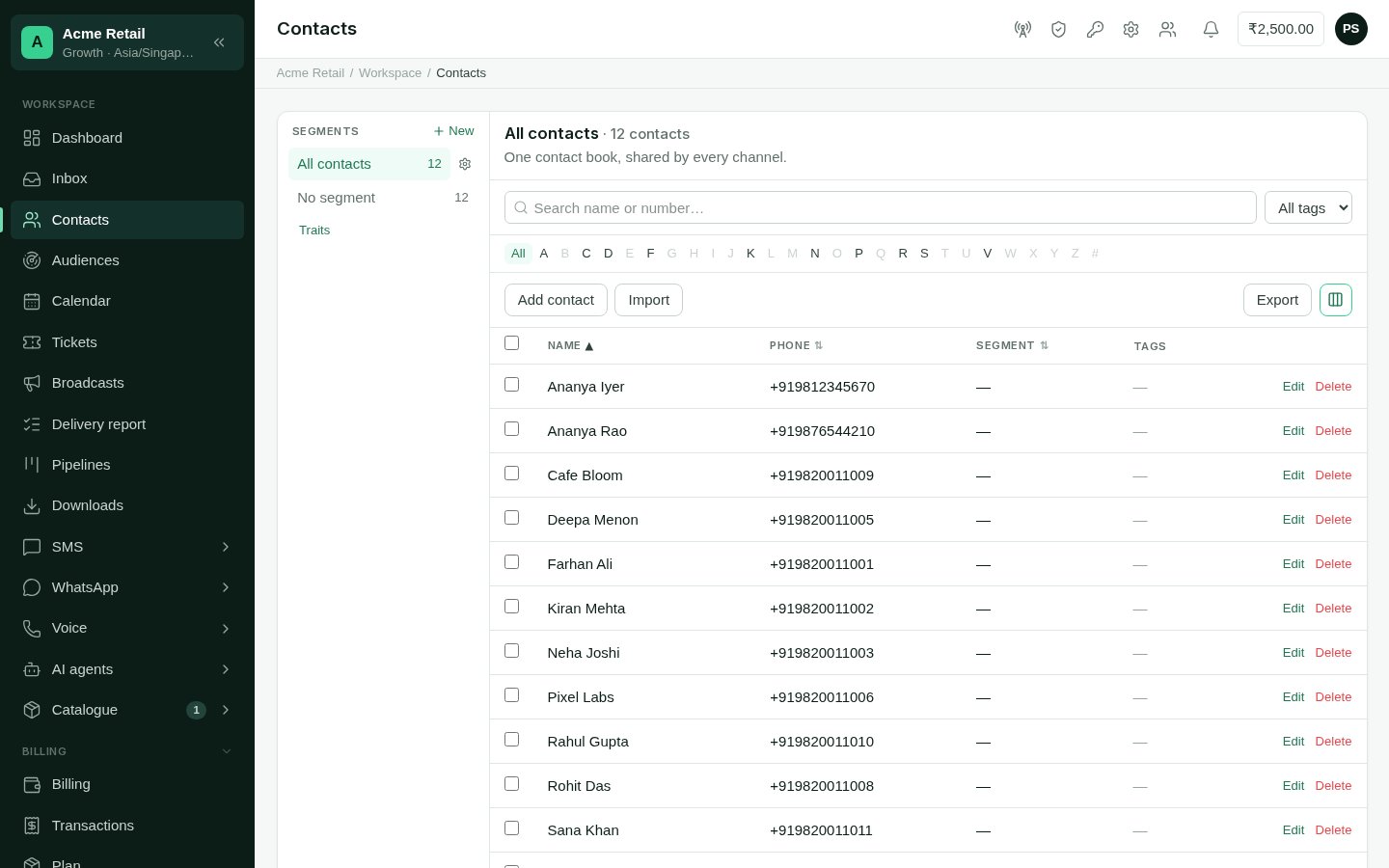
Contacts: segments on the left, the chosen segment's contacts in the table.
Segments, fields and tags
- Segments are the groups down the left: All contacts, each segment, and the contacts in no segment. A contact is in one segment at a time. Make a new segment from the list; rename or remove one from the gear beside it.
- Fields are what you know about a person beyond their name and number: an email, a loan amount, a renewal date. Shared fields apply to every contact; a segment can also have fields of its own. Set them up from the gear beside the segment (or beside All contacts, for shared fields). The table’s columns follow the segment’s fields.
- Tags are labels you can put on any contact, in any segment.
Finding people
- Search by name or number.
- Pick a tag, or a letter from the strip to jump through names.
- Advanced search looks inside fields: a value, a range of numbers or a range of dates.
- The column picker chooses which columns show, per segment.
Adding and changing contacts
1
Add one
Choose Add contact, and enter a name, a phone number and, optionally, a segment.
2
Change many at once
Tick contacts in the table to apply a tag, move them to a segment, or delete
them. Deleting can’t be undone.
Importing a file
1
Upload
Choose Import, and drop a CSV or Excel file (also TSV or plain text), up to 25 MB.
2
Map columns
For each column, say what it is: the phone number (required, and only one), the name,
an email or customer id to recognise people by, a field, or + New field. Choose
Don’t import to skip a column.
3
Options
Choose what happens when a number is already in your contacts:
Optionally, put everyone in a segment and add tags to everyone.
4
Import
The import runs in the background; you can close the page. When it finishes it
shows how many contacts were created, updated, skipped and refused. Find it again
under Past imports.
Importing never deletes contacts or opt-outs. Someone who replied STOP stays stopped,
even if they are in the file.